
Windows 7 and Windows Live Photo Gallery make importing photos from your camera very quick and easy. Here is how to set up your system and how import photos quickly.
Setup camera on Windows 7
Connect your camera to your computer using a USB cable. Turn on the camera. If this is the first time that the camera is connected to the computer you will see something like this near the right end of the Taskbar.
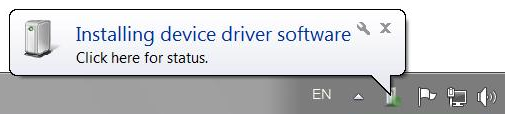
Windows 7 will install the needed driver software as soon as it sees the camera. This will take but a few moments.
 The camera device window will open, it is show below. (If it doesn’t open automatically, click the camera icon on the Taskbar.
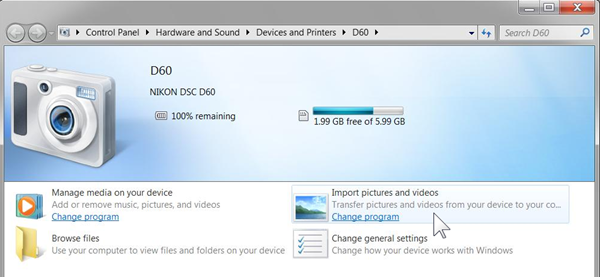
The window will show a variety of information. The illustration is for a Nikon D60 camera, for another camera the information will be similar. Of concern here is the 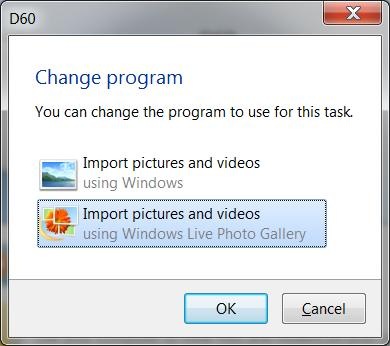 option labeled “Import pictures and videos”. Click on “Change program”.
A dialog windows opens like the illustration on the left. The default option is “Import pictures … using Windows. For much better control and more options use Windows Live Photo Gallery to import the photos. So click on “Import pictures and videos using Windows Live Photo Gallery”. Then click OK.
Next click “Change general settings”. In the next dialog, click on the option bar that says “Take no action”.
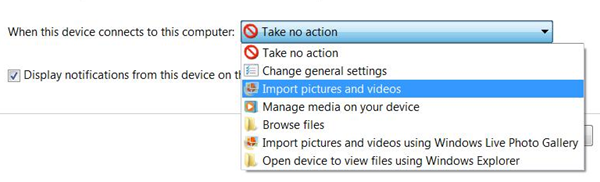
Click on “Import pictures and videos”, then click OK.
Windows is now set up. Turn off your camera. The camera icon will disappear from the Taskbar. Next set up options in Windows Live Photo Gallery.
Set import options in Windows Live Photo Gallery
Open Live Photo Gallery and click the blue “File” tab (upper left). Click Options. In the next dialog click the Import tab.
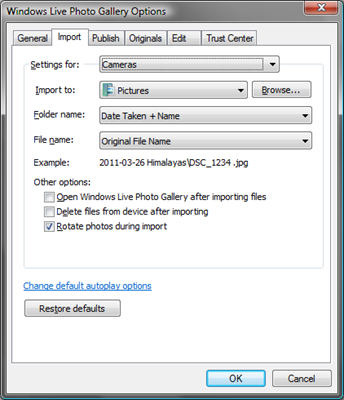
Here a number of options can be set. Since you are setting up importing from your camera, leave the setting for “Cameras” and keep the import destination of “Pictures”. Your Pictures folder is the proper place to keep photos.
As photos are imported new folders can be created for the photos. There are a number of naming conventions you can select from. I like “Date Taken + Name”, this is illustrated here.
You can also choose the file name format. My preference is to keep the file names that the camera has assigned to them.
The dialog window contains an example to show how the folder names and file names will appear according to the settings you select.
There are three other options. Check what should happen. Then click OK.
This completes the setup of your computer for importing photos. So let’s try it out. Close Windows Live Photo Gallery.
Importing photos from the Camera
Connect the camera with a USB cable to the computer. Turn on the camera.
Windows will recognize the camera and start carrying out the option that you have set  up. Momentarily you will see a window telling you that Windows is “looking for photos and videos…”.
As soon as it has finished analyzing the photo files on the camera, an new dialog window with more options opens up.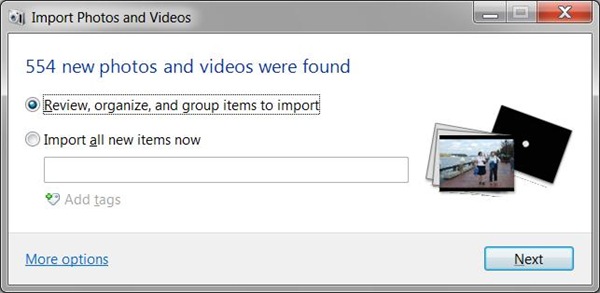
This may look like the one illustrated here. It will show the number of photos on the camera and display two options. I like, and recommend, the “review” option. There are additional choices that can be made using that approach.
Make your selection and click Next.
If you chose the review option you get something like this:
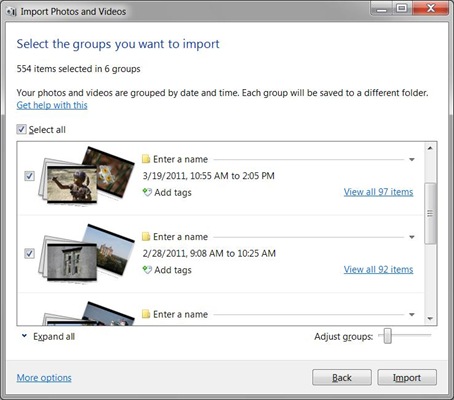
Photos will be grouped by date. You can change the grouping with the slider control on the bottom. You can enter a names for the folders that will be created for each group. You can also specify tags that will be common to all the photos in a group. This can really help you get your organizing of the photos underway. Click on “Enter a name” to enter the folder name (or the name part of the folder name). Click on Add tags to get this started.
Separate different tags with semicolons. Here is an example with information filled in:
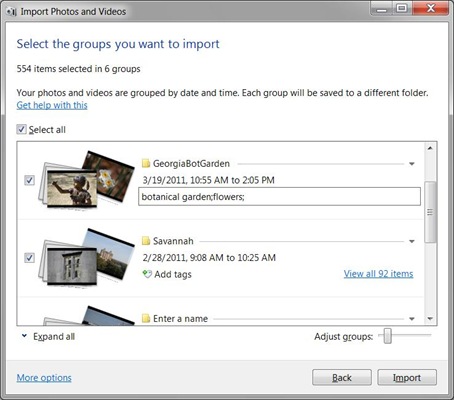
Note that you can inspect the photos in each group – click “View all … items”, and can even check or uncheck the individual photos to be imported.
To proceed, click Import.
Windows Live Photo Gallery now imports your selected photos, creates folders named in accordance with your settings, and places the grouped photos into the folders. If you have set the “Open … Photo Gallery after importing…” option, Windows Live Photo Gallery will open once the photos have been imported showing the photos.
.
.:.





 Ask Ludwig