How do I link multiple Windows Live accounts?

UPDATE – July 2013: Sorry folks, Microsoft no longer allows linking of accounts.
The post below is no longer of use. Bummer.

Windows Live with SkyDrive and Hotmail makes the “cloud” experience fast and easy. If you have more than one account, linking them makes switching between then a one-click operation.

Many folks have more than one account, a personal one, and maybe a work-related account. Linking them makes switching easy, but does not affect the files or organization of either account. link-10Each account still keeps all its settings and preferences, all the folder and album organization.

Linking the accounts is also straight-forward, here is how to go about it:

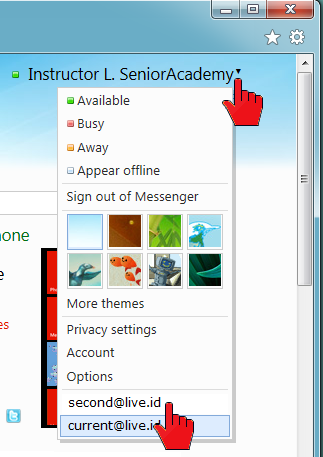
Click on your name or move the pointer over the down-pointing arrowhead behind your name (top-right of window). See the illustration. On the drop-down menu click Account.

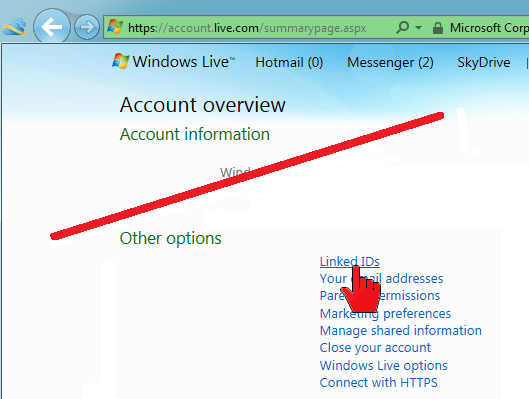
Sign in to the page with your password. On the Account overview page, toward the bottom, in the Other options sections, click on thelink-11 Linked IDs link.
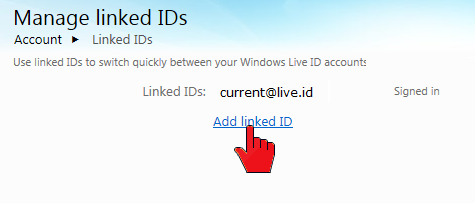
The Manage linked IDs page shows what accounts are linked and has an Add linked ID link.

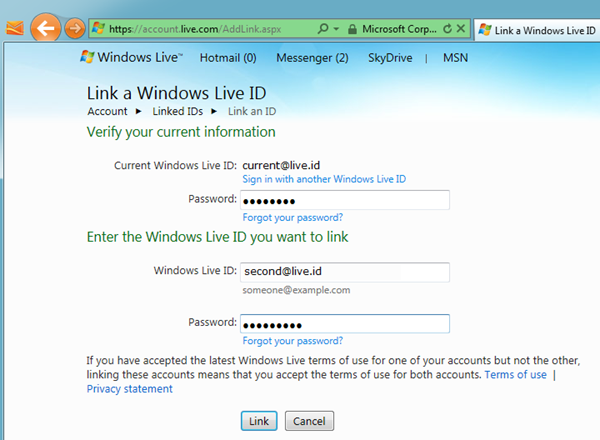
Click it to proceed to the Link a Windows Live ID page.link-12
link-13Once more your password is needed. Type in the credentials for the account you wish to add. Then click Link.

The Manage linked IDs page now shows the linked accounts. Note that there is an Unlink option to the right of each linked account name – you can unlink an account at any time.

How do you switch accounts?link-15
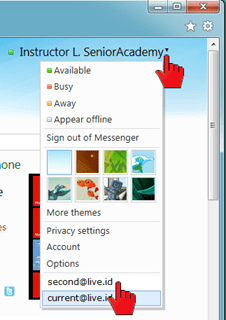
With linked accounts all you need to do is click on your name or move the pointer to the down-pointing arrowhead behind your name.

The drop-down menu will show the linked accounts at the bottom. The active, displayed, account is highlighted. Just click on another account and the switch is made.

Note the other options on the drop-down menu. I like to assign different themes to my different accounts to keep myself reminded of which account I am in.

I also set Keep me signed in on the sign-in page. This way I do not need to sign in each time I want to visit SkyDrive or my mail.

.:.

© 2011 Ludwig Keck

Can I send photos to a SkyDrive album via email?

Update 6 April 2012: As of May 2012 this feature will no longer be available.

Yes, you can send photos to your SkyDrive albums via email. Windows Live SkyDrive offers a large amount of free storage and some nice photo album features. Normally you upload with a drag-and-drop procedure or, even easier, directly from Windows Live Photo Gallery.

ULbE-01pSending photos to a prime-level SkyDrive album via email is another very useful option. The procedure must be enabled first.

Here is how:

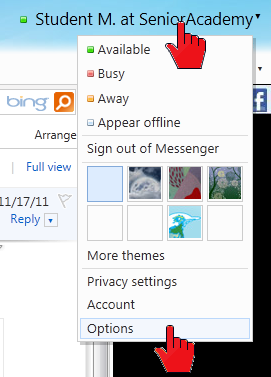
Log in to your Windows Live account. In the upper right corner click on your name. In the drop down menu, click Options. See the red pointers in the illustration here.

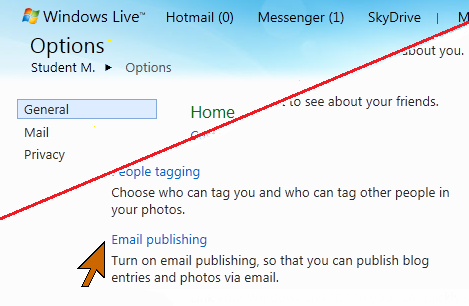
imageOn the options page in the lower right corner find and click Email publishing.

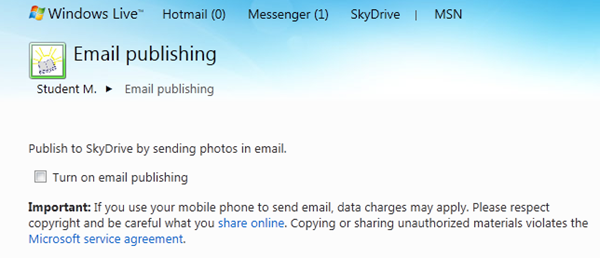
This takes you to the Email publishing page. Most of the page is greyed out until you click the Turn on email publishing check box.image

When the form is enabled, there are four steps:

  1. Enter the email address (up to three) from which photos can be sent to a SkyDrive album. Note that photos sent from any other address will not be delivered to the album, the email will just be lost.
  2. Enter a “secret” word. This will become part of the address for sending the photos. This is just used to make the process more secure. (No spaces in this word!)
  3. Select album codes. This is an optional step, codes, three-digit numbers, are pre-assigned to your albums. You can change these, but the ones offered will work just fine.
  4. Click the Save button.

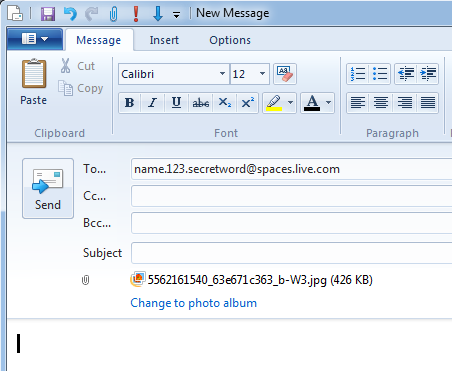
Once you have saved the information, there will be a display of the email addresses for sending the photos. Each album – and this is only for the prime-level albums, it does not work for albums inside other albums – has a unique email address. The address looks like this: name.album.secretword@spaces.live.com. Where name is a name derived from your name, it may be slightly different from your user name – be careful with that! The album will be the three digit album number (or other, if you changed it) to identify which album it is. The secretword is the word that you specified.

imageTo send photos to an album you must originate the email from an email address you specified on this page. Attach the photo or photos to the email. Do not use the Photo album feature in Live Mail. Do not “Change to photo album”.

Be sure to use the correct email address from your Email publishing page.

If using Hotmail use Insert: Attachments, do not use the Photos link.

Enter a subject and message if you like so you can find and see the email in your sent messages. Only the photos get to your album, no messages, no hint that they were sent via email. Only JPG photos can be sent to albums, this does not work for sending documents, just pictures.

.:.

© 2011 Ludwig Keck

Can I put a shortcut to SkyDrive on my Windows 7 desktop?

You certainly can, however, you need to use Internet Explorer 9. Sign in to your Windows Live account. Click “SkyDrive” on the menu bar to display your SkyDrive contents page.

If your browser is maximized, click “Restore down” and resize the window so you can see some blank area of your desktop.

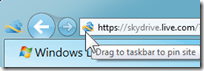
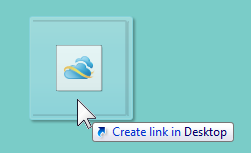
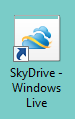
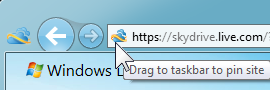
In the browser address field note the small SkyDrive logo in front of the address. Move your pointer to that symbol. The message balloon will say “Drag to taskbar to pin site”. Drag the little logo to a blank area of your desktop. The SkyDrive logo will be bigger and the imagemessage balloon will say “Create a link in desktop”. imageJust let go the mouse button to drop the link. You will now have a desktop shortcut to your SkyDrive.

If you opted to “Keep me signed in” the last time you signed in to Windows Live, this shortcut will launch your browser and take you right to your SkyDrive page. Just double-click the icon.

.:.

© 2011 Ludwig Keck


How do I pin SkyDrive to the taskbar in Windows 7?

The Windows Live SkyDrive is easier to use than ever. Here is how to pin a SkyDrive shortcut to your taskbar in Windows 7.

Note: You can do this only when using Internet Explorer 9.

Sign in to your Windows Live account, on the menu line click SkyDrive. imageWhen your SkyDrive page is displayed note the browser address field. It will show a little SkyDrive logo ahead of the address as shown in the illustration here.

When you hover the pointer over that logo the little message flag says: “Drag to taskbar to pin site”.image

Do just that.

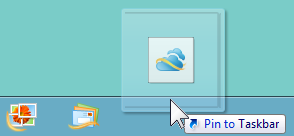
The SkyDrive logo will then appear on your taskbar. Whenever you want to open SkyDrive just click on the logo.

If you have elected to “Keep me signed in” the last time you signed in to Windows Live, Internet Explorer will launch and go right to your SkyDrive when the taskbar logo is clicked.

That’s all it takes.image

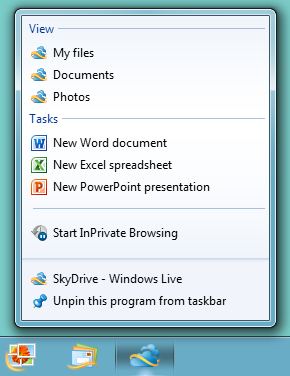
But wait! There is more: That link on the taskbar can do more than just take you to your SkyDrive files. Right-click on the icon and you can select to go directly to see just your documents or just your albums. The same way as if you had clicked Documents or Photos on the drop-down menu from SkyDrive on your Windows Live home page.

You can even start a new Web Apps document, but, alas, it will be in the SkyDrive root, not inside any document folder.

Want to go to your Windows Live home page? Click on the taskbar SkyDrive icon. When your files page is displayed, click on image“Windows Live” in the upper left – that takes you right to your home page.

.:.

© 2011 Ludwig Keck