How do I import just certain photos from my camera to my computer?

Microsoft Photo Gallery provides a very flexible import tool. For the easiest way to use this tool, first set up your computer to launch it when you connect your camera. Check this post for instructions on setting up your computer: How do I import photos from my camera to my Windows 7 computer? 

To specify just the photos that you wish to import use the options in the import dialog. When the dialog opens the photos on your camera are shown in groups by the time/date the photos were taken. Import-09The groups that you have not yet imported are checked. Note the Select all option above the listings.
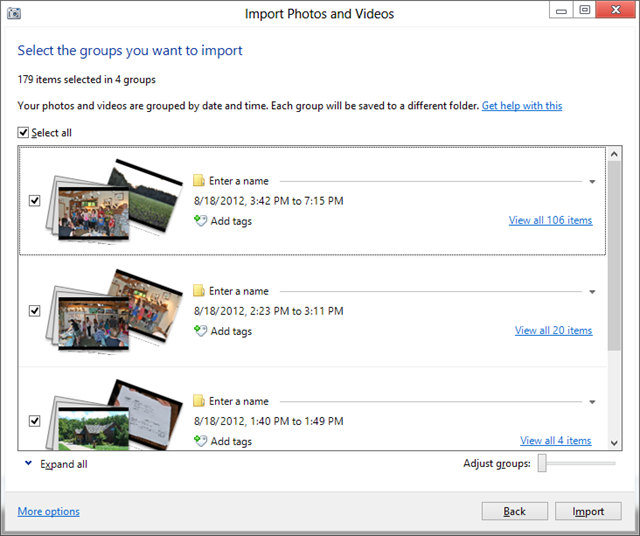
Click this several times to select all or to unselect all. You want them all unselected.

If you do not want the imported photos to be placed into multiple folders, adjust the Adjust groups slider all the way to the right. You will see the results in the main area.

Click the View all xx items link on the right of the listing to show thumbnails of all photos.

Now proceed through the thumbnails and select the photos you wish to import. Selecting works just as you expect. Click to select, click again to unselect.Import-14 
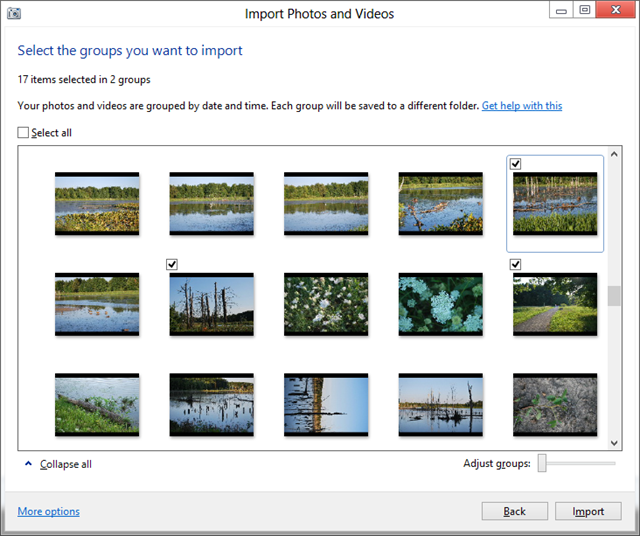
Note that the number you have selected is shown. You may have to scroll down and up if there are a lot of photos on your camera.

When you have made your selections click Import to complete the task.

.:.

© 2012 Ludwig Keck

LiveWriter-credit-360

Why do I sometimes get spots in my photos?

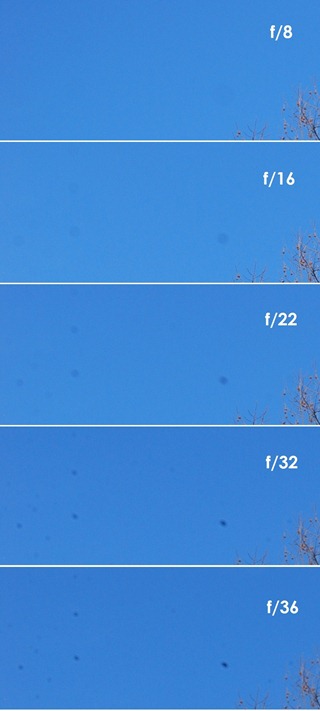
The full inquiry stated that the dark spots were usually seen in the sky part in photos and sometime they were almost indistinct, other times very noticeable. Spots in photoThe camera used was a DSLR and the lens kept clean.
Here are samples of such spots. These five photos (these are enlarged sections) show the same sky and tree at right. They were taken at different aperture settings, as indicated.

You can see that for large apertures (small f/number) the spots are larger and lighter. In the photos at even larger apertures the spots were not noticeable.

This explains the mystery of sometimes getting spots and not at other times – the aperture will, of course, be different for different photos. So sometimes, with a small aperture (large (f/number), the spots are there, and they are not visible in photos taken at large apertures.

These spots are made by very tiny dust flecks on the rear of the lens. Indeed, this dust was almost invisible to the naked eye. When the lens is stopped down the light bundle forming the image at any one spot is very small and even the tiniest dust particle can cast an appreciable shadow onto the sensor.

It is very easy to miss cleaning the rear of a lens. It is not exposed to the elements except when changing lenses, so you might not think about it. Normally we keep the rear caps on, so there are but a few seconds when dust can get on the rear of the lens. Unfortunately, that is time enough. So be sure to not only keep the front lens surface clean, but the rear of of lens as well.

(Oh, yes, I intentionally got dust on the rear element of a lens to take these photos – the things one has to do to investigate readers’ mysteries!)

.:.

© 2011 Ludwig Keck

How do I prevent creating sub-folders when importing photos?

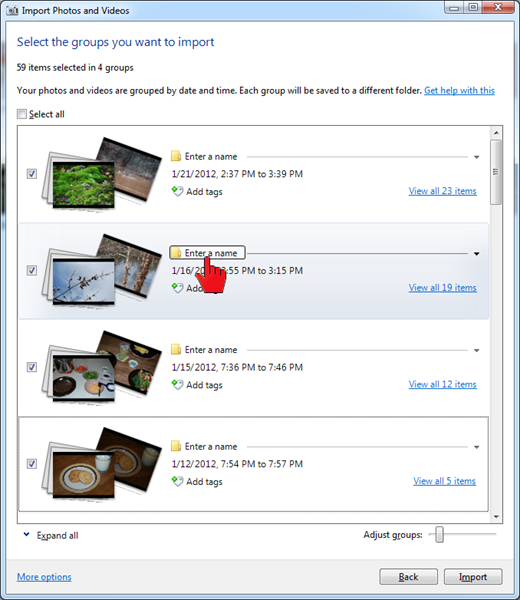
When importing photos from a camera, Windows Live Photo Gallery, in the default mode, creates a sub-folder for each group of photos on the camera. imageThe import dialog looks like the illustration here. The photos on the camera are presented in groups, ordered by date and time, usually one group per day. The grouping is adjustable. There is an “Enter a name” box for each group, see the red pointer in the illustration. If a name for the group is entered, the import procedure will create a sub-folder by that name. image

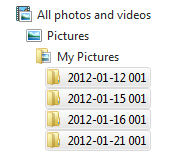
If no group name is specified, a sub-folder is created with the date when the photos were taken as the name followed by a number. For most of us, this is just fine. But what do you do if you don’t want sub-folders, but all the photos imported into one folder? Can that be done?

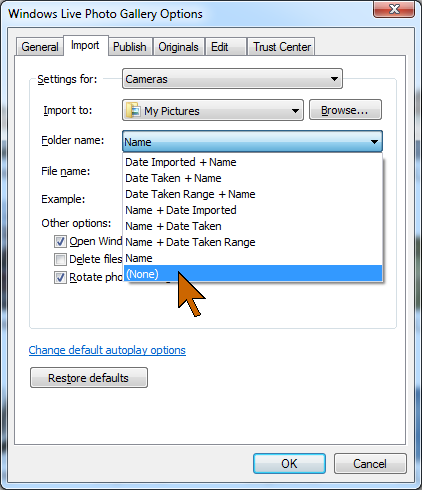
The process described above is for the default setting in Windows Live Photo Gallery. You can change the way photos are imported in the Live Photo Gallery Options menu.image

Click the blue File tab, then Options. Click the Import tab in the options dialog.

Click on the Folder name: selection, it is probably “Name”. The last item in the drop-down menu is (None). Click on this, then click OK.

When folder name “(None)” is selected, no sub-folders will be made and all photos will be imported into the folder specified in “Import to:”. Note the Browse button which allows you to specify any folder on your system for storing your imported photos.

.:.

© 2011 Ludwig Keck