
For a title slide or the cover photo of an album, you might want the title set in an attractive, 3D-effect text superimposed on a photo. How can you create that without an expensive special purpose application? Here is a method that uses Paint, a tool you already have on your computer.
Load your photo into Paint. With the Text tool (see illustration) draw a text box starting approximately in the upper left position of the intended text. 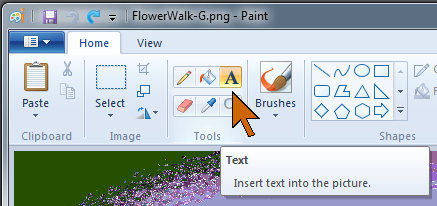
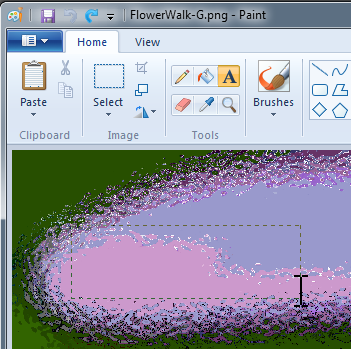
The text box will resize when you release the mouse button. You will now see a dashed box in your photo and the Text Tools ribbon opens. Type your title.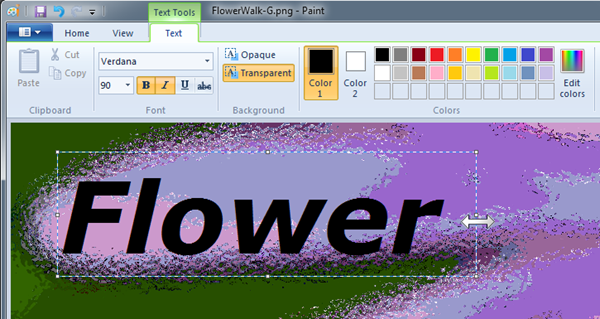
The Text Tools in Paint
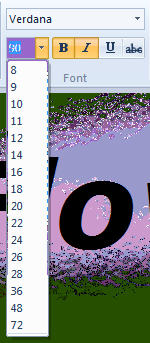 As long as you keep your pointer in the text box you can modify the text and the text box. There are resizing handles on the box – you know you can resize when the pointer changes to a double-ended arrow shape. You can select the text by dragging the pointer over it. You can change to any font on your computer. The font size box shows sizes from 8 to 72. You are not limited to these sizes. Just type in the size you want, even larger or smaller than the shown range, and the font will be changed to that size (note the size in the illustration above – it is set to 90).
The text will be set in the Color 1 selection. For 3D-effect, shadowed text, select the darker, shadow color. Position the text box to place the text. When the pointer is placed anywhere on the box outline, except near the resize handles, it changes to a four-headed arrow indicating that you can drag the box to another position. When you are happy with the text, font, and placement, click anywhere outside the text box. The text is now set. If it isn’t right, click Undo (or Ctrl+Z) and start over.
Next set the top color, normally a lighter shade, and open another text box and retype your title. Don’t worry about alignment, you can drag the text and place it precisely. 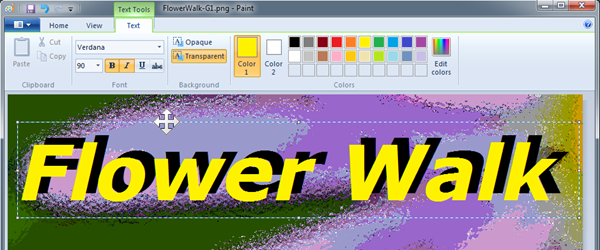
Drag the text box to position the text just the way you like. When you are satisfied, click anywhere outside the text box.
There are applications that can do a nicer job, but for shadowed text, Paint is easy and probably just as fast.
Lagniappe
(A lagniappe, pronounced “lan-yap”, is a small extra given to a customer at no charge, mostly in Cajun country.)
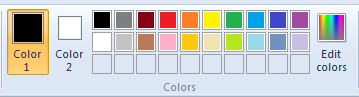 In Paint the selection of color is more flexible than you might think. There is an array of twenty colors to choose from. To set the color click the color number, Color 1 is the main one, Color 2 the “right-click” color, then click the box with the desired color. If that does not provide you with the exact shade, click Edit colors.
 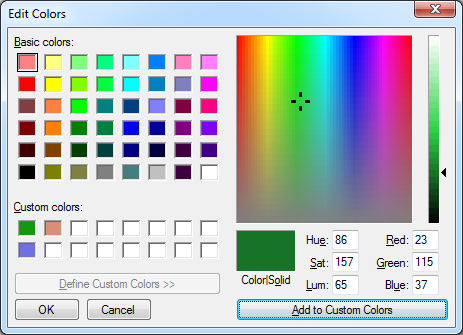 This opens an Edit Colors window. Here you have a wider selection of fixed colors and an opportunity to define custom colors. In the larger area you reposition the mark (drag it) to define the hue and saturation – color and intensity. The vertical slider control sets the luminance of that color. You can even enter numeric values in the fields to define the color. Click Add to Custom Colors and the specified color is added and will appear in the bottom row of color boxes. Click OK to complete the color selection.
When you open the Edit Colors window the color presently set as Color 1 will already be set in the custom area. I find this particularly useful when I want a lighter or darker shade of a particular color. The luminance control can be used to select the shade without affecting the hue or saturation. Remember that the Color picker tool (the eye-dropper in the Tools area) can be used to pick a color from any place in a photo. This color can then be adjusted with Edit colors. Neat!
.:.
© 2011 Ludwig Keck



 Ask Ludwig