How do I install SkyDrive in Windows Explorer?

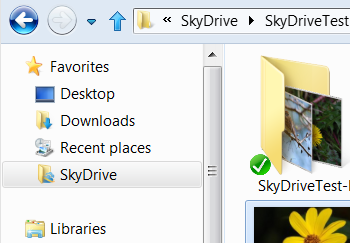
Microsoft released a preview version of the app “SkyDrive for Windows” that adds SkyDrive to Windows Explorer imageand allows accessing SkyDrive as if it were just another folder on the computer.

It is just a simple download and a quick install. This works for Windows 7 and Windows 8.

Here is the download site:

Download SkyDrive for Windows

Click the above link, you will next see the download banner. Click Run. Sign in to your Microsoft Account and follow the dialogs.SkyDrive-NEW-12

In about a minute there will be a SkyDrive listing in Windows Explorer, in the Favorites section as shown in the illustration above.

Presently that entry cannot be expanded like other folders, however it works the same in the main pane.

It takes a bit to synchronize Windows Explorer with your SkyDrive – there is still the Internet download and upload delay – but shortly SkyDrive will work like any other folder.

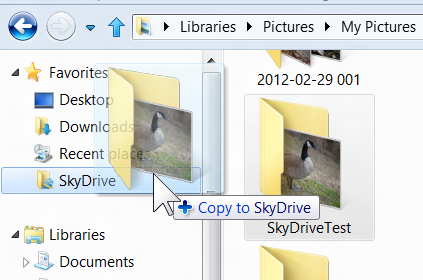
imageAnd, yes, you can now drag and drop folders, including contents and sub-folders, right into SkyDrive.

Do keep in mind that your Internet connect speed will affect how quickly this takes place.

This is a much needed improvement and will make SkyDrive a much more useful feature.

.:.

© 2011 Ludwig Keck

Why do I sometimes get spots in my photos?

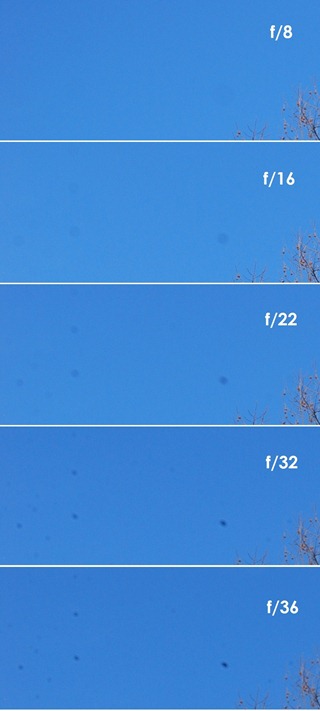
The full inquiry stated that the dark spots were usually seen in the sky part in photos and sometime they were almost indistinct, other times very noticeable. Spots in photoThe camera used was a DSLR and the lens kept clean.

Here are samples of such spots. These five photos (these are enlarged sections) show the same sky and tree at right. They were taken at different aperture settings, as indicated.

You can see that for large apertures (small f/number) the spots are larger and lighter. In the photos at even larger apertures the spots were not noticeable.

This explains the mystery of sometimes getting spots and not at other times – the aperture will, of course, be different for different photos. So sometimes, with a small aperture (large (f/number), the spots are there, and they are not visible in photos taken at large apertures.

These spots are made by very tiny dust flecks on the rear of the lens. Indeed, this dust was almost invisible to the naked eye. When the lens is stopped down the light bundle forming the image at any one spot is very small and even the tiniest dust particle can cast an appreciable shadow onto the sensor.

It is very easy to miss cleaning the rear of a lens. It is not exposed to the elements except when changing lenses, so you might not think about it. Normally we keep the rear caps on, so there are but a few seconds when dust can get on the rear of the lens. Unfortunately, that is time enough. So be sure to not only keep the front lens surface clean, but the rear of of lens as well.

(Oh, yes, I intentionally got dust on the rear element of a lens to take these photos – the things one has to do to investigate readers’ mysteries!)

.:.

© 2011 Ludwig Keck

How do I share a SkyDrive photo on Facebook?

SkyDrive provides for very detailed sharing. You can share albums, or individual photos in a variety of ways including sharing on Facebook. In this article I will describe the steps for sharing on Facebook.

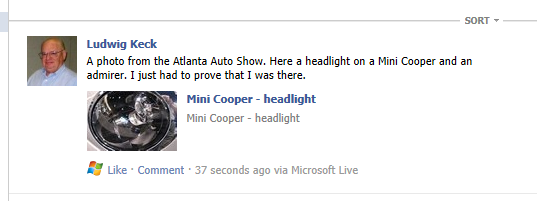
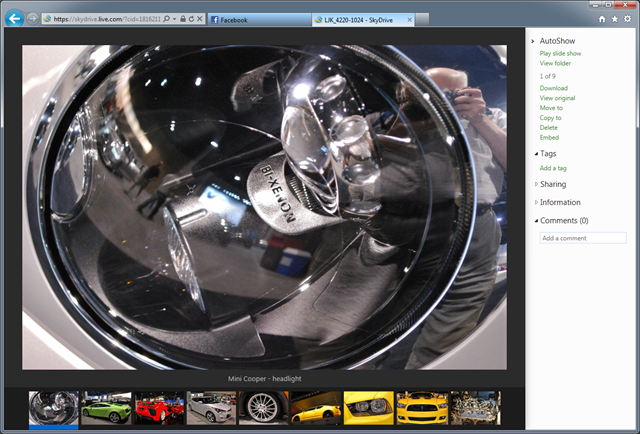
imageThe method provided on SkyDrive shares a link to the photo and its album on SkyDrive, the photo is not actually copied to Facebook. Here is an illustration of how it appears on Facebook. When a viewer clicks on the photo thumbnail or the title she will get something like this:image

The viewer is taken to the photo in your SkyDrive album. The other photos in the album will also be available if the album is public.

The procedure for sharing a SkyDrive photo on Facebook

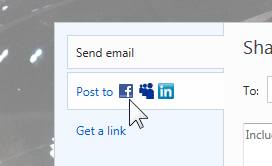
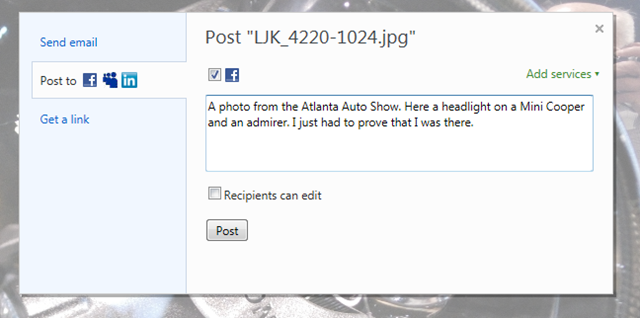
imageOn your SkyDrive go to the photo you wish to share. Click Sharing in the info panel on the right. Click Share in the expanded list.  The share dialog comes up. Click the Facebook icon, see the illustration here.

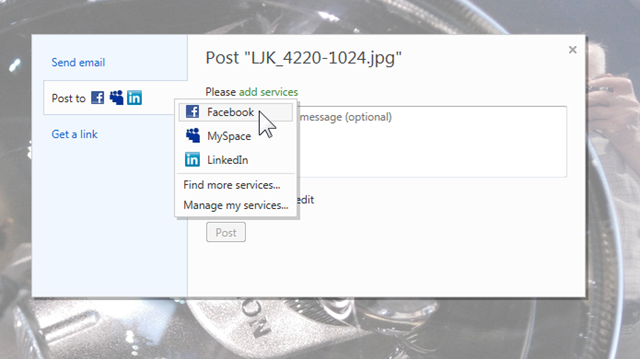
If you have not shared on imageFacebook before, click add service, then click on Facebook in the new menu. You will be taken through a number of dialogs to complete the connection to Facebook. Once that is complete, you can share to Facebook from the initial sharing dialog. When you click the Facebook icon in the Post to area, a checkbox with the Facebook icon is displayed. Click the checkbox. You can fill in the text of the message that is to appear with your Facebook post.image

Then just click Post and SkyDrive send a post to your Facebook page.

You saw above how that looks and learned what happens when a viewer click on the post.

If you wish for the photo to be copied to your Facebook Photos section, then you need to upload the photo from your computer. That can be done easily from Windows Live Photo Gallery.

.:.

© 2011 Ludwig Keck

Is there a quicker way to shut down Windows 8?

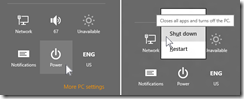
Yes there is. As has always been the case, there are several ways to accomplish any task. Let me review the “normal” procedure when using a mouse: image
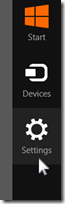
Run the pointer into the upper-right or lower-right corner. The “charms” will show up.

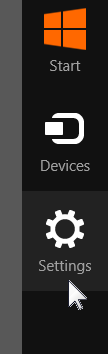
  • Move the pointer to the Settings charm and click on it.image
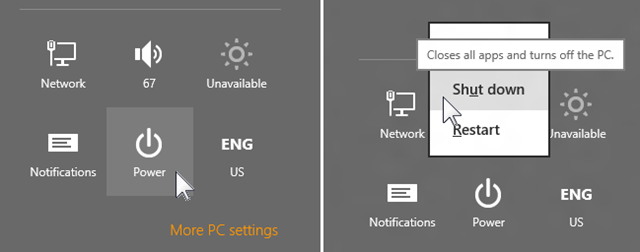
  • In the Settings panel click on Power.
  • Finally click on Shut down.

With just keyboard strokes the procedure is this:
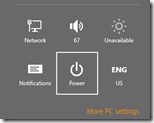
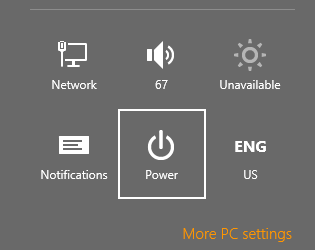
  • imageHold down the Windows logo key and press I (the letter i) – this brings up the Settings panel.
  • Press the up arrow key. This selects Power (shown here).
  • Press the Enter key to bring up the Power options.
  • Press U – note the “u” in Shut down is underlined.

In notation form the steps are:

  • logo+Iup arrowEnteru       image+image  –  image  –  image  –  image

Now for a quicker way: using a shutdown desktop shortcut. This tip comes from Ed Bott at ZDNet (The Metro hater’s guide to customizing Windows 8 Consumer Preview).

Make a Windows 8 Consumer Preview desktop shutdown shortcut.
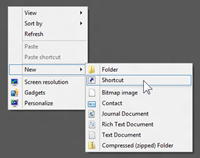
  • imagePress the logo key to bring up the Start screen. Click on the Desktop tile to go to the desktop.
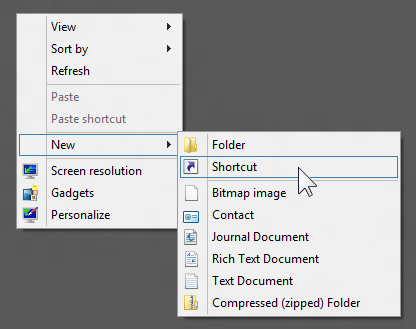
  • Right-click in an empty area.
  • In the menu move the pointer down to New and then to the right to to open a submenu.
  • Click on Shortcut.
  • In the Create shortcut dialog type this text: imageshutdown /p   Note that there is a space after the word “shutdown”.
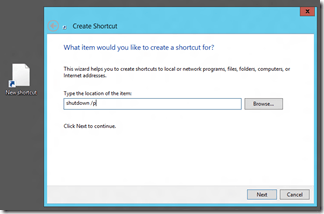
  • Click Next.

The next dialog allows you to give the shortcut a name. You can accept the presented “shutdown.exe” – I prefer to shorten it to just “shutdown”.image
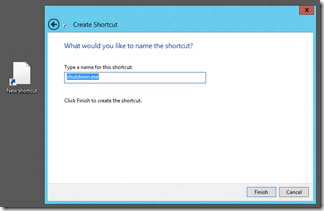
  • imageClick Finish.

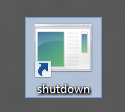
You now have a shutdown shortcut. The icon may not be exactly what you would associate with “shutdown”. image
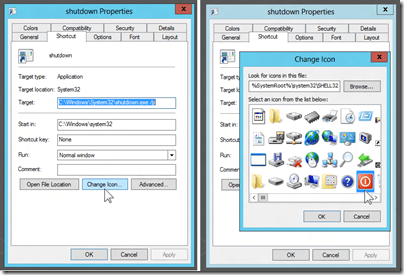
  • So right-click the icon and select Properties.
  • Click Change icon… on the Shortcut tab (it opened by default).
  • Click OK on the warning dialog to let you choose an icon from the built-in collection.

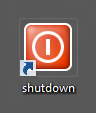
The new dialog presents a large number of icons. Choose the one you like. You can see in the illustration that I chose the red power icon.
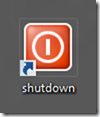
  • imageClick on the chosen icon.
  • Click OK and again click OK to close both dialog windows.

You now have a good looking shutdown shortcut on your desktop. Position it as you prefer.

Now you can quickly shut down the computer from the Windows 8 Consumer Preview desktop. Just double-click the shutdown shortcut and the computer shuts down.

A little bit of background information
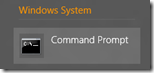
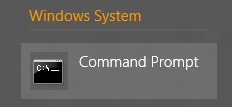
imageThe Windows 8 Consumer Preview retains the “Command prompt” program. You can find it on the All apps screen (right-click an empty spot on the Start screen).

This program, us old-timers lovingly call it the “DOS box”, allows you to invoke a large number of computer commands. Just open the app and type help and press Enter. You will se a large number of available commands. One of the commands is “shutdown”. If you type “shutdown” – don’t worry, it won’t execute, it requires a “parameter” – it will show the available parameters or instructions to obtain desired functions. One ot the parameters is “/p” which tells the shutdown program to initiate a “planned” shutdown sequence.

The create shortcut program permit a line of basic computer commands for the shortcut to execute.

.:.

© 2011 Ludwig Keck