With the SkyDrive app do I have access to my files when off-line?

With the SkyDrive app installed on your computer you have access to everything that is in SkyDrive even when you are not connected to the Internet. imageYou can add or remove files and folders.
Without being connected to the Internet, of course, any changes in the SkyDrive folder cannot be synchronized. When you do establish an Internet connection, the online imageSkyDrive will be automatically updated with the local SkyDrive folder.

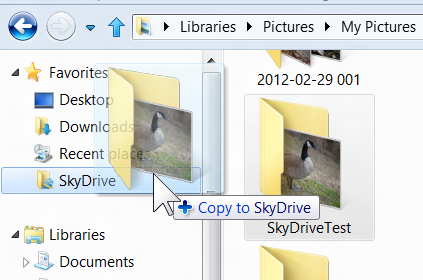
The desktop SkyDrive shortcut opens your local folder. You can manage the folders and files just like any other folder. This is the easiest way to add folders and their contents to SkyDrive complete with any sub-folders.image
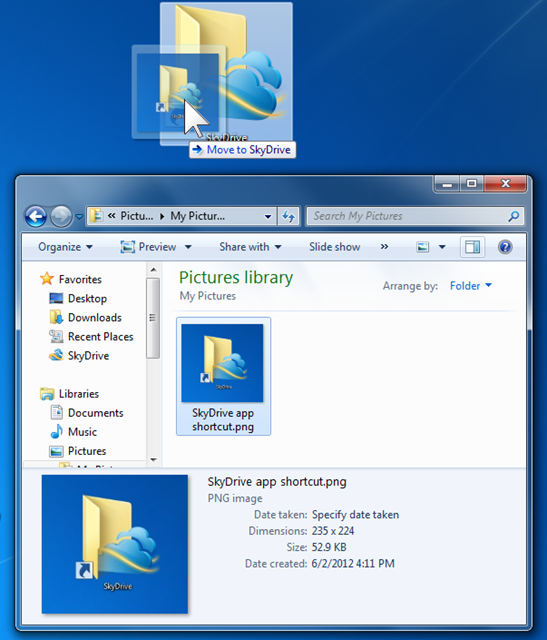
If you drag a file or folder to the SkyDrive desktop icon it will be placed into the SkyDrive root, just as you would expect.
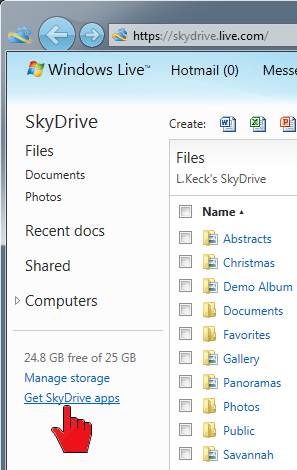
imageIf you do not have the SkyDrive app, sign in to your Microsoft account, click  SkyDrive in the top menu bar. In the navigation pane on the left click “Get SkyDrive apps” at the bottom of the listings. Step through the download and installation process.

SkyDrive access works best when you stay connected. Next time you sign in, check “Keep me signed in”.

.:.

© 2012 Ludwig Keck

How do I install SkyDrive in Windows Explorer?

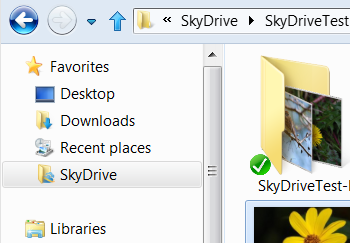
Microsoft released a preview version of the app “SkyDrive for Windows” that adds SkyDrive to Windows Explorer imageand allows accessing SkyDrive as if it were just another folder on the computer.

It is just a simple download and a quick install. This works for Windows 7 and Windows 8.

Here is the download site:

Download SkyDrive for Windows

Click the above link, you will next see the download banner. Click Run. Sign in to your Microsoft Account and follow the dialogs.SkyDrive-NEW-12

In about a minute there will be a SkyDrive listing in Windows Explorer, in the Favorites section as shown in the illustration above.

Presently that entry cannot be expanded like other folders, however it works the same in the main pane.

It takes a bit to synchronize Windows Explorer with your SkyDrive – there is still the Internet download and upload delay – but shortly SkyDrive will work like any other folder.

imageAnd, yes, you can now drag and drop folders, including contents and sub-folders, right into SkyDrive.

Do keep in mind that your Internet connect speed will affect how quickly this takes place.

This is a much needed improvement and will make SkyDrive a much more useful feature.

.:.

© 2011 Ludwig Keck

How do I share a SkyDrive photo on Facebook?

SkyDrive provides for very detailed sharing. You can share albums, or individual photos in a variety of ways including sharing on Facebook. In this article I will describe the steps for sharing on Facebook.

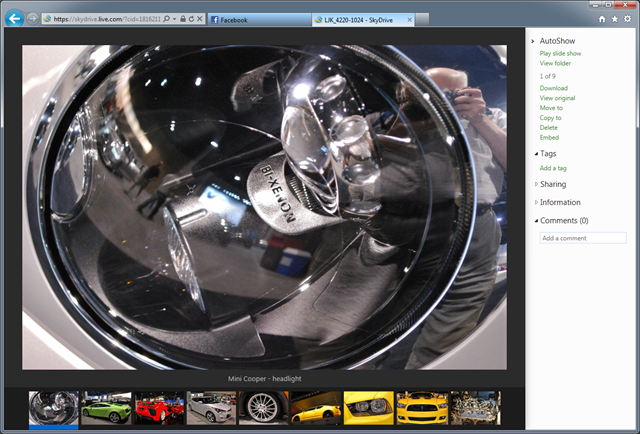
imageThe method provided on SkyDrive shares a link to the photo and its album on SkyDrive, the photo is not actually copied to Facebook. Here is an illustration of how it appears on Facebook. When a viewer clicks on the photo thumbnail or the title she will get something like this:image

The viewer is taken to the photo in your SkyDrive album. The other photos in the album will also be available if the album is public.

The procedure for sharing a SkyDrive photo on Facebook

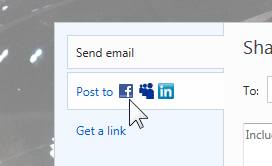
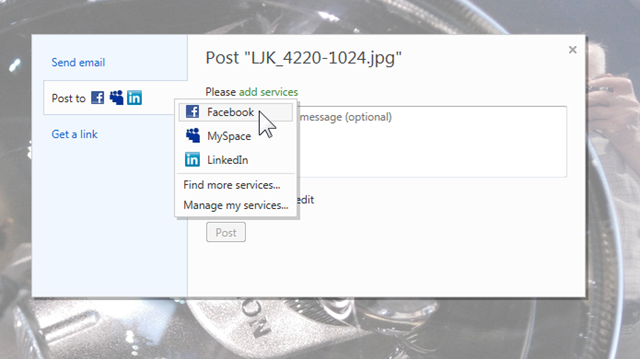
imageOn your SkyDrive go to the photo you wish to share. Click Sharing in the info panel on the right. Click Share in the expanded list.  The share dialog comes up. Click the Facebook icon, see the illustration here.

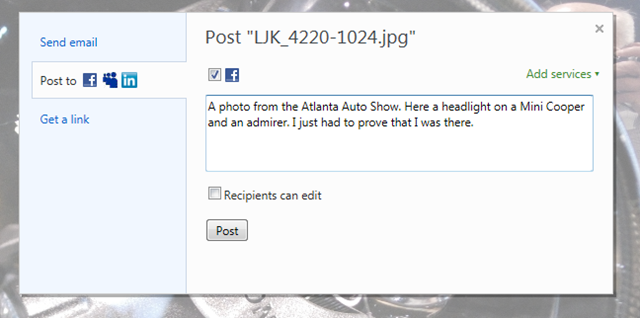
If you have not shared on imageFacebook before, click add service, then click on Facebook in the new menu. You will be taken through a number of dialogs to complete the connection to Facebook. Once that is complete, you can share to Facebook from the initial sharing dialog. When you click the Facebook icon in the Post to area, a checkbox with the Facebook icon is displayed. Click the checkbox. You can fill in the text of the message that is to appear with your Facebook post.image

Then just click Post and SkyDrive send a post to your Facebook page.

You saw above how that looks and learned what happens when a viewer click on the post.

If you wish for the photo to be copied to your Facebook Photos section, then you need to upload the photo from your computer. That can be done easily from Windows Live Photo Gallery.

.:.

© 2011 Ludwig Keck

What is the difference between albums and folders on SkyDrive?

Windows Live SkyDrive has a long history and carries a legacy of features. Currently the primary purpose is for storing and sharing files and photos.

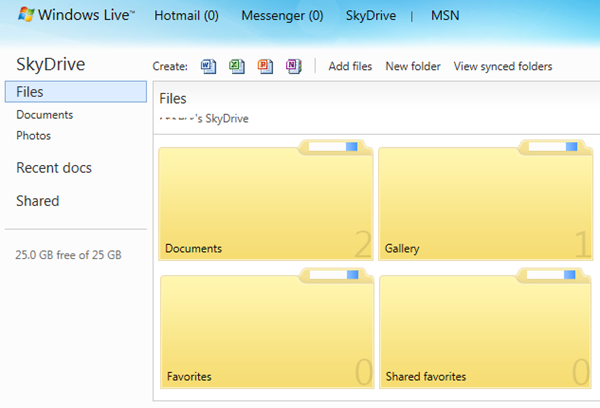
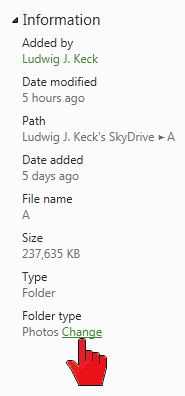
SkyDrive in the root location, the first one you come to when you click SkyDrive in the top bar, can contain documents and folders. Folders in the root location have a Folder type parameter. Sub-folders, folders inside other folders, do not have a Folder type.image You can see the Folder type in the information pane under Information.

In the root location the Folder type may be fixed for some folders (legacy Documents, Favorites). Other folders, and all newly added ones, can be of Folder type Documents or Photos and the Folder type can be changed.

When you click Documents in the left pane, only folders of Folder type Documents (and Favorites, if you have any of those) will be shown in the main area.

When you click Photos, only folders of Folder type Photos will be shown in the main area. These are the albums.

There is one other distinction: Only albums, i.e. folders of Folder type Photos, will show in Windows Live Photo Gallery in the upload dialog. So you can only upload photos to “albums”.image

You can change the Folder type of folders in the root location. In the information pane, under Information, you can see the Folder type. There is a Change link.image

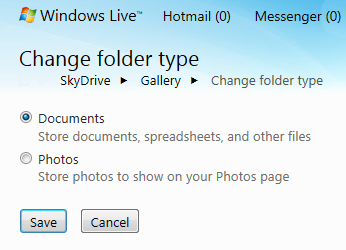
Click on Change and a new page allows you to change the Folder type.

The two options are:

  • ● Documents – Store documents, spreadsheets, and other files
  • ● Photos – Store photos to show on your Photos page

To summarize: Albums are folders of folder type Photos. They are located in the root of your SkyDrive. They will be shown in the main display area when you click Photos. These albums will also be shown as album options when uploading from Live Photo Gallery.

Other folders and subfolders may contain photos – by moving individual photos or folders into them. imageWhen a folder, or subfolder, contains a photo, the folder icon will show that photo. When a folder contains more than one photo, the folder will play a continuous little slide show of the photos inside on the folder icon. You can see this by clicking the folder illustration here.

.:.

© 2011 Ludwig Keck