
There are several ways to set a shortcut to a favorite website. Let’s answer this for users of Edge on Windows 10. Users of other browsers, please, ask in a comment for details.
Setting a Favorites Bar tab
The easiest is to create a new tab on your Favorites Bar right in your browser.
Click on the star at the end of the address bar.
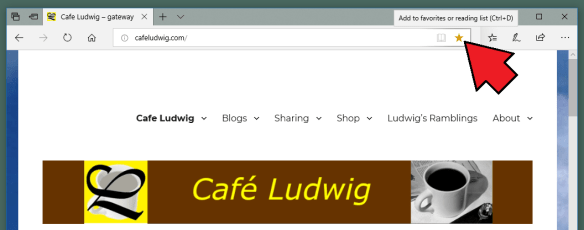
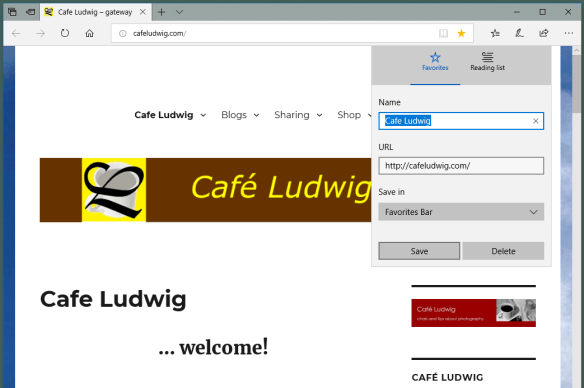
In the dialog window you can change the name to whatever you want to call it in the new tab. The URL will be already filled in. If “Save in” shows Favorites, click it and select Favorites Bar. Then click Save and it will show in your Favorites Bar – at the end of other tabs.
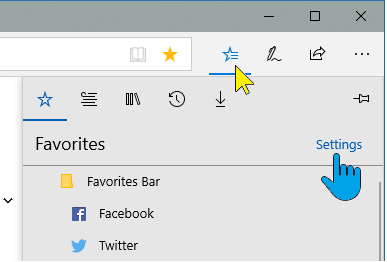
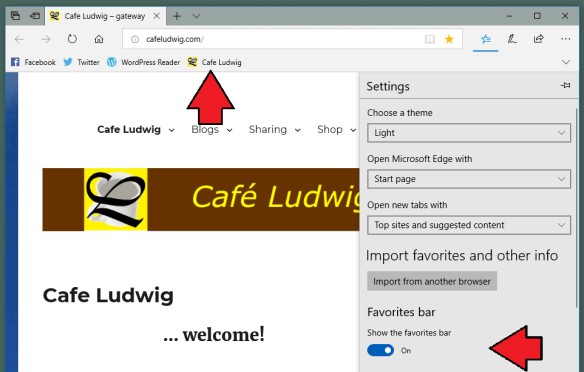
If your Favorites Bar is not showing turn it on by clicking the “starrish” icon – see the illustration here. Then click Settings.
In the Settings dialog look down just a bit and you will find Favorites Bar – Show the favorites bar and a slider control. Set the slider to the right – ON. Your Favorites Bar will be shown with your tabs.
Placing the Shortcut on your PC
If you want the shortcut on your PC, even when you don’t have the browser open, there are two easy places – In the Taskbar or in the Start area.
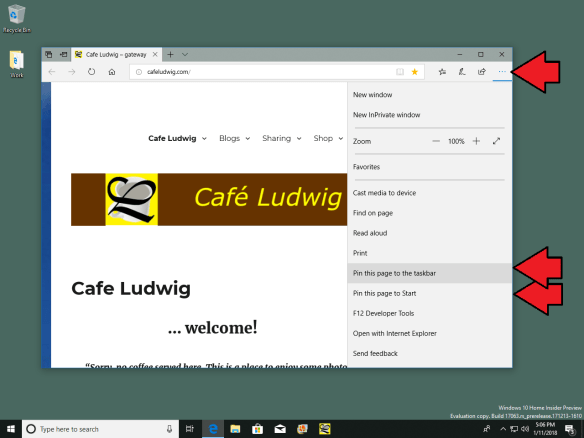
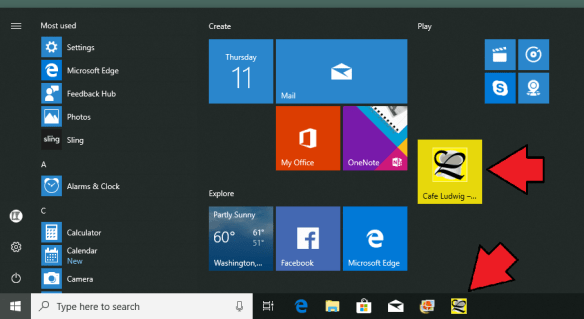
With the website loaded in your browser, click the three-dot icon at the top right. The drop-down menu provides two options: Pin this page to the taskbar and Pin this page to Start. Click whichever you like. Of course, you can set both. You will see the website icon on the Taskbar and/or in Start when you click the Windows icon or Start.
Shortcut on the Desktop
Most of us old-timers are used to having shortcut icons on the desktop. Getting one there is not quite so simple.
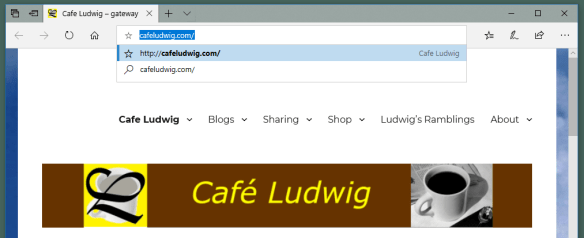
Go to the site in your browser you wish to set a shortcut for. Click in the address bar. The site URL will be shown as selected. Copy the URL with Ctrl-C.
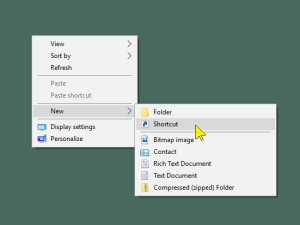 Then right-click on an empty spot on your desktop. Click on New and then in the next drop-down menu, click Shortcut.
A Create Shortcut dialog window will open. Place the cursor in the field for the location of the item and use Ctr-V to paste the URL that you copied in the browser. Click Next.
In the text window replace the default text with the name of the website as you want it on the desktop.
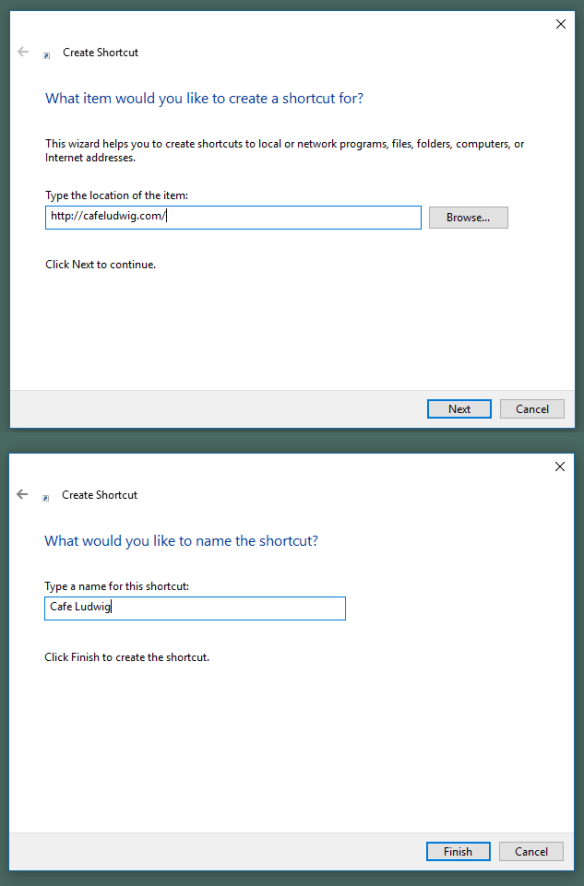
Click Finish. You will now have a shortcut to the website on the desktop. When you double-click it it will open the browser and go to the site.
Unfortunately the image used for the desktop icon is not the identification icon of the website. You can change to some other image from the selection of shortcut icon images.
© 2018 Ludwig Keck



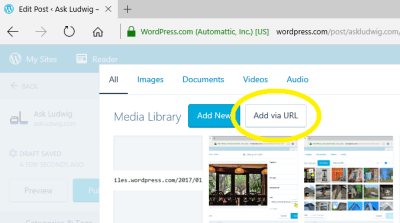 If you are using the online editor at WordPress.com clicking the circled-plus, “Insert content”, option brings up the Media Library to permit choosing an image from the pictures there. On that page there are also to other options, Add New and Add via URL. Add New provides the process for uploading from your device.
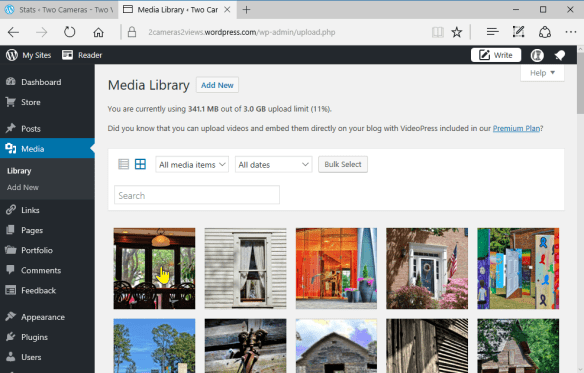
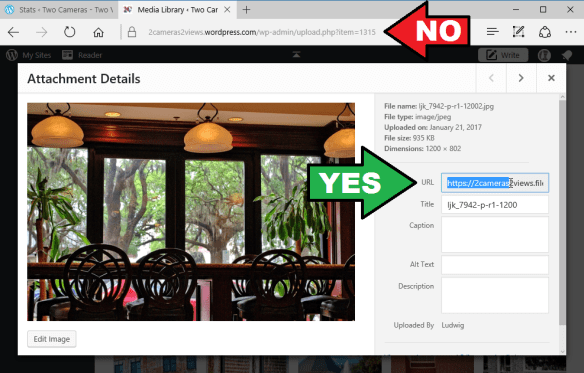
 Here is how to do it:Click the Write link in the upper right area of the top bar.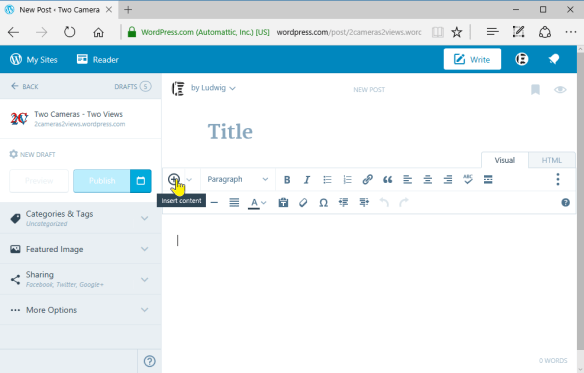
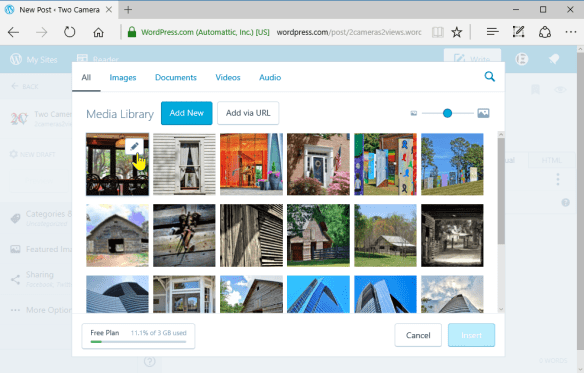
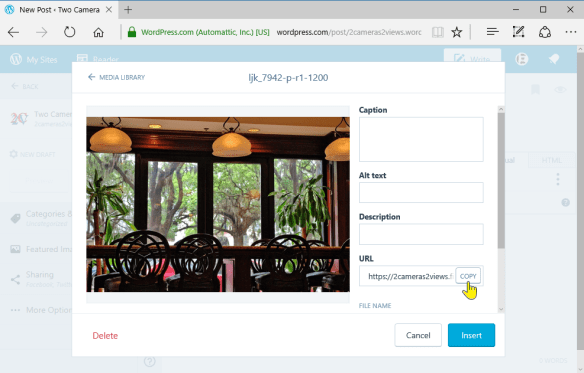 On this page with the photo there are a number of text fields. One of them is labeled URL. To the right of that field is a button labelled COPY.
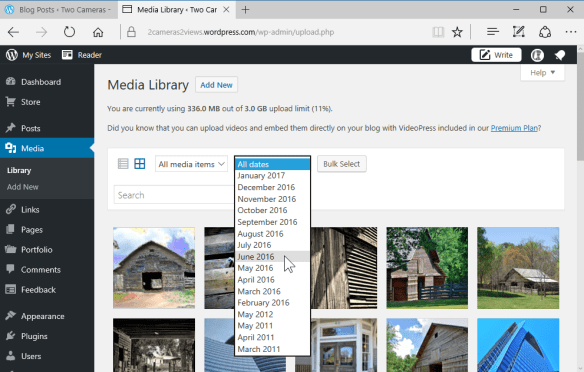 This brings up the photos you uploaded in the selected month.
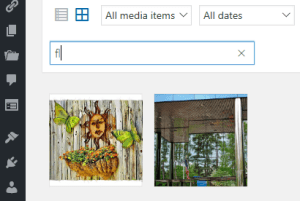 There is a Search field. Just type in that field and the images with matching text in their data fields, like Title or Caption, will be displayed.
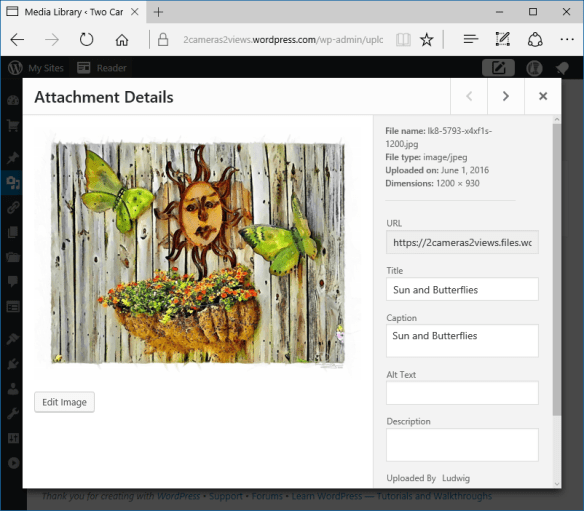 The matching “fl” is in the word “Butterflies” – the text does not have to be at the start of a word, it can be inside! The other images was a match because the word “Reflections” was in the title. Pretty neat, wouldn’t you agree? See, you really don’t need to reorganize!
 Ask Ludwig