
When a WordPress blog is initially set up (click for how-to) a default theme is used and WordPress posts a “Hello world” post and a comment. Here is a view of a new blog:
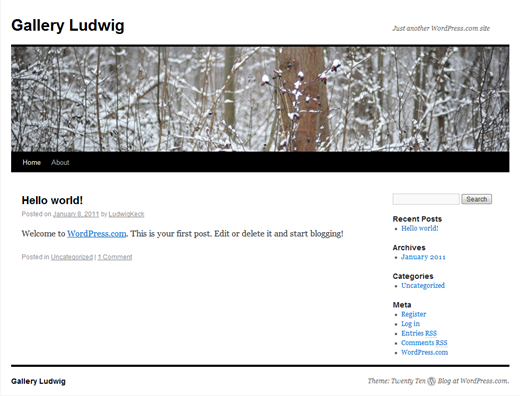
The initial post and comment can, of course, be removed and the appearance, “theme”, can be changed.
Sign in to your WordPress account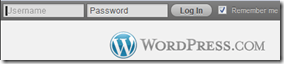 – go to wordpress.com, in the upper left corner sign in using the user name and password you picked when setting up the blog. Click Log in.
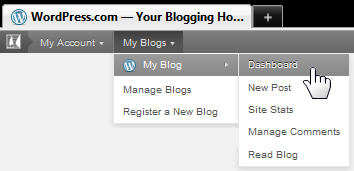 On the next page, again in the upper left, move the pointer to My Blogs, then on the name of your blog, move to the right to show the next drop-down menu. Click on Dashboard.
Your Dashboard is now displayed. In the left navigation pane are the options for many tasks and settings.
The first item should be to update your “About” page. There is likely a link right near the top. 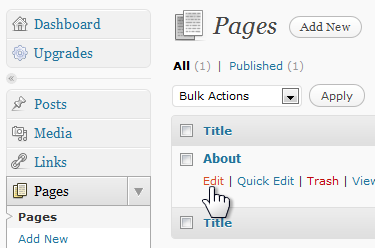 You can also get there by clicking Pages, then the Edit command under About. Move the pointer to the area shown in the illustration here to see the command links.
On the next page you can use the editor to modify the default “About” text. This is also a good opportunity to become familiar with the online editor.
After editing be sure to click Update – scroll down if needed to find the link.
Next, you may wish to click Settings. On the General tab you can change the name of your blog, the byline, here called “tagline”, the time zone, and other items.
The real customization starts with the “Theme”. Click Appearance in the left pane. On the Themes tab you see the current theme information and you can browse the available themes. You want to find the theme that presents the blog to match your personality and the image you wish to project. There are over a hundred themes to chose from. You can narrow the search by clicking Feature Filters and then checking the choices of interest. The Apply Filters button then narrows the presented themes.
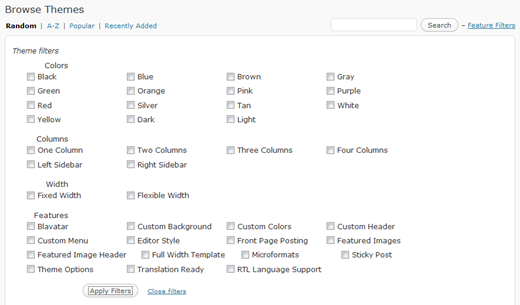
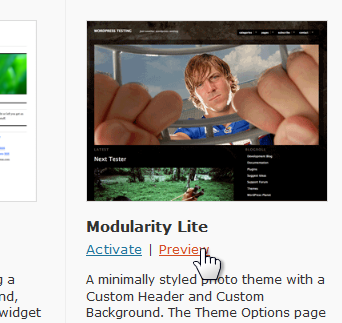 Below the name of each theme there is a Preview link to permit you to see your blog as it would appear using that theme. Find the close, X, command in the upper left, to get back out of the preview.
Another way to see just specific themes is to click on a tag in the list under a theme. For this to give you all the options, uncheck any selected theme filters (and click Apply Filters).
Try out several themes. It may take a while to find the one that suits you best. Also remember that you can always change to another theme at any time later on.
This should get you underway in customizing your blog. Try out the many other options, you will learn the “ways of WordPress” pretty quickly.


 Ask Ludwig