How do I include items in my Windows 8 Photos library?

You might have photos in a folder other than “My Pictures” or on a drive other that “C:”. Those photos will not be displayed in the Photos tile on the start screen and will not shown in Photo Gallery. Rather than moving the photos or their folder around on your PC, the proper way is to include the folder containing those pictures in you Pictures library. Here is the procedure for doing that:

  • Open File Explorer.
  • In the navigation bar on the left, locate the folder you wish to include in the Pictures library.
  • Right-click the folder name.
  • In the next menu click Include in library
  • This provides a list of your libraries, click the one to use – in this case Pictures

Win8-Lib-01

That’s it. You have now included the folder in the Pictures library. Yes, you can include a whole drive. You will get the same menu when you right-click a drive name.

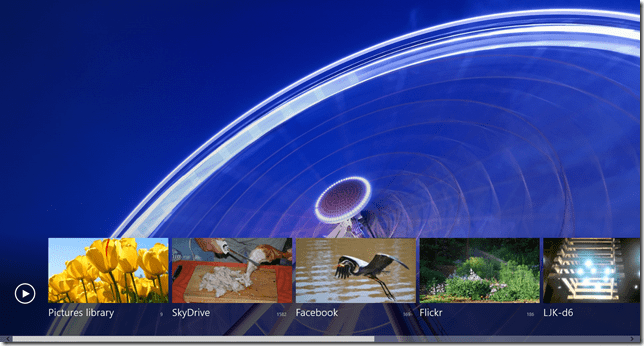
Your photos from the included folders will show up in all programs and apps that use the library, like Windows Photo Gallery, Picasa, of course, File Explorer. They will also be displayed in the Start page Photos app.
Win8-Lib-12

.:.

© 2012 Ludwig Keck

Can I get a start button on Windows 8?

Sure can! There are numerous downloads available to put a start button on your Windows 8 desktop. Some for free, some at a modest price. All are trying to fill the void that Microsoft has created by leaving the start button out of Windows 8.

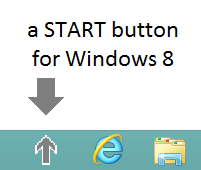
Windows 8 START buttonOver at This ‘n That, I offered a quick solution to help out until Microsoft puts a real one back on Windows 8. There are rumors to the effect, that come Fall, the Windows 8.1 update will once again feature a start button.

Take a couple of minutes and read my post Make your own Windows 8 start button and a couple more to a reasonably good substitute on your Windows 8 taskbar.

.:.

© 2012 Ludwig Keck

How do I create desktop shortcuts in Windows 8?

Windows 8 offers easy options to place a tile on the Start screen, “Pin to Start”, and to put an icon on the desktop taskbar, “Pin to taskbar”, but the method to create a desktop shortcut is not obvious at all. Here is how you can quickly put a shortcut icon on your Windows 8 desktop for any installed desktop program. This does not work for the Windows 8 style apps that only run in the non-desktop environment.

shortcuts-06

Press the Windows logo key to open the Start screen. Right-click on an empty space and click All apps in the bar at the bottom.

Find the program – you may have to scroll – and right-click its tile.

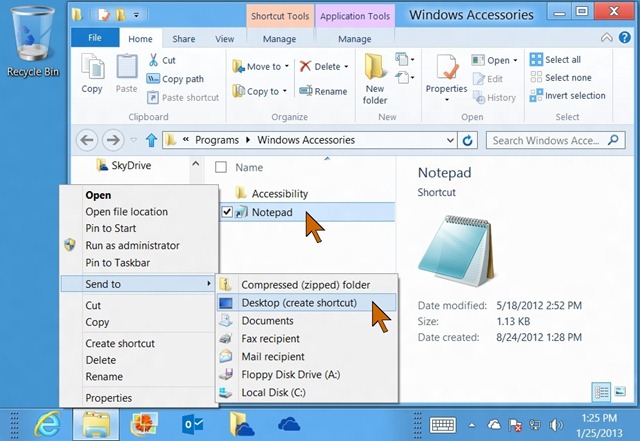
Now you get the options on the bottom for a number of tasks. Click Open file location (see the red arrows in the illustration). shortcuts-07This switches you to the desktop and opens File Explorer. The shortcut location for the program will already be selected. Right-click on the program name, move the pointer down to Send to then horizontally over to the sub-menu and down to Desktop (create shortcut). Click that.

That’s it. You will now have a desktop shortcut for that program on the desktop. You can position it as you like. The shortcut works as expected, double-click it to open the program.

shortcuts-08

.:.

© 2012 Ludwig Keck