Can I re-import photos when the computer says no new photos were found?

On occasion you will get a dialog that says “0 new photos and videos were found” when you try to import pictures from your camera.Import-01 This happens if you already have imported those photos, even though you might have deleted or moved the pictures on the computer.
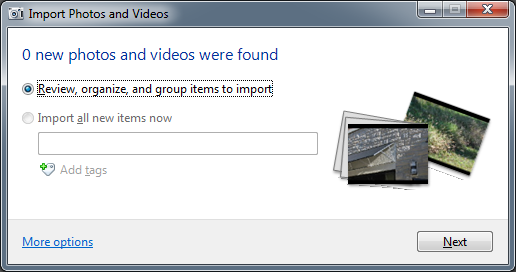
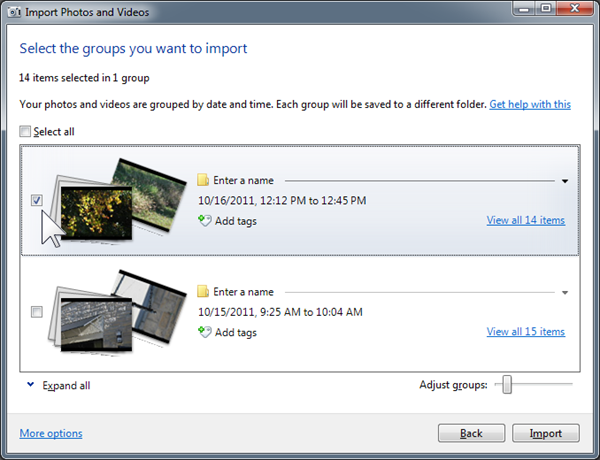
Can you re-import the photos? You can, provided that you did not erase them on the camera. We are assuming here that you have set up your computer to use Windows Live Gallery to import photos from your camera. Just click the Next button (see illustration). In the next window you will see the photos on your camera arranged by date. It will say “0 items selected in 0 groups”. Note that the check box in front of the groups is not checked.

Import-02Import-03

Click on the group check box that you wish to import again. There is also a “Select all” option. Make sure you have selected just the ones you wish to import once more. Click Import and the process starts.
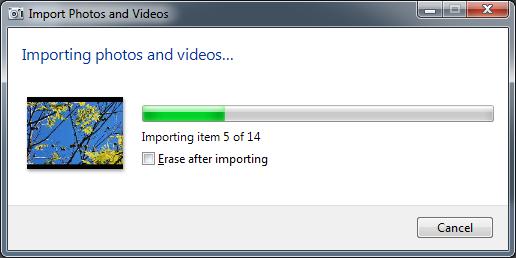
Import-04While the photos are being imported you will see the progress in a dialog like the one shown here. Note the check box with the legend “Erase after importing”. This means “erase from the camera after the photos have been imported to the computer”. I always leave that unchecked, which is also the default. This way the photos stay on the camera.

So what happens if you already have the photos on your computer? A new set will be imported, if the file name already exists, the import process will add a number in parenthesis at the end of the file name for the new file. You will wind up with duplicated photos. No harm will be done to photos that are already on your computer. Of course you can delete the duplicates.

.:.

© 2011 Ludwig Keck

One Year Anniversary

It has been one year since this blog was first published. With the anniversary celebration I am also updating the looks of this site. Many readers asked for a larger, more readable type and so here it is. This blog received over twelve thousands visits in the first year and many email inquiries have come in. I hope to continue to be able to answer queries promptly, so keep the questions coming.

.:.

© 2011 Ludwig Keck

How do I move a sub-folder up a level?

Sometimes you need to re-organize your picture folders and may wish to move a sub-folder up so it is on par with other folders. Here is an illustration:

image

On the left the folder “Bob” is inside folder “Ann”. You can tell by the little arrowhead. In fact, until you expand (click on) folder Ann you cannot see folder Bob in the navigation pane.

To move it so it is on par with – at the same level as – folder Ann, proceed as follows: Drag the folder to the name of the folder where you want it. In this illustration we want folder Bob to be inside My Pictures. So it is dragged to the My Pictures folder name. Notice the little note (screen tip) that says “Move to My Pictures”. When it says the correct folder name, drop it (let go the mouse button). You have moved the folder.

You can use this procedure to move any folder to be inside any other folder, even inside sub-folders.

Sometimes the procedure will not succeed, such as when a folder is open in an application. Just close the application and try again.

You can reorganize your folders in the navigation pane of Windows Live Photo Gallery or in the navigation pane of Windows Explorer. (Do not have both open at the same time, see warning above.)

.:.

© 2011 Ludwig Keck


Why can I see an “https” site without signing in?

The “s” in “https” stands for “secure” (“HyperText Transfer Protocol Secure”). This used to show up mainly when shopping or banking online, where you normally signed in to your account. Many other sites use “https” to provide a secure communications link between the site and the user’s browser. In particular Windows Live SkyDrive uses https full-time, even if you are not signed in or are viewing a friends SkyDrive albums.

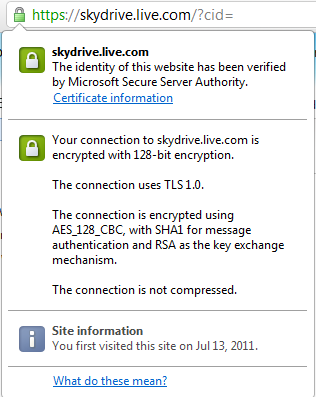
imageThe “secure” part applies only to the connection, not the site nor your browser. You must still be careful about the site – make sure that you really are on the site you wish to visit.

Only the connection is secure. This protects you from someone snooping in the next booth or from a car outside. You are not protected from the person looking over your shoulder!

The Google Chrome browser provides information about the connection when you right-click on the little padlock icon in front of the web address.

Setting up the secure connection happens when you first get to the site. You wont notice this fascinating routine. First the site’s server performs a key exchange with your browser. This too is done securely, in the illustration you can see the listing of “RSA as the key exchange mechanism”. If you are interested in the inner workings, you can find plenty of information on the Internet. Normal traffic after the key exchange is then done with a faster method that uses 128-bit encryption.

Be careful when reading your email in a public place. Not all email services have switched over to https. Gmail, as an example, uses secure communication. Moving documents to and from SkyDrive is done with secure connections.

.:.

© 2011 Ludwig Keck