What is the difference between Office, Photos, and SkyDrive?

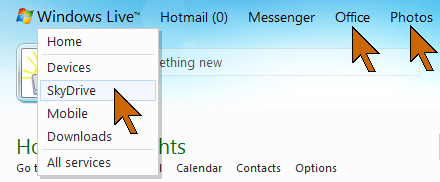
When signed in to Windows Live, the menu bar at the top provides access to Hotmail and Messenger and to the user’s SkyDrive. The individual commands provide access to the documents or photos portion.

image

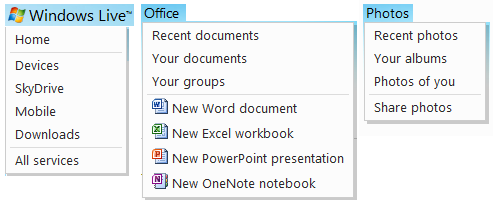
Each of the commands also provides a drop-down menu to select the specific item or task desired. Clicking on the “Windows Live” title also presents a menu. The menus are shown here.

image

Under the Office command the documents and document folders can be reached. From Photos the albums can be displayed. When SkyDrive is clicked (left menu) all of the items on the SkyDrive are shown.

The different option just provide for quick access to the items of interest, there is no other difference.


How can I see my SkyDrive photos in Windows Explorer?

You Windows Live SkyDrive photos are stored “in the cloud” on Microsoft servers. Normally you access them through a browser like Internet Explorer.

It is possible to map a SkyDrive album to a drive letter in Windows Explorer. Then you can see what photos you have stored in that album.

NOTE: This method works in Windows 7. Windows Vista also supports mapping with this procedure, other operating system do not, sorry.

Here is how:

Obtain your Windows Live account “cid” number. Once you have that you may want to save it in a file for future use.

  • Sign in to you Windows Live account by going to home.live.com.
  • Click on profile underneath your name in the upper right.

The address in the browser address window contains your “cid” number. It is the number following “cid-“ up to the next period (“.”) as shown highlighted in this example:

image

Of course, the number will be your own unique number, not mine as shown here.

  • Copy this number for later use.
  • Get the name of the SkyDrive album that you wish to map.

Next proceed on your computer.

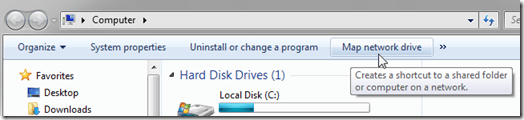
  • Click Start – Computer. Windows Explorer open showing your drives.
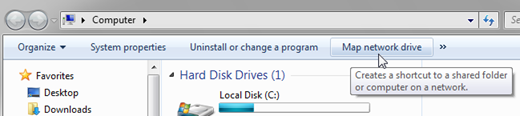
  • On the menu bar click Map network drive.
image

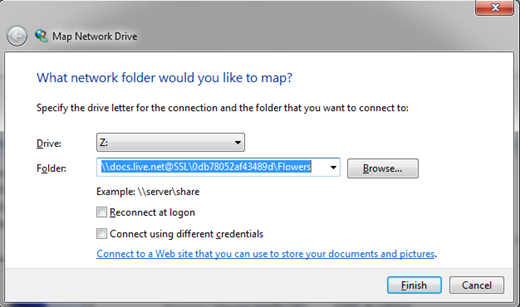
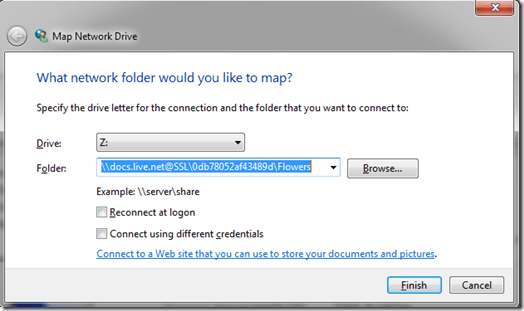
A “Map network drive” dialog opens.

  • Select the drive letter you wish to use. By default the selection is the highest drive letter available, normally Z:.
  • In the Folders box enter this text (without the quotes) “\\docs.live.net@SSL\” ,followed by your cid number, followed by a back-slash, followed by the album name.
image

  • Click Finish.

imageimage

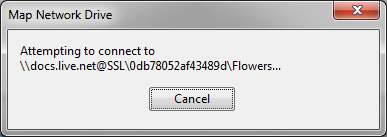
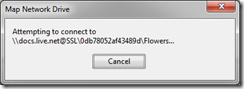
You will see a “Map Network Drive” dialog. It may take a while for this process to complete.

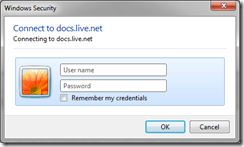
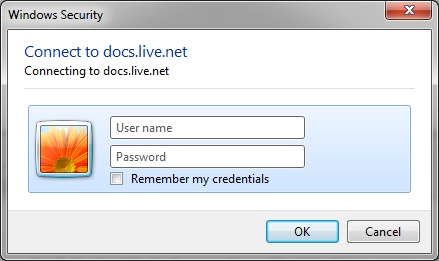
When the “Windows Security” dialog opens enter your Windows Live ID – the complete email address and your password.

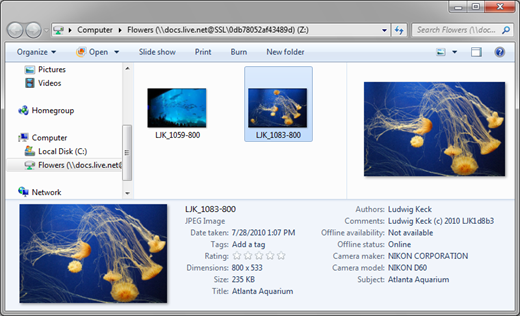
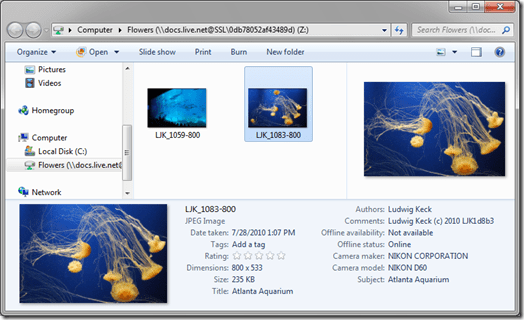
After another delay a new Windows Explorer window opens showing your SkyDrive album (as illustrated here).
image

You can see thumbnails of your photos and you can see the properties of a selected photo in the properties pane.

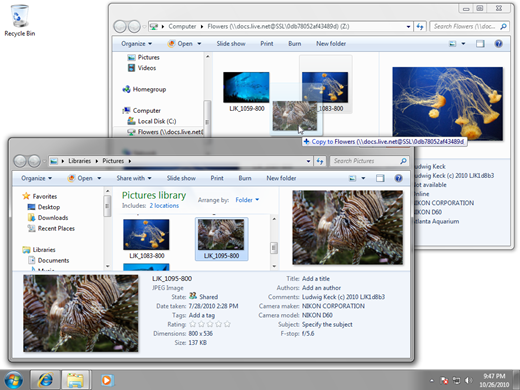
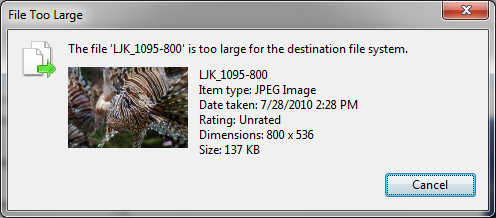
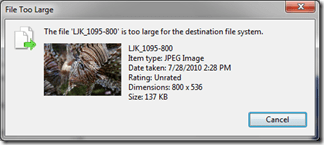
Can you use this mapped folder like any other? Alas, at the present time (October 2010) when you drag a photo to this folder it seems to work at first. Then you get an error message.
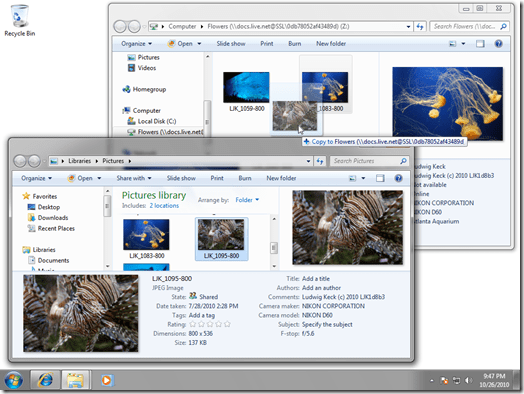
image

imageThe error message may say that the file is too large, regardless of how small it actually may be. Maybe soon Microsoft will enable the functionality that is so close to reality.

For now you will have to settle for just seeing your photos in the album. Use Windows Live Photo Gallery to upload photos to the album (see: How do I upload photos to SkyDrive using Windows Live Photo Gallery?) or upload from the SkyDrive side (see: How do I upload photos to SkyDrive?)


How do I create a new SkyDrive album?

You can create a new album on your Windows Live SkyDrive a couple of ways. You can do it in your SkyDrive when you are logged in to your Windows Live account, or you can do it from Windows Live Photo Gallery. Actually there are some other ways, here I will discuss just how to create a new album on SkyDrive.

Log in to your Windows Live account: Start your browser and go to live.com. Your browser might have remembered your credentials and logs you in, otherwise you will see the log in page.image

  • Click Photos on the link bar at the top.image
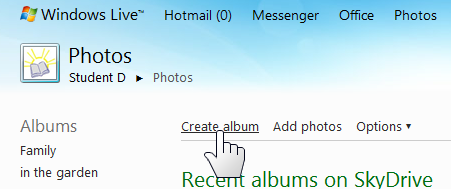
  • Click Create album
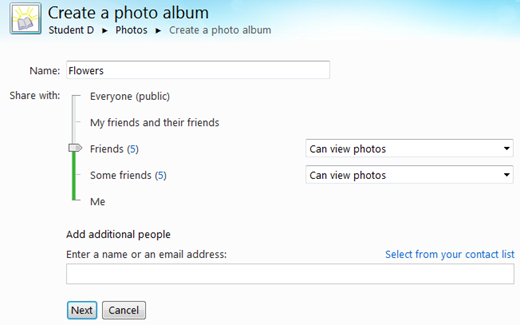
  • Type the name that you wish to assign to the album. Note that “New album” is the default name, it is already selected (highlighted) so you can type right over it.
  • Pick who you want to share the album with. The default is Friends, but you can imagechange that by clicking Change.
  • Set the slider to the appropriate position for sharing. You can also share this album with people you specify in the area  below the slider. Sharing of albums and folders is described in more detail another post.

image

  • Click Next. The album will be created. On the next page you have the opportunity to add photos to the album by dragging them from Windows Explorer or from Live Photo Gallery. That process is described in another post.
  • Click Continue to complete the process.


To see how to create a new photo album using Windows Live Photo Gallery see “How do I upload photos from Photo Gallery?”


How do I get to SkyDrive?

To access your Windows Live SkyDrive log in to live.com with your Windows Live ID. This gets you to your Windows Live Home page. Across the top are links including Office and Photos, these access the documents and albums sections of your SkyDrive.

image

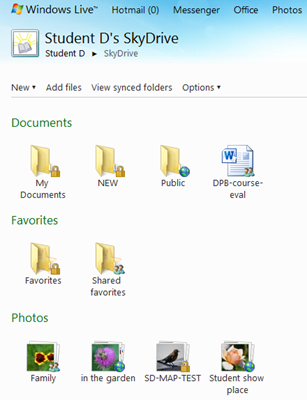
To see all of the contents of your SkyDrive, right-click on Windows Live. On the small drop-down menu click SkyDrive. This will show all the contents of your SkyDrive. Here is a typical view:

image

Note that the contents is organized into sections. Shown are folders, documents (not filed in any folder), and photo albums. Also note the little symbols in the lower right corner of the icons. These indicate how that item is shared. The little padlock indicates a private item – only you have access to that. The people symbol shows that the item is shared with one or more other specific users. The small globe means that the item is public and accessible to anyone in the world.