There are many ways to add your signature in a unique and distinctive way. Here is my approach. My tools are Microsoft Paint and Corel PaintShop Pro 2023. Your tools may be somewhat different in the details of how to do the tasks.
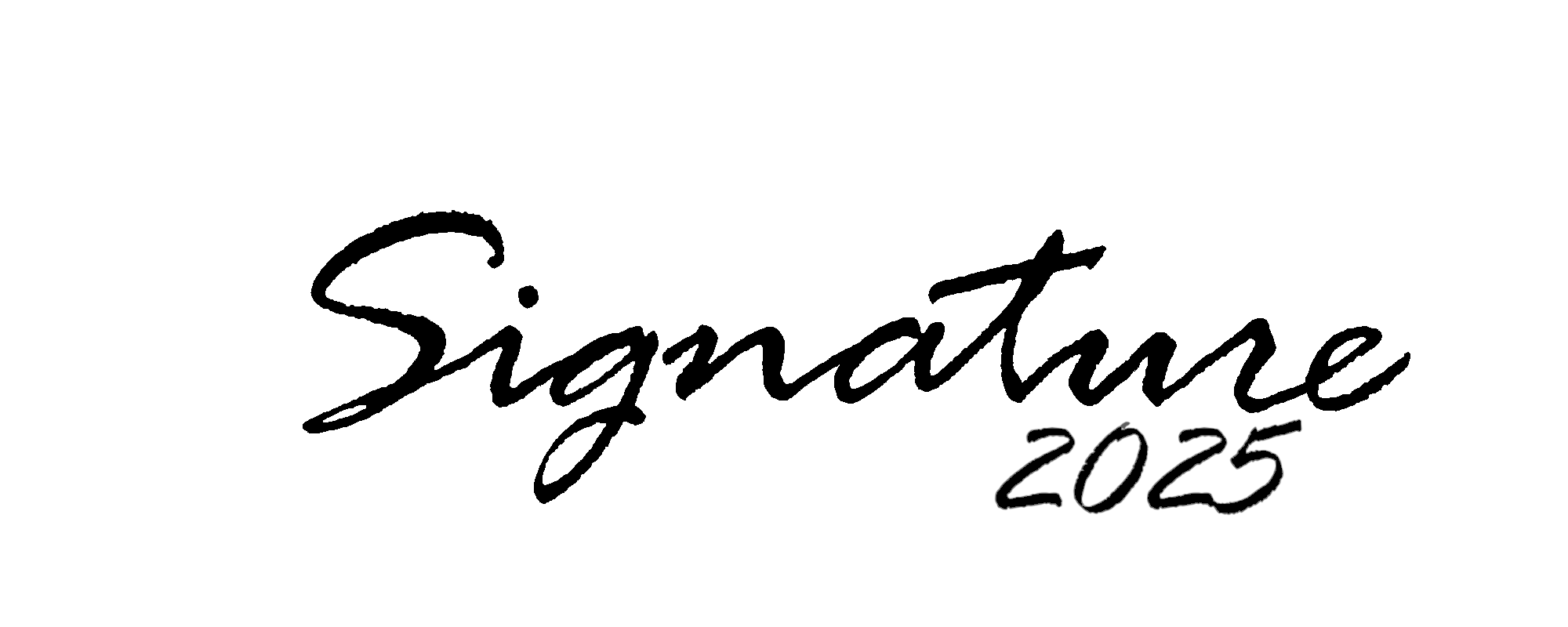
First create your signature. You can do it on paper and scan it, or photograph it, or use a tool such as Paint with its large variety of available fonts. Set the image size about 2000 pixels wide by 800 pixels high. Use heavy black lines to form your signature. Save it as a PNG file. Here is an example:
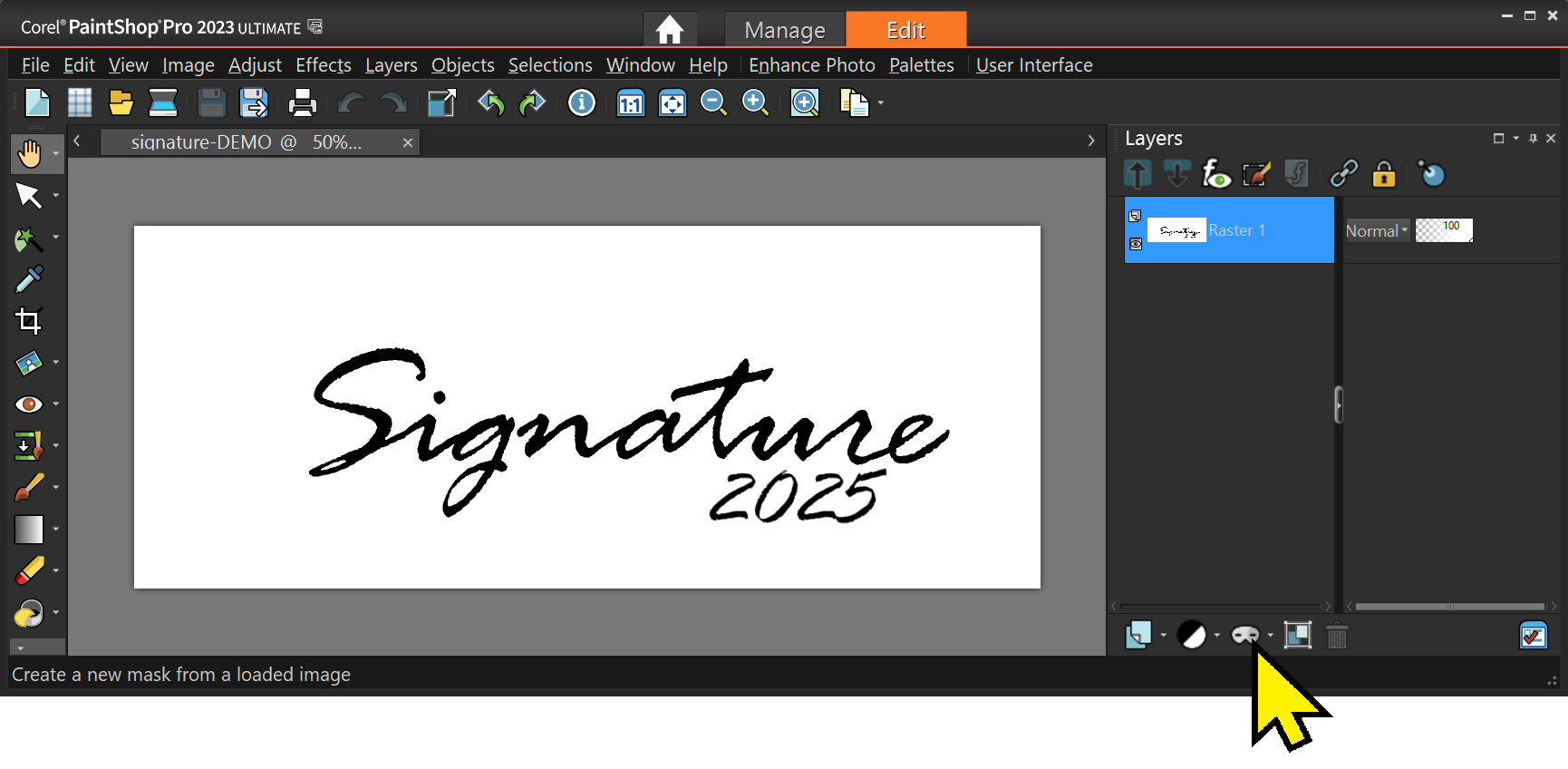
Next modify the signature image to make the white and colored parts, such as guidelines, transparent. One quick way is to use Paintshop Pro or similar tool. Load in your image then make a mask. Click the Mask tool icon and select “From Image …”.
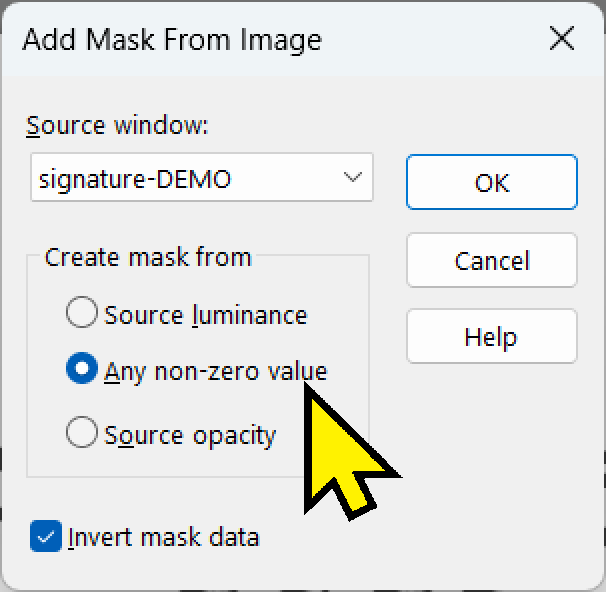
Next select “Any non-zero value”. That masks anything that is not totally black. Colored guidelines and gray areas will thus become transparent. That is what you want.
Then save the image as a PNG file to retain the transparent areas.
Open the signature image up and color it as you like. I make mine gray. This will allow “embossing” of the signature on your art. You may wish to touch up the final image to make it “perfectly yours”.
You are now ready to sign your work of art. Load it into PaintShop Pro (or your tool of choice, keep in mind that the details may be slightly different in another tool).
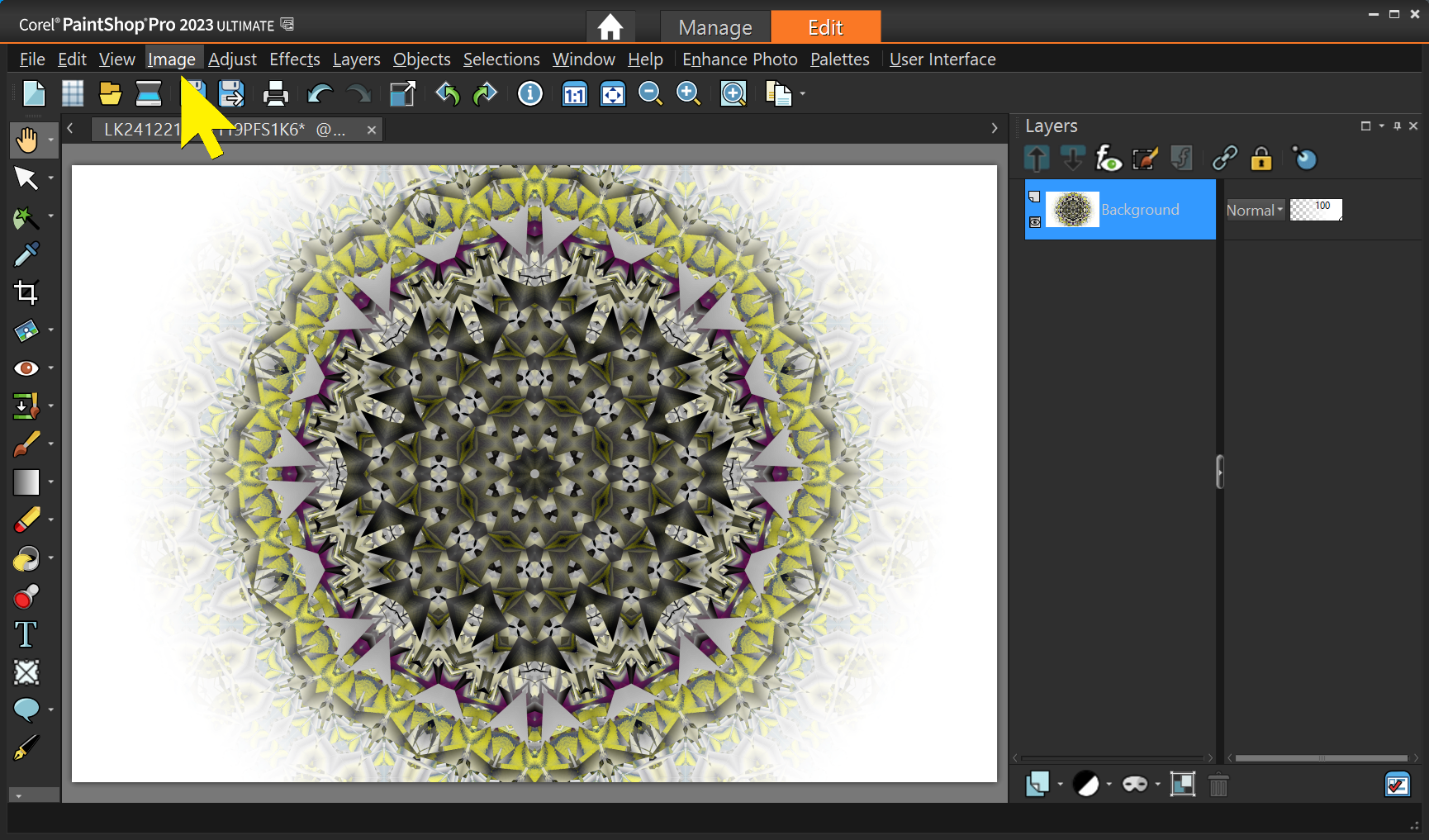
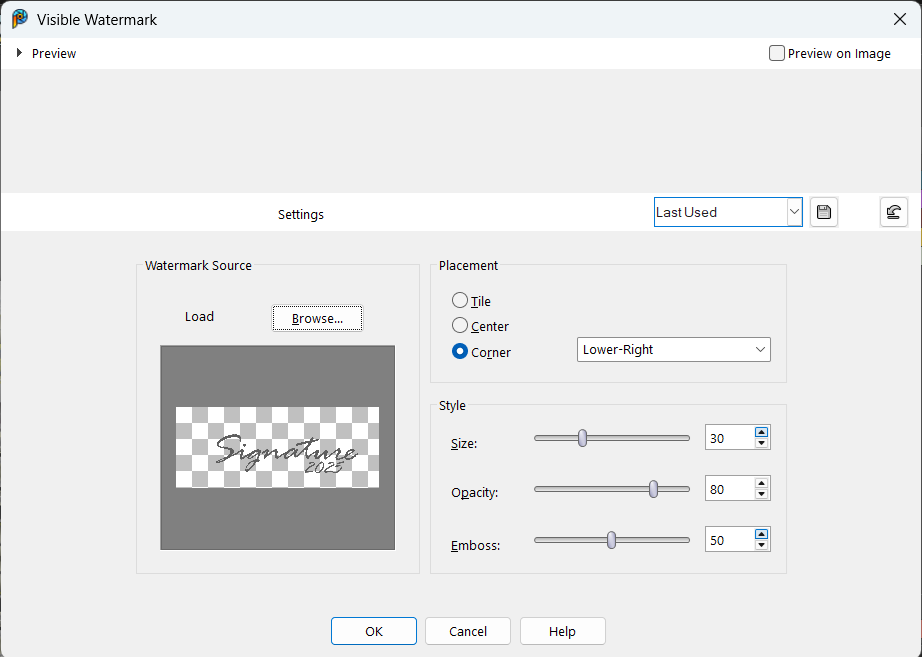
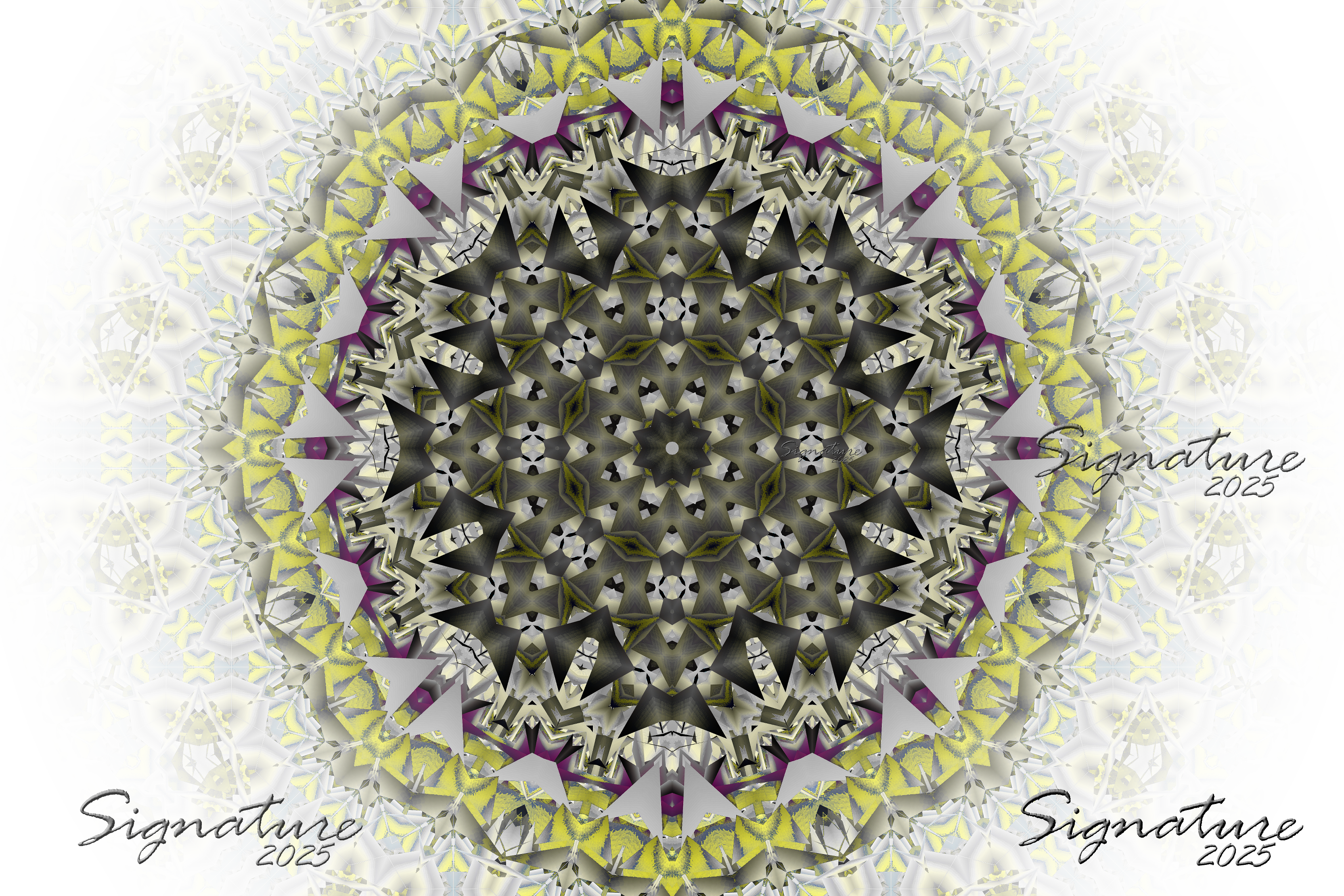
Select Image – Watermarking – Visible Watermark … – Then in the popup window browse to your signature file and then select the position, size, opacity, and embossing. Play with the levels until you get it exactly your way.
That’s it. PSP will remember your settings so next time it will be quick and easy.
Short answer: It doesn’t. — A tilt-shift lens does not correct the perspective distortion that we often call “falling-over building syndrome”. What it does is to let the photographer avoid the problem.
Here is an illustration of what we are talking about.
The narrowing at the top is just the way imaging works. You see it anytime you look up at a building. Our visual system interprets it for us when we stand in front of the building, but when we see it in a photo it just doesn’t look right.
The problem arises from titling the camera upward. If the plane of the sensor is parallel with the vertical structure, there will be no falling-over building syndrome, “FOBS”.
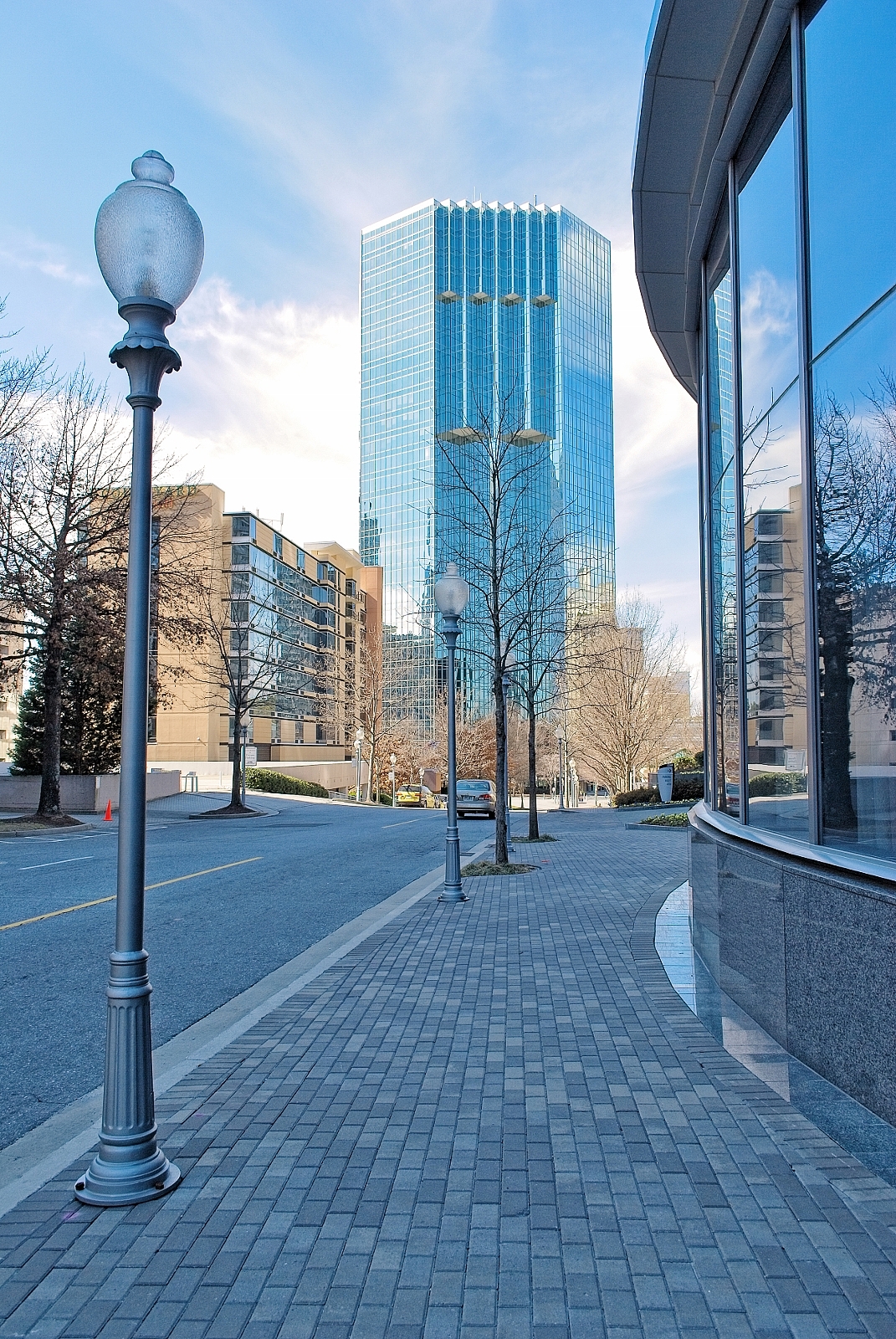
This photo illustrates how buildings look “right” when the camera is not tilted, held level and aimed so the horizon is in the middle of the frame.
Buckhead
We get way too much sidewalk that way, but it works! Cropping can get us what we want.
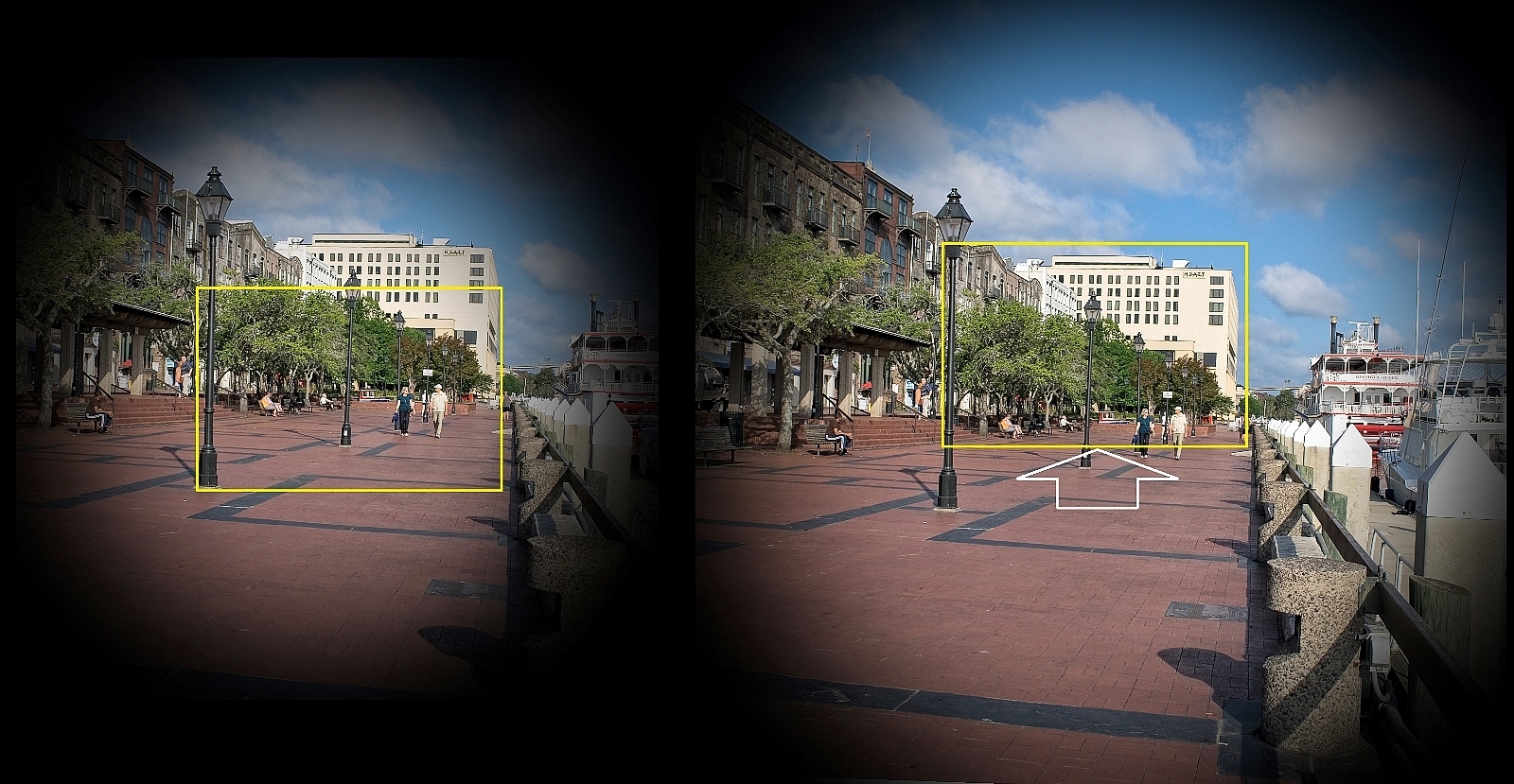
Sometimes the camera angle of view does not include all we want when the camera is level. Here is an illustration of that.
The left image models the view with a regular camera lens. The yellow frame simulates the sensor size and shows what the result would be. Note that the building is only partially included.
On the right is an illustration of what shifting of the lens accomplishes. The image is shifted relative to the sensor so all of the building is within the frame. Only the lens shifting is needed for this “correction”, the tilting part of the lens is not used for avoiding the perspective distortion.
There is also a hint there that the image size produced by a tilt-shift lens is much larger than what is produced by a normal lens. The reason, of course, is so different parts of the image can fully illuminate the sensor when the image is moved around. This also makes the optics of such lenses more demanding and expensive.
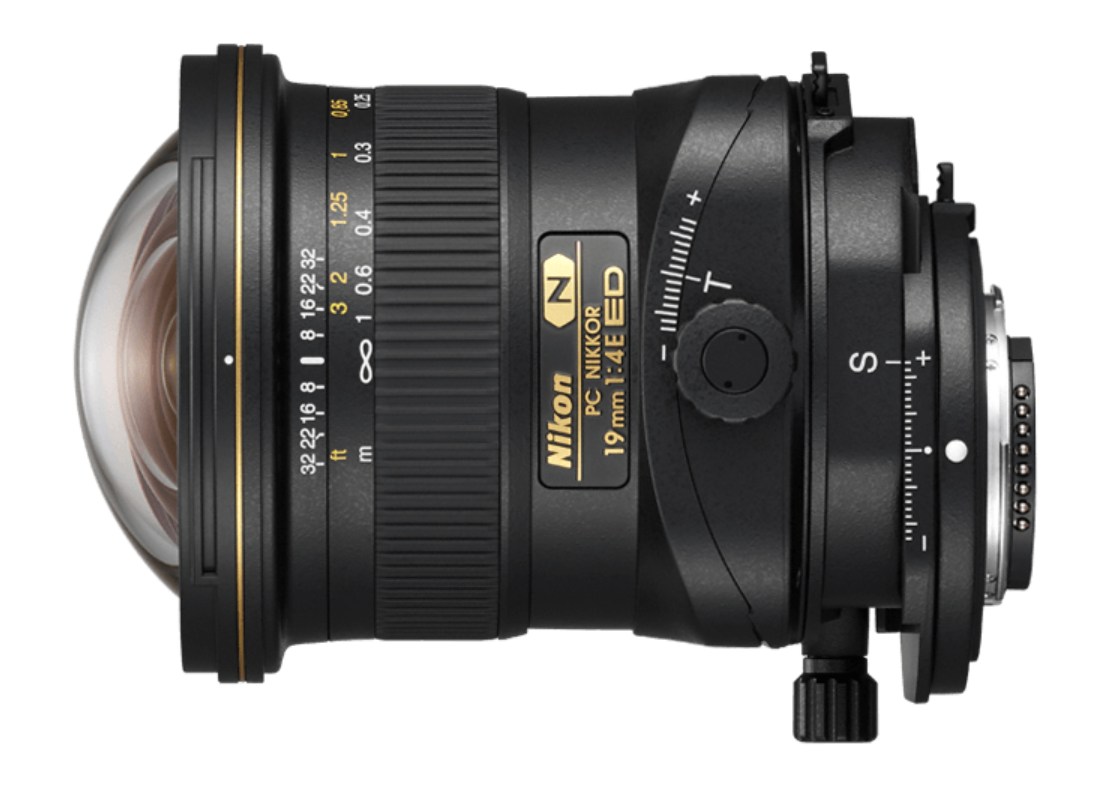
This is a photo of the Nikon PC Nikkor 19mm 1:4 E ED wide-angle tilt-shift lens. Notice how the whole lens is shifted relative to the lens mount. The range of this lens is 12 mm in either direction. That is half the height of the full frame sensor (about 24 by 36 mm). If you do architectural photography this is a very useful tool.
Cameras typically have a “Mode” dial, although on some the modes are selected on the display. The mode control selects how exposure is set and looks similar to the illustration here.
The mode control has two areas, except for the professional models that have only one, more on that momentarily. One area, shown here with the icons on the dark background, has the automatic exposure modes. From AUTO to the tulip. In any of these modes the camera makes all the decisions. Pretty much all of the time that results in a fine photo. The icons let the photographer tell the camera what the subject is so the camera can make even better choices.
The other area on the exposure mode dial, here with the white background, shows the modes that put the photographer in control – with the camera helping. These modes are typically labelled M, A, S, P. On Some cameras the settings are M Av Tv and P. These are the modes found even on professional models.
M is manual mode. The photographers sets everything, aperture, shutter speed, ISO sensitivity. The A (Av) mode is aperture preferred. The photographer set the aperture and the camera picks an appropriate shutter speed that gives “correct” exposure. In S (orTv) mode is shutter preferred. In this mode the photographer picks the shutter speed and the camera chooses the aperture.
That get us to mode P, or “Program” mode. This is a somewhat automatic mode. The camera picks both shutter speed and aperture, but the photographer can vary the settings, usually with the control wheel.
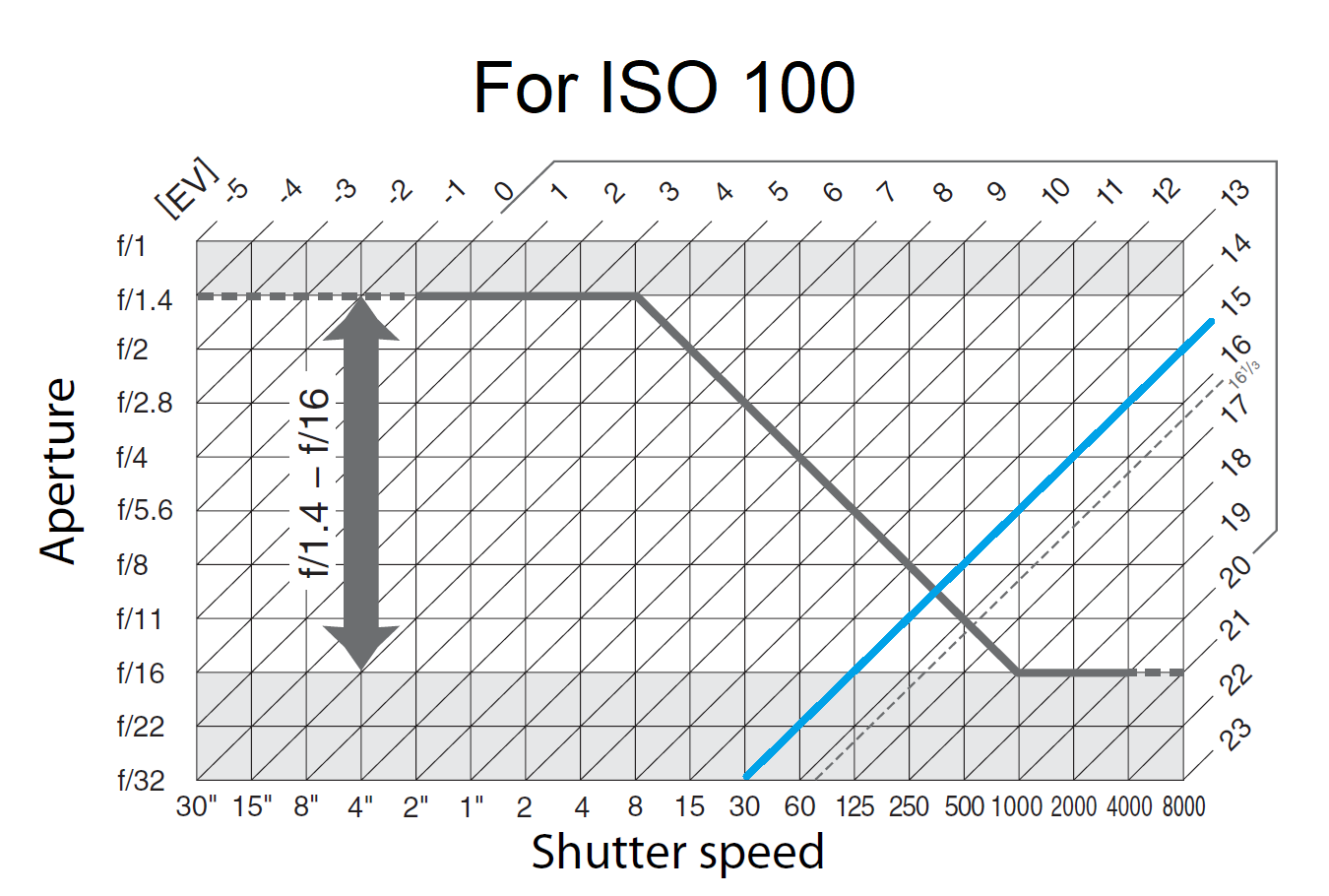
So what does the camera pick? – That depends on the ISO sensitivity setting and the scene brightness as measured by the camera. Most manuals are not very informative and neither are many of the training tutorials. For my old Nikon D800 the manual contains this graph (I have added the blue line and the ISO label.
What this tells you is that the camera works along the heavy black line. This is when the camera is set to ISO 100. It will pick a point along this line as determined by the scene brightness. Scene brightness on this chart is represented by the EV scale, shown with diagonal lines labeled from -5 to 23. Each increment on this chart is an EV step or stop, meaning a difference in brightness by a value of two, just like the steps on the aperture and shutter speed controls. An EV of 15 corresponds to bright sunny daylight. In your living room with the lights on you probable would have an EV of about 5.
So by this chart in daylight, EV 15, the camera picks an aperture setting halfway between f/8 and f/11 and a shutter speed halfway between 1/250 sec and /1500 sec. That is where the blue line crossed the heavy black line. If a cloud comes over and it gets a little darker the camera will pick a spot along the black line toward the left and the top. For half the light, that is one stop less light, the camera will open the aperture one half stop and increase the exposure time by the equivalent of one half stop.
The heavy black line goes horizontal at the maximum aperture that the mounted lens provides. It is drawn here for an lens that is f/1.4 at the widest. It will increase the exposure time by one stop for each stop less available light.
Similarly on the other end, at high levels of light, the camera will not stop down below f/16 and compensate for the change in light with shutter speed alone.
But wait, there is more!
In this P-mode, the camera control wheel will let the photographer vary the aperture and shutter speed, making the compensation in one for a change in the other.
Look at the blue line, the one I added to this graph. This is the EV 15 line, for a typical sunny daylight scene. The camera picked the point where the heavy lines cross. The control wheel allows moving up and down along the blue line. Notice that the aperture and shutter settings along this line all give the same exposure. So the photographer can pick either the aperture or shutter speed needed while the other parameter is set to maintain the same exposure.
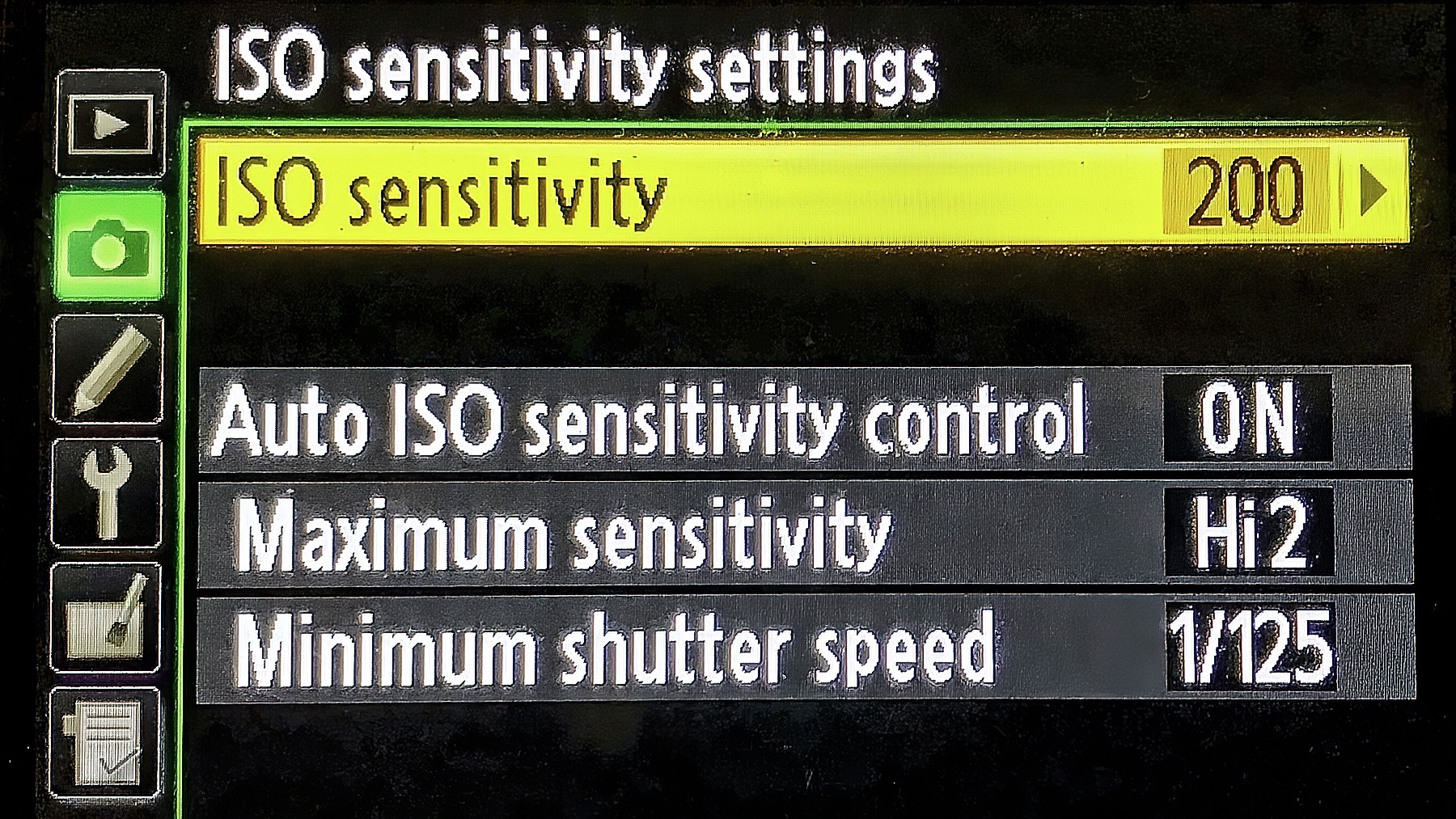
There is still more. Many cameras allow “auto-ISO” and can also set the slowest allowed shutter speed. When that limit is reached at low light levels – along the heavy black line – the camera will increase the ISO to maintain the exposure.
P-mode is a semi-automatic mode freeing the photographer from fussing with the camera and concentrating on the subject being photographed. It can thus lead to better results. So P-mode is “pretty professional”. Use it. You will grow to like it.
When you press down on the shutter release you have established a copyright in the resulting image. You may then state your copyright. Many people will place an extensive copyright statement on the About page of their website.
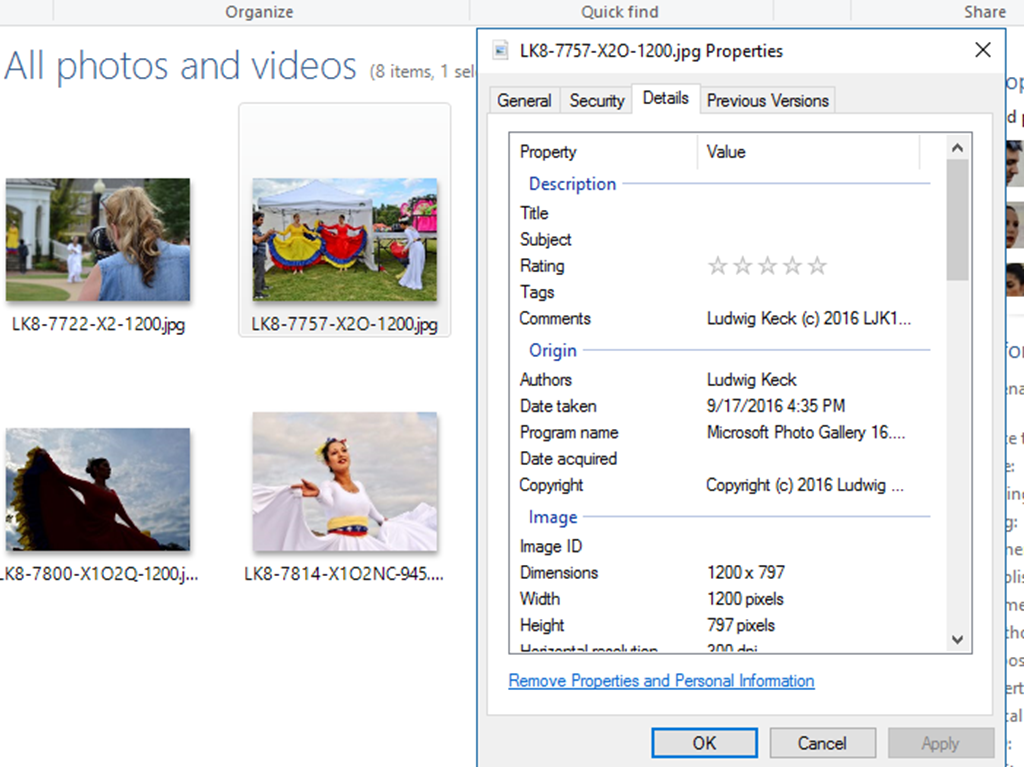
The EXIF data of photos is used generally to also show a copyright notice. You can add it by right-clicking the file and selecting Properties. You will find a place for the notice. I generally use this as my copyright notice:
If the copyright symbol is not readily available, the accepted alternate method is to enclose the letter “c” in parentheses, thus: (c). You can see this in the illustration here:
At the bottom of every blog post I add “boilerplate” like this:
Note the short form copyright notice (there are links above and below this notice to my “gateway” sites).
All the notices don’t make a bit of difference to thieves. Images are still stolen all the time. I protect a little against that by only posting low resolution images (generally about 1200px on the big side). At least this will make the images not suitable for printing or where better resolution is required.
You can also register a photo, or a collection of photos, with the U. S. Copyright Office or equivalent agencies in other countries. The process takes some time. In the U.S.A. there is no charge, however a copy of each image must be supplied to the Copyright office. I have done that only with books, not my individual photos. Such registration gives you some additional rights and protections that come into play only in law suits. You have to go after the bad guys in court, nobody else does that for you. It is costly as you can imagine.
I should also point out that just because you have taken the photo you may not be fully entitled to use it any way you like. The little thumbnail photos above show people in recognizable form. That entitles them to protection of their own likenesses. I did not get “model releases” for these photos and therefore I am rather limited with what I can do. I can use them in blogs as those are “news stories”, but I can’t sell those images as “wall art” or for use in advertising or what-have-you.
Please note that I have explained here what I do. I can not tell you what you should do as I am not a lawyer and thus not qualified to give legal advise. Consult with a lawyer to learn what is appropriate in your own case.

 .:. © 2024 Ludwig Keck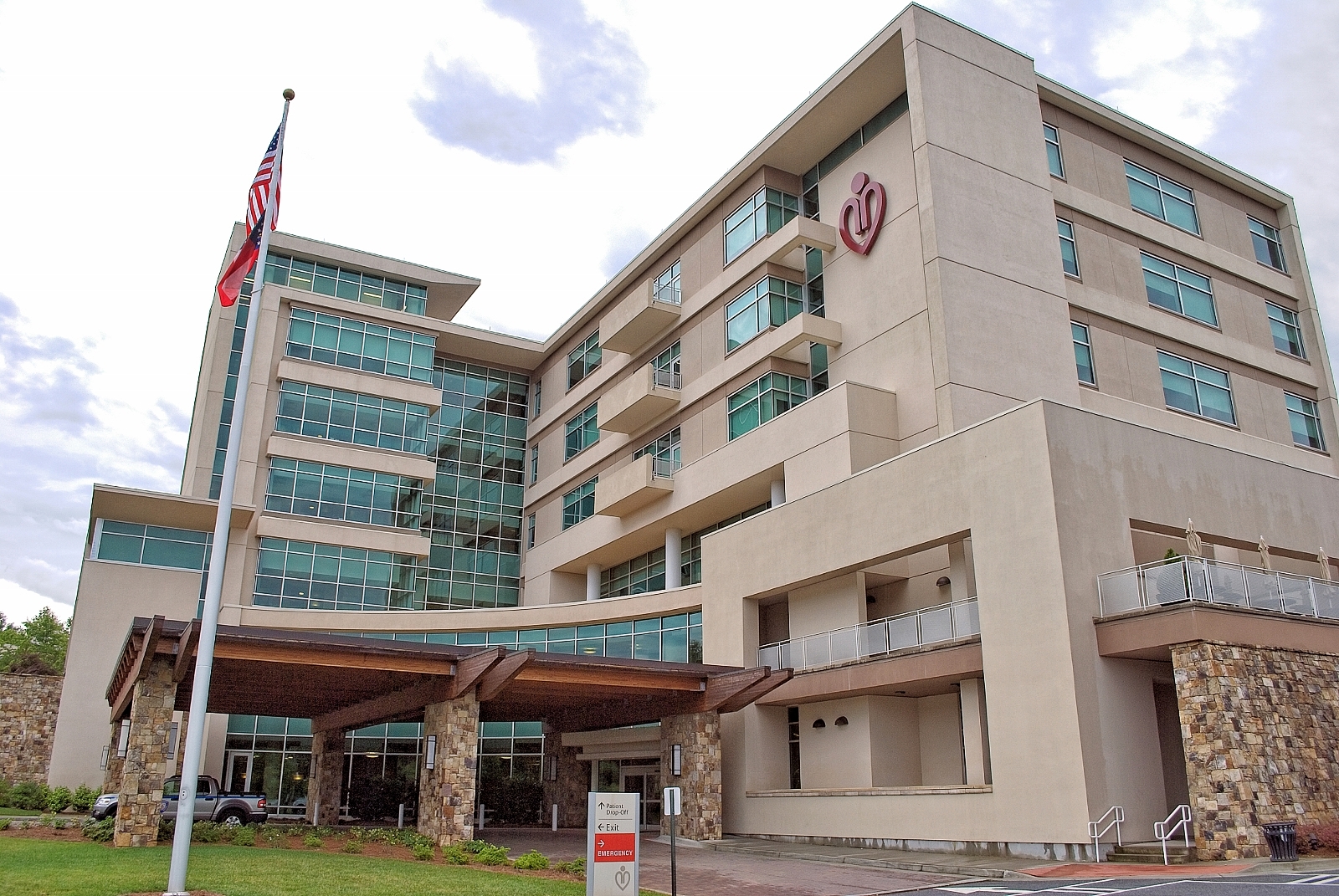


 Ask Ludwig