How do I link multiple Windows Live accounts?

UPDATE – July 2013: Sorry folks, Microsoft no longer allows linking of accounts.
The post below is no longer of use. Bummer.

Windows Live with SkyDrive and Hotmail makes the “cloud” experience fast and easy. If you have more than one account, linking them makes switching between then a one-click operation.

Many folks have more than one account, a personal one, and maybe a work-related account. Linking them makes switching easy, but does not affect the files or organization of either account. link-10Each account still keeps all its settings and preferences, all the folder and album organization.

Linking the accounts is also straight-forward, here is how to go about it:

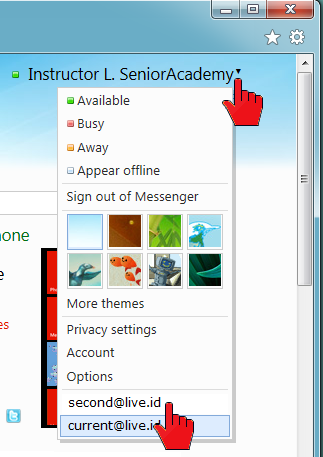
Click on your name or move the pointer over the down-pointing arrowhead behind your name (top-right of window). See the illustration. On the drop-down menu click Account.

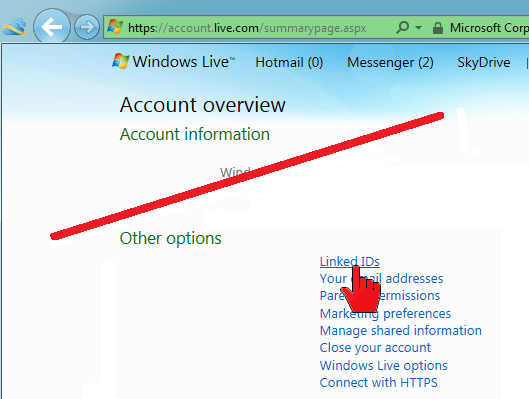
Sign in to the page with your password. On the Account overview page, toward the bottom, in the Other options sections, click on thelink-11 Linked IDs link.
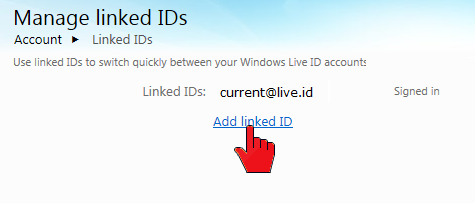
The Manage linked IDs page shows what accounts are linked and has an Add linked ID link.

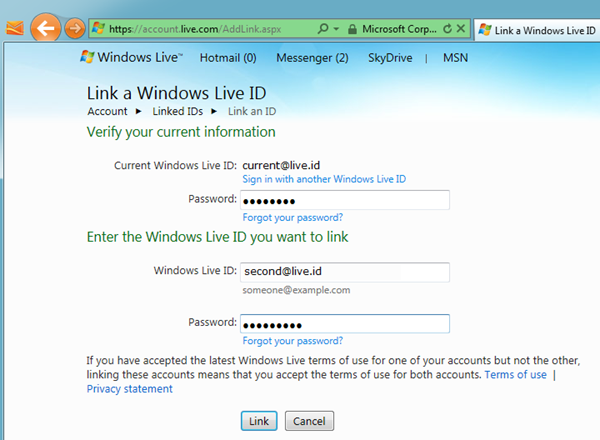
Click it to proceed to the Link a Windows Live ID page.link-12
link-13Once more your password is needed. Type in the credentials for the account you wish to add. Then click Link.

The Manage linked IDs page now shows the linked accounts. Note that there is an Unlink option to the right of each linked account name – you can unlink an account at any time.

How do you switch accounts?link-15
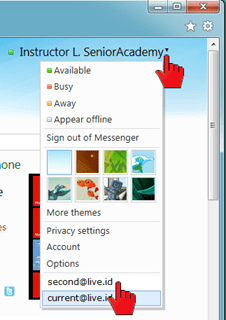
With linked accounts all you need to do is click on your name or move the pointer to the down-pointing arrowhead behind your name.

The drop-down menu will show the linked accounts at the bottom. The active, displayed, account is highlighted. Just click on another account and the switch is made.

Note the other options on the drop-down menu. I like to assign different themes to my different accounts to keep myself reminded of which account I am in.

I also set Keep me signed in on the sign-in page. This way I do not need to sign in each time I want to visit SkyDrive or my mail.

.:.

© 2011 Ludwig Keck

2011 in review

The WordPress.com stats helper monkeys prepared a 2011 annual report for this blog.

Here’s an excerpt:

The concert hall at the Syndey Opera House holds 2,700 people. This blog was viewed about 16,000 times in 2011. If it were a concert at Sydney Opera House, it would take about 6 sold-out performances for that many people to see it.

Click here to see the complete report.

Can I send photos to a SkyDrive album via email?

Update 6 April 2012: As of May 2012 this feature will no longer be available.

Yes, you can send photos to your SkyDrive albums via email. Windows Live SkyDrive offers a large amount of free storage and some nice photo album features. Normally you upload with a drag-and-drop procedure or, even easier, directly from Windows Live Photo Gallery.

ULbE-01pSending photos to a prime-level SkyDrive album via email is another very useful option. The procedure must be enabled first.

Here is how:

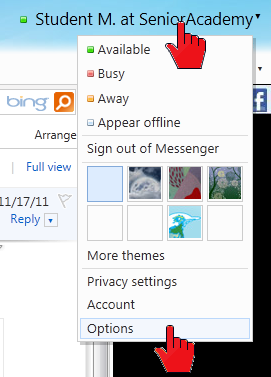
Log in to your Windows Live account. In the upper right corner click on your name. In the drop down menu, click Options. See the red pointers in the illustration here.

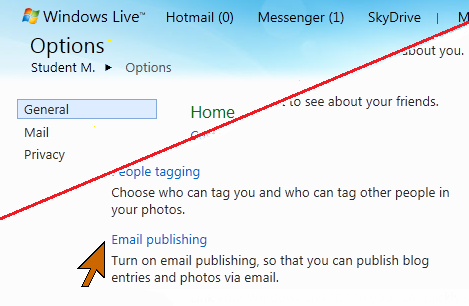
imageOn the options page in the lower right corner find and click Email publishing.

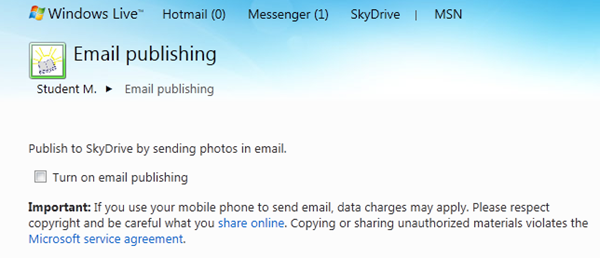
This takes you to the Email publishing page. Most of the page is greyed out until you click the Turn on email publishing check box.image

When the form is enabled, there are four steps:

  1. Enter the email address (up to three) from which photos can be sent to a SkyDrive album. Note that photos sent from any other address will not be delivered to the album, the email will just be lost.
  2. Enter a “secret” word. This will become part of the address for sending the photos. This is just used to make the process more secure. (No spaces in this word!)
  3. Select album codes. This is an optional step, codes, three-digit numbers, are pre-assigned to your albums. You can change these, but the ones offered will work just fine.
  4. Click the Save button.

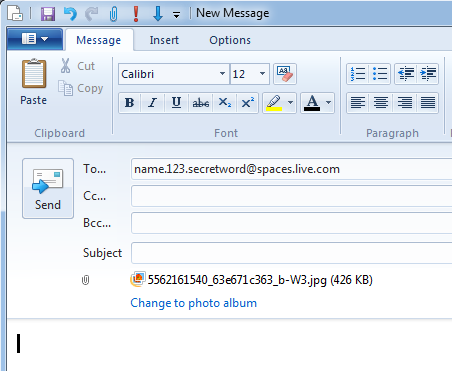
Once you have saved the information, there will be a display of the email addresses for sending the photos. Each album – and this is only for the prime-level albums, it does not work for albums inside other albums – has a unique email address. The address looks like this: name.album.secretword@spaces.live.com. Where name is a name derived from your name, it may be slightly different from your user name – be careful with that! The album will be the three digit album number (or other, if you changed it) to identify which album it is. The secretword is the word that you specified.

imageTo send photos to an album you must originate the email from an email address you specified on this page. Attach the photo or photos to the email. Do not use the Photo album feature in Live Mail. Do not “Change to photo album”.

Be sure to use the correct email address from your Email publishing page.

If using Hotmail use Insert: Attachments, do not use the Photos link.

Enter a subject and message if you like so you can find and see the email in your sent messages. Only the photos get to your album, no messages, no hint that they were sent via email. Only JPG photos can be sent to albums, this does not work for sending documents, just pictures.

.:.

© 2011 Ludwig Keck

How do I superimpose a photo on another one?

There are many tools to combine images and many ways. For adding, superimposing, one photo over another, a quick and easy method is to use the collage tool in Picasa. Here is an example: SP-01I have a photo of a tree covered in fruit. It is hard to discern the detail so I want to superimpose a close-up.

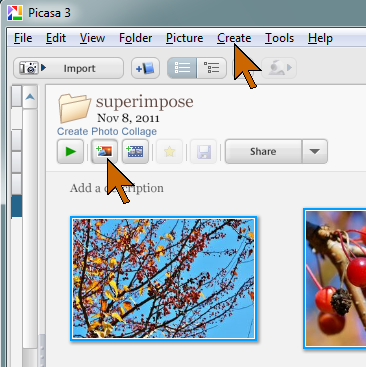
Picasa has a “Create Photo Collage” tool right under the folder name in Library view. The tool can also be launched from the Create menu where it is called “Picture collage …”. If you click the button, all of the photos in the folder will be loaded. If you want just some of the pictures select them (Ctrl+click) before launching the collage tool.

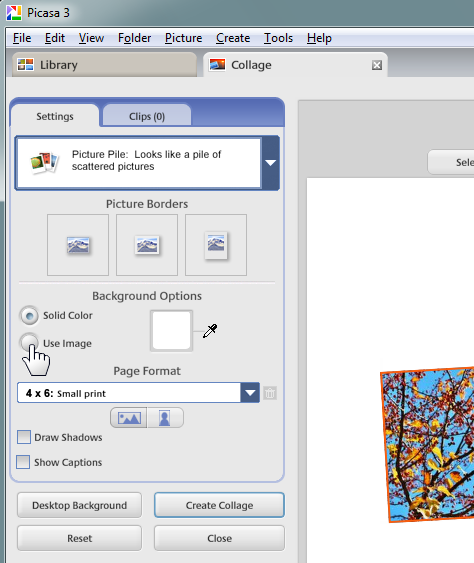
To use one photo as the base and to superimpose one or more others, first set the aspect ratio of the collage. SP-02My camera produces images in the 35mm camera aspect ratio of 1 to 1.5, so I select the “4 x 6: Small print” setting. This way the base picture will not get cropped. The “Picture Borders” setting allows putting a border on each of the superposed images. Click on the image to use as the base to select it, then under “Background Options” click “Use Image”.

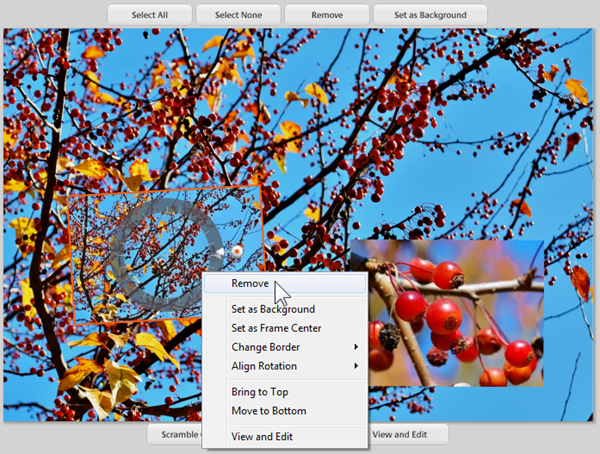
The base photo will now fill the collage area and all selected photos will be superimposed. Since the small version of the base image is not needed, right-click it and select Remove. SP-03This will leave just the image or images that should be placed on the base photo. In the example here there is just one. It can be dragged to the desired position. Click on the insert image and a four-pointed arrow shape pointer tells that the image can be dragged for positioning. Move the pointer toward the center and a control ring and control handle – a little bulls-eye button – is displayed. drag the control handle sideways and the image is made larger (to right) or smaller (to left). Move it up or down and the image is rotated.SP-05

Really, this operation is faster than you can read about it. In no time at all, you can place the insert photo or photos just the way you want – in size, position, and rotation.

To finish, click “Create Collage” in the controls pane. The collage image will be created and saved. The default file location is in PicturesPicasaCollages. The finished collage will likely be much larger than the original image, so you may wish to resize it.

superimpose

.:.

© 2011 Ludwig Keck