Can I reorganize my WordPress Media Library?

The short answer: No.

It is true, the WordPress Media Library is like one of those shoe boxes from the old days filled with pictures. Photos are added on top of the previous ones. There is no way to find a photo by tag or date taken. Well, it isn’t as bad as it seem, but first back to the answer.

The Media Library contains your images that you uploaded for use in posts. If you reorganized the contents of the library, moving photos into new folders by subject or some other indexing method, the URL of the images would change. Since the current URLs are used in your blog posts, those links would be broken. Your old posts would be all messed up. (That is not entirely correct, but I will leave that as a mystery statement for now.) Do not try to reorganize your Media Library even when it gets close to your storage limit with thousands of pictures. But don’t be disappointed that you can’t reorganize your library.

Here is the good news

Clearly you want to reorganize so you can find an image quickly. You actually can. Your photos are in reverse order of upload date. The most recent is at the top of the library. The very first image you uploaded is last. By default WordPress creates a folder for each month in which you upload images. You can easily reach any of those folders by clicking the All dates field. A drop-down menu lets you pick the folder for any month.
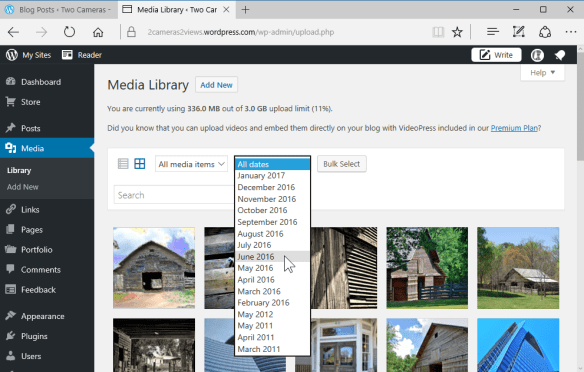
askludwig-170117-01This brings up the photos you uploaded in the selected month.

But wait, there is more!
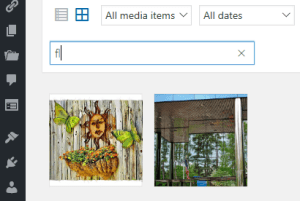
askludwig-170117-06There is a Search field. Just type in that field and the images with matching text in their data fields, like Title or Caption, will be displayed.

The illustration here shows that the text “fl” was typed in the Search field. Two images come up.

Here is the first one:
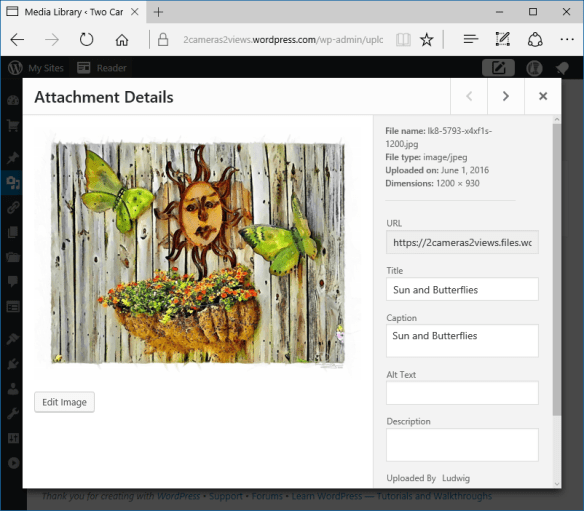
askludwig-170117-04The matching “fl” is in the word “Butterflies” – the text does not have to be at the start of a word, it can be inside! The other images was a match because the word “Reflections” was in the title. Pretty neat, wouldn’t you agree? See, you really don’t need to reorganize!

.:.

© 2017 Ludwig Keck

How do I get to my WordPress Media Library?

Two ways come to mind. Reach in through a window or “walk” in through the dashboard. Sorry about this levity, but really these are routes to your WordPress Media Library. Let’s take the formal path first: Go to your WordPress Dashboard. The way there is by going in your browser to address yourblog/wp-admin, where “yourblog” is the web address of your blog.

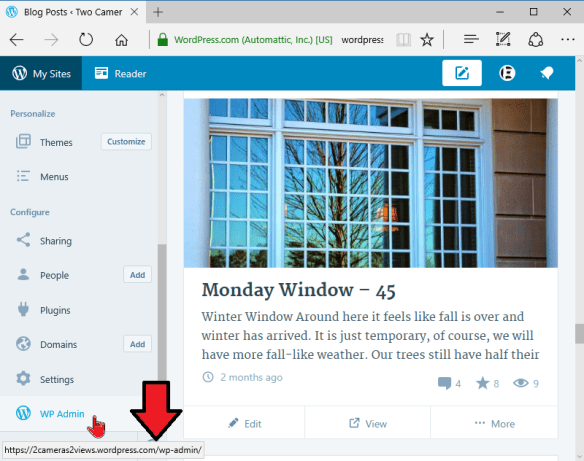
If your blog is on WordPress.com, that is, the address is like blogname.wordpress.com, you can access the Dashboard by going to wordpress.com, click My Sites and scroll down to the bottom in the left pane. There click WP Admin.

askludwig-170115-05
askludwig-170115-06a

Notice the red arrow in the illustration above. It shows the URL of your Dashboard when you move the pointer over the WP Admin link.

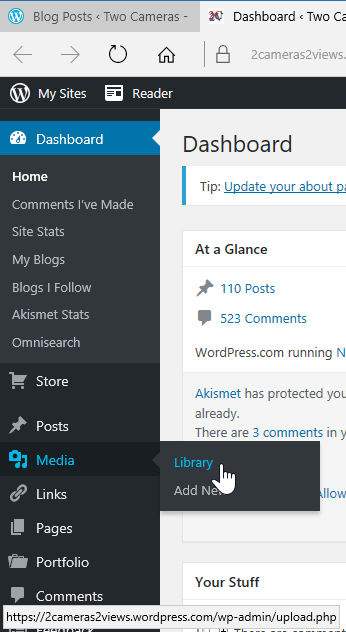
In the Dashboard click Media in the left pane, or Library in the drop-down menu.

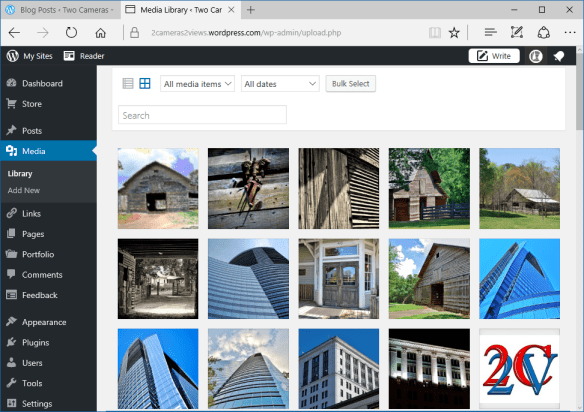
Here you can also see, in the lower left of your browser window, the URL of your Media Library.

Yes, of course, I could have told you about this address first, but it is just a little more complicated, that is longer, and harder to remember.

Your Media Library is the online location where your images, and some other media, are stored for use in your blog posts.

The storage order is by upload. The earliest item is at the bottom of this possibly very big “shoe box”. The most recently uploaded image is at the top.

askludwig-170115-18

Now I did tease with another way to get into your Media Library. It is a little convoluted and not at all intuitive, but for some tasks it is the easier way.

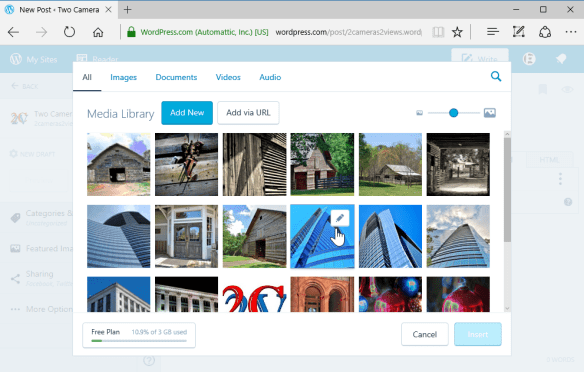
Once again you can start at WordPress.com. Click My Sites, then Blog Posts. Either open to edit an existing post or click Add. This gets you into the online WordPress Editor.

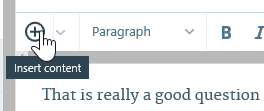
Click the circled plus icon to insert content, and a window to your Media Library opens. You can pick an image to insert into your post, but you can do a number of other tasks. We’ll save those for another article.

askludwig-170115-12

Next question, please.

.:.

© 2017 Ludwig Keck

When I add a photo to a WordPress post, where does it go?

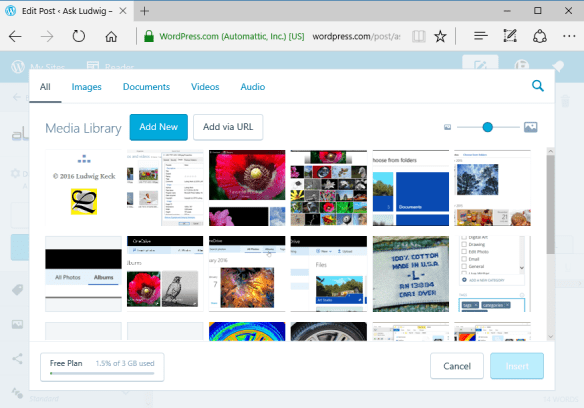
That is really a good question because images do not go “into a post”. askludwig-170114-02You actually know the answer, you just might not be aware of it. When you prepare a post, starting at WordPress.com, and you click the circled-plus icon to “insert contents”. It opens an overlay that shows your “Media Library“. It will look a bit like this:


askludwig-170114-03

You can click on an image and then you’ll get an “Insert” button. This tells you already that your images are stored in your “Media Library“. If you wish to insert a photo that is on your computer you would click Add New. That opens another window, this time one that shows the files on your computer, and you can select the photo to upload to your Media Library.

As soon as you have selected the image and clicked Open, the file window closes and you are back to the Media Library, but now it shows the newly uploaded photo and it is already selected for you. Just click Insert and it is in your post.

There is another hint in the insert-option window. Take a look at the illustration above once more, but look in the lower left corner. There is tells you how much of the storage space you are using.

With your WordPress blog account you also get 3 GB of storage space. That is where your images are stored. In the “basement” of WordPress, I should probably have said in the WordPress server “cloud”.  If you are using a self-hosted blogging account it is just a bit different since you will be storing your images on servers at your hosting service.

.:.

© 2017 Ludwig Keck

What are tags and categories in WordPress blogging?

Tags and Categories

Tag

Tag

When you shop for clothes you look at the tags to learn the size, material, and more on the items. Tags work the same way for blog posts, they give information about the topics covered. They help readers find articles of interest.

This post is tagged “tags”, “categories”, “Blogging”, “WordPress”. Tags are thus for the public. On most blogs readers find them at the top or bottom of a post. Like this:

Tags-02

Tags-01When a reader clicks on such a tag, other articles with the same tag are shown. Readers can also set up tags they wish to follow in the WordPress Reader.

“Categories” are a tool for the blogger. They help you organize your posts by, well, by “category”. You can set up a menu item for a category. When the item is clicked a page is generated that shows posts that were marked with that category. This is most useful if you blog about several distinct topics, say “travel”, “photography”, “cooking”, you, or your readers can then see the related posts without having to sort through others. Take a look at the menu bar on this blog. If you click “Posts on Blogging” you get my posts on that subject, but only my posts! Similarly if you click on one of the links shown in “This entry was posted in” at the bottom of my post, you get just my posts on that topic.

To recap, “tags” are topics assigned by many bloggers and the Reader will find posts on that topic from all bloggers. “Categories” are your own and keep the reader in your own site.

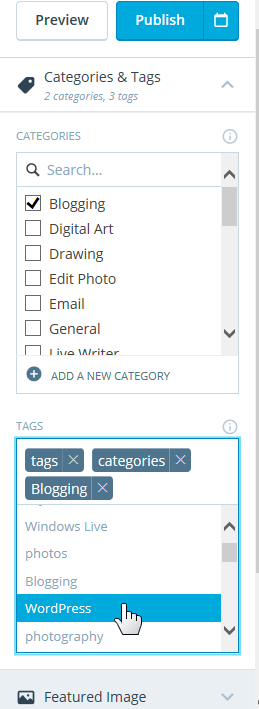
When you use the WordPress.com online editor you can assign categories and tags in the sidebar as shown in the illustration on the left.


.:.

© 2016 Ludwig Keck