What is the difference between albums and folders on SkyDrive?

Windows Live SkyDrive has a long history and carries a legacy of features. Currently the primary purpose is for storing and sharing files and photos.

SkyDrive in the root location, the first one you come to when you click SkyDrive in the top bar, can contain documents and folders. Folders in the root location have a Folder type parameter. Sub-folders, folders inside other folders, do not have a Folder type.image You can see the Folder type in the information pane under Information.
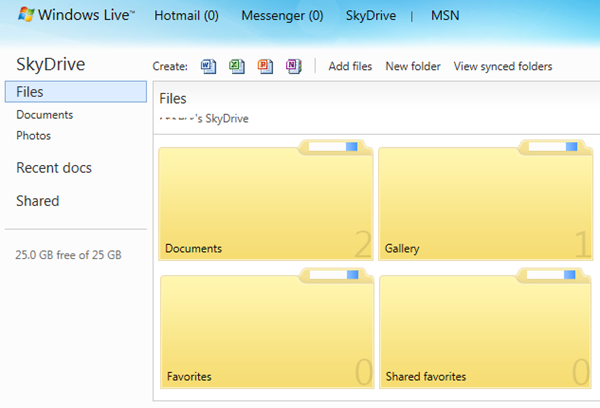
In the root location the Folder type may be fixed for some folders (legacy Documents, Favorites). Other folders, and all newly added ones, can be of Folder type Documents or Photos and the Folder type can be changed.

When you click Documents in the left pane, only folders of Folder type Documents (and Favorites, if you have any of those) will be shown in the main area.

When you click Photos, only folders of Folder type Photos will be shown in the main area. These are the albums.

There is one other distinction: Only albums, i.e. folders of Folder type Photos, will show in Windows Live Photo Gallery in the upload dialog. So you can only upload photos to “albums”.image
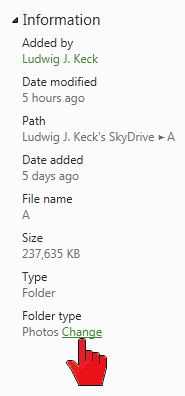
You can change the Folder type of folders in the root location. In the information pane, under Information, you can see the Folder type. There is a Change link.image
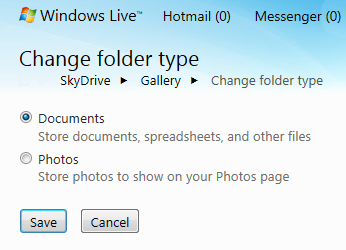
Click on Change and a new page allows you to change the Folder type.

The two options are:

  • ● Documents – Store documents, spreadsheets, and other files
  • ● Photos – Store photos to show on your Photos page

To summarize: Albums are folders of folder type Photos. They are located in the root of your SkyDrive. They will be shown in the main display area when you click Photos. These albums will also be shown as album options when uploading from Live Photo Gallery.

Other folders and subfolders may contain photos – by moving individual photos or folders into them. imageWhen a folder, or subfolder, contains a photo, the folder icon will show that photo. When a folder contains more than one photo, the folder will play a continuous little slide show of the photos inside on the folder icon. You can see this by clicking the folder illustration here.

.:.

© 2011 Ludwig Keck

Can I send photos to a SkyDrive album via email?

Update 6 April 2012: As of May 2012 this feature will no longer be available.

Yes, you can send photos to your SkyDrive albums via email. Windows Live SkyDrive offers a large amount of free storage and some nice photo album features. Normally you upload with a drag-and-drop procedure or, even easier, directly from Windows Live Photo Gallery.

ULbE-01pSending photos to a prime-level SkyDrive album via email is another very useful option. The procedure must be enabled first.

Here is how:

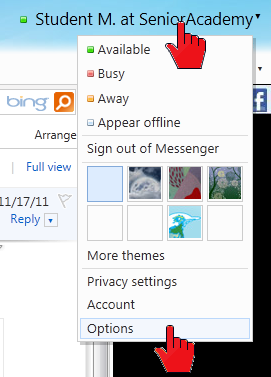
Log in to your Windows Live account. In the upper right corner click on your name. In the drop down menu, click Options. See the red pointers in the illustration here.

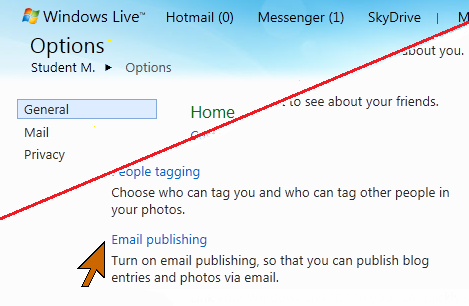
imageOn the options page in the lower right corner find and click Email publishing.

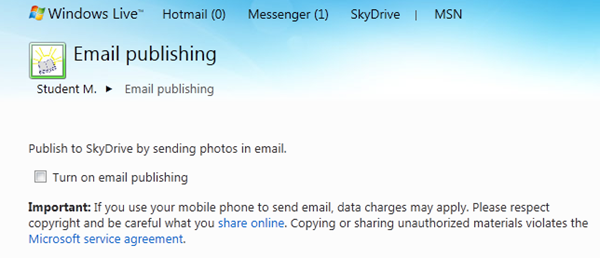
This takes you to the Email publishing page. Most of the page is greyed out until you click the Turn on email publishing check box.image

When the form is enabled, there are four steps:

  1. Enter the email address (up to three) from which photos can be sent to a SkyDrive album. Note that photos sent from any other address will not be delivered to the album, the email will just be lost.
  2. Enter a “secret” word. This will become part of the address for sending the photos. This is just used to make the process more secure. (No spaces in this word!)
  3. Select album codes. This is an optional step, codes, three-digit numbers, are pre-assigned to your albums. You can change these, but the ones offered will work just fine.
  4. Click the Save button.

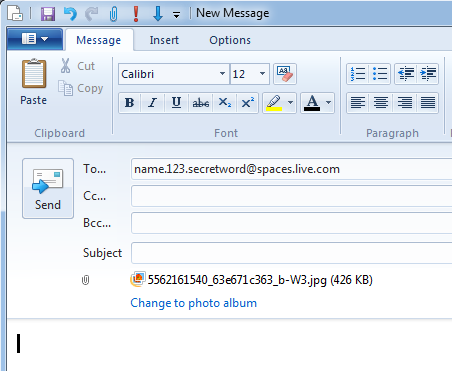
Once you have saved the information, there will be a display of the email addresses for sending the photos. Each album – and this is only for the prime-level albums, it does not work for albums inside other albums – has a unique email address. The address looks like this: name.album.secretword@spaces.live.com. Where name is a name derived from your name, it may be slightly different from your user name – be careful with that! The album will be the three digit album number (or other, if you changed it) to identify which album it is. The secretword is the word that you specified.

imageTo send photos to an album you must originate the email from an email address you specified on this page. Attach the photo or photos to the email. Do not use the Photo album feature in Live Mail. Do not “Change to photo album”.

Be sure to use the correct email address from your Email publishing page.

If using Hotmail use Insert: Attachments, do not use the Photos link.

Enter a subject and message if you like so you can find and see the email in your sent messages. Only the photos get to your album, no messages, no hint that they were sent via email. Only JPG photos can be sent to albums, this does not work for sending documents, just pictures.

.:.

© 2011 Ludwig Keck

Can I re-import photos when the computer says no new photos were found?

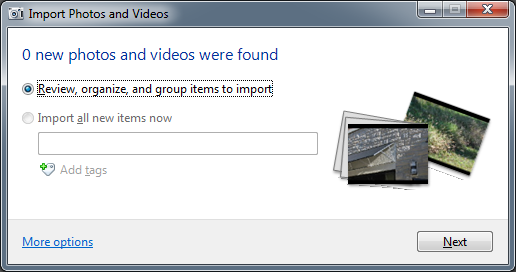
On occasion you will get a dialog that says “0 new photos and videos were found” when you try to import pictures from your camera.Import-01 This happens if you already have imported those photos, even though you might have deleted or moved the pictures on the computer.

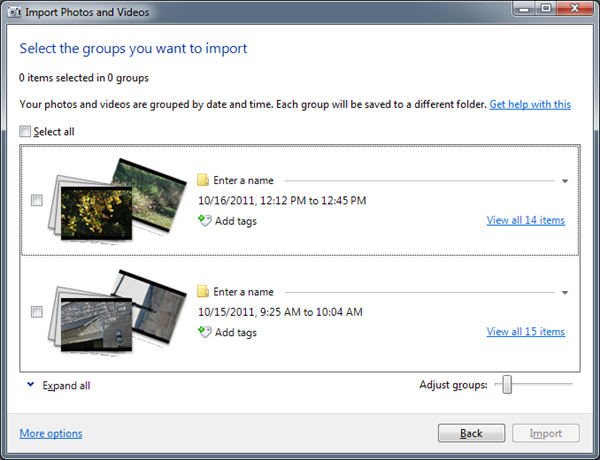
Can you re-import the photos? You can, provided that you did not erase them on the camera. We are assuming here that you have set up your computer to use Windows Live Gallery to import photos from your camera. Just click the Next button (see illustration). In the next window you will see the photos on your camera arranged by date. It will say “0 items selected in 0 groups”. Note that the check box in front of the groups is not checked.

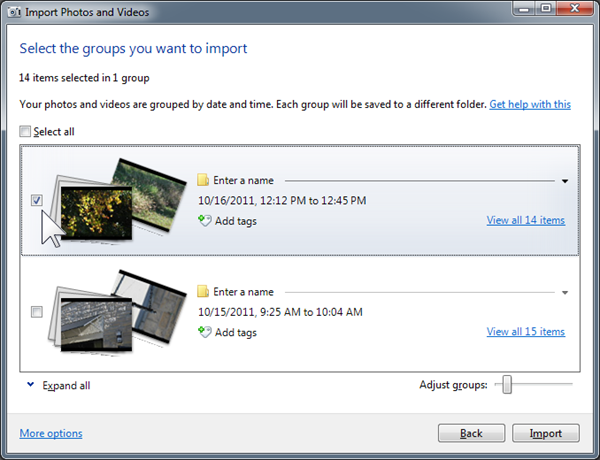
Import-02Import-03

Click on the group check box that you wish to import again. There is also a “Select all” option. Make sure you have selected just the ones you wish to import once more. Click Import and the process starts.

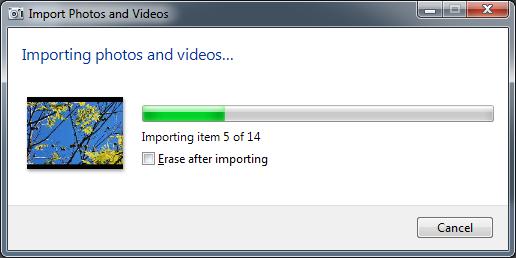
Import-04While the photos are being imported you will see the progress in a dialog like the one shown here. Note the check box with the legend “Erase after importing”. This means “erase from the camera after the photos have been imported to the computer”. I always leave that unchecked, which is also the default. This way the photos stay on the camera.

So what happens if you already have the photos on your computer? A new set will be imported, if the file name already exists, the import process will add a number in parenthesis at the end of the file name for the new file. You will wind up with duplicated photos. No harm will be done to photos that are already on your computer. Of course you can delete the duplicates.

.:.

© 2011 Ludwig Keck

How do I move a sub-folder up a level?

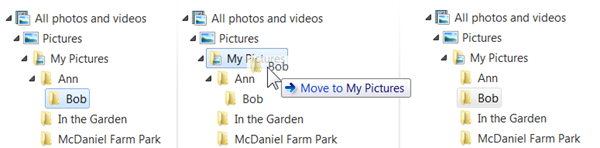
Sometimes you need to re-organize your picture folders and may wish to move a sub-folder up so it is on par with other folders. Here is an illustration:

image

On the left the folder “Bob” is inside folder “Ann”. You can tell by the little arrowhead. In fact, until you expand (click on) folder Ann you cannot see folder Bob in the navigation pane.

To move it so it is on par with – at the same level as – folder Ann, proceed as follows: Drag the folder to the name of the folder where you want it. In this illustration we want folder Bob to be inside My Pictures. So it is dragged to the My Pictures folder name. Notice the little note (screen tip) that says “Move to My Pictures”. When it says the correct folder name, drop it (let go the mouse button). You have moved the folder.

You can use this procedure to move any folder to be inside any other folder, even inside sub-folders.

Sometimes the procedure will not succeed, such as when a folder is open in an application. Just close the application and try again.

You can reorganize your folders in the navigation pane of Windows Live Photo Gallery or in the navigation pane of Windows Explorer. (Do not have both open at the same time, see warning above.)

.:.

© 2011 Ludwig Keck