Most “Digital Still Cameras” assign the file names of the photos in this format: “DSC_nnnn.xxx”. The “nnnn” is a four-digit number and the “xxx” the file type, often “JPG”, but it can also be another extension. For example for Nikon “raw” files the extension is “NEF”. The first four characters can be changed in some cameras, but most just set the “DSC_” prefix.
Of course, you can change this by renaming the file. Doing that one at a time is not practical, so here is the procedure I use for doing “batch” renaming. I use a “Windows Batch File” to do this chore.
Creating a Windows Batch File
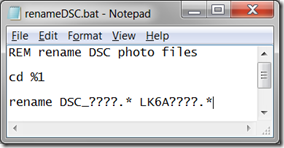 Open Notepad and type in the Windows “command line” commands. See the illustration here. My first command starts with “REM”. That stands for “remark” and does nothing. It is just used to tell me what the batch file does.
The next command is “cd %1”. The “cd” part stands for “change directory”. This is old language dating back to the time before “folders” were called “folders”, they were “directories”. The command is equivalent to you clicking on a folder in the navigation pane of Windows Explorer. The “%1” part tells the command to use the “command line parameter” that was passed to the program. That sentence probably means nothing to you, don’t fret. You will see shortly how we pass the folder name to the batch file program – by just dragging it to the bat file icon.
The last line is “rename DSC_????.* LK6A????.*” Now here the first term is easy enough, “rename” means just that (you can also use just “ren”). This is followed by the name of the file (or files) to be renamed. The first part is clear enough. The question marks each stand for “whatever character is there”. There are four question marks to specify the four numeric characters in the photo file name. The period follows the numbers. The asterisk after the period says “whatever follows the period”.
Now the new name is entered. This is the same except for the first four characters. I use my initials followed by a “camera identifier character” (“6”) and that is followed by the letter “A” in my case. You can specify any four characters, no fewer and no more, or else the command will do “unexpected things”.
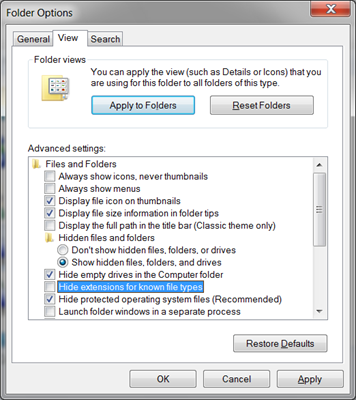
Save the file to your desktop, using Save as and giving it a name. I use “renameDSC”.  Since you created it with Notepad is is just a plain text file, not a “batch program” yet. If the icon on the desktop shows just the name without an extension, reset the viewing options to make the next step easier: Open Windows Explorer (Start – Computer). Click on Desktop (at the top in navigation pane). Click Organize then Folder and search options. In the Folder Options dialog click the View tab.
  Find the option reading “Hide extensions for known file types”. Click it to uncheck the box. Click OK then close Windows Explorer.
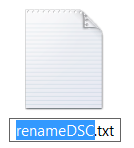
Now the extension of the file you created will be visible, it will say “renameDSC.txt”.
Click on the icon to select it, a moment later click on the name. This opens the rename box. 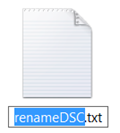
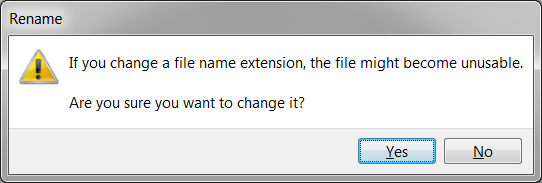
Replace the “txt” extension with “bat”. The “bat” stands for “batch file” and 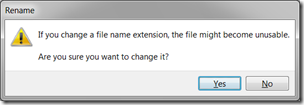 indicates to Windows that it is a batch program. Press Enter. There will be a warning message. Click Yes to perform the rename operation.
You now have created a “batch program” and the icon will now show the “gears” image:
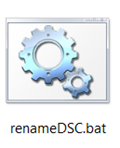
If you wish you can reset the option to hide the extensions of “know file types”.
You can edit and revise the batch file by right-clicking the icon and selecting Edit – this opens Notepad. When you are finished save the file. It will remain a batch file, so there are no further hoops to jump through.
You are now ready to perform the renaming operation. You will find this fast and easy – now that you have a desktop program for doing so.
Renaming the DSC files
After importing your photos, open Windows Live Photo Gallery. Find the folder or folders of the new photos in the navigation pane.
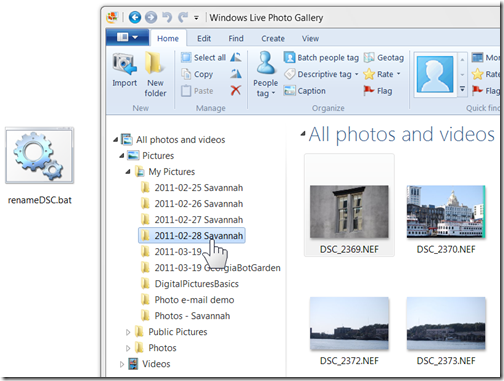
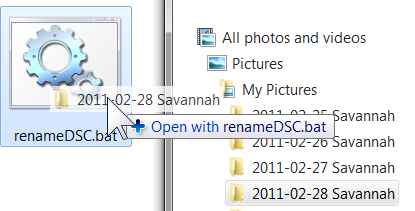
Now just drag the folder name to your batch program.

You will see the “Command prompt” window open momentarily and carry out your instructions. If you folder contains a small number of photos you might not even notice the operation. But take a look at the thumbnails. If you have the display showing the file names, you will see that they all have been renamed.
Do this for any other folder containing photo files that need renaming. It takes just a couple of seconds, but you do have to do it one folder at a time. You will find this quick and easy and fun to do.
Clubhouse Tags:
Clubhouse,
how-to,
story,
Windows 7,
Windows Live,
Photo Gallery,
Photos,
photography,
digital pictures,
digital imaging,
renaming files,
Windows batch program,
batch file,
BAT file,
DSC file names,
create BAT file.
Technorati Tags:
how-to,
Windows 7,
Windows Live,
Photo Gallery,
Photos,
photography,
digital pictures,
digital imaging,
renaming files,
Windows batch program,
batch file,
BAT file,
DSC file names,
create BAT file.:.










 Ask Ludwig