Can I remove a category on a WordPress blog post?

The category and tag links on WordPress blog posts provide a quick way for readers to find related articles. More than one category can be shown on a post. If you posted with a category that you later decide is not appropriate, is is easily removed or changed.

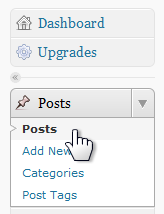
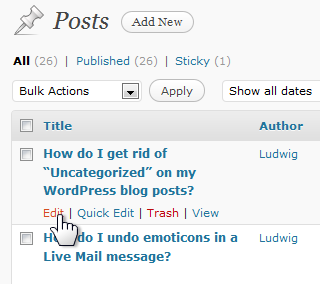
Sign in to your WordPress Dashboard. On the left find the Posts link. Click on it to expand the menu. Click on the next Posts link.image This will bring up a page listing your imageposts. Move the pointer to just below the title of the post you wish to modify. This makes several option links visible. Click the Edit link.
The Edit Post page comes up with that post loaded. Over on the right side, you may have to scroll down a bit, find the Categories listings. image
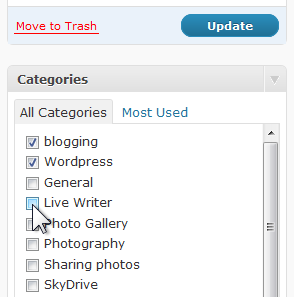
Note that the currently assigned categories show a check mark in the box in front of the category name.

To add a category just click the box or category name you wish to add.

Similarly, click on an already checked category to uncheck it.

Click the Update button. Now only the checked categories will show for that post.

You can even add a new category right on this page. There is an Add New Category link right below the categories listing.


The gateway to my blogs and galleries is Café Ludwig

.:.

© 2011 Ludwig Keck
How do I get rid of “Uncategorized” on my WordPress blog posts?

WordPress posts are identified with categories and tags to make it easier for readers to find related information. These labels are shown above or below imageposts and can be shown in sidebar “widgets”. The default category is “Uncategorized”.

A default category, the one used if you do not make a specific assignment, is required, but it need not be named “Uncategorized”. You can change it to another term. I use “General”.

Here is how to change the category name

Open your WordPress Dashboard. On the left click Posts to expand that menu. Click Categories. The categories are shown in a pane on the right.

image

image

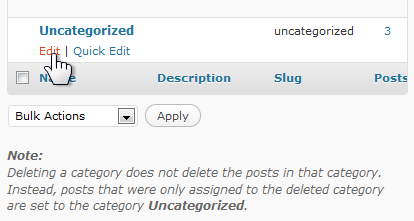
Find the Uncategorized listing in the table. Option links become visible when you move pointer to just below the category name. imageClick Edit.

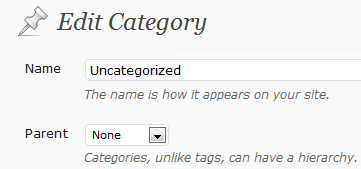
On the Edit Category page you can change the name of the category. Edit out the current name and type in the term you prefer.

Click the Update button.

You are done.

In all places where the term Uncategorized used to appear, the new term will now be displayed.

.

The gateway to my blogs and galleries is Café Ludwig

.:.

© 2011 Ludwig Keck

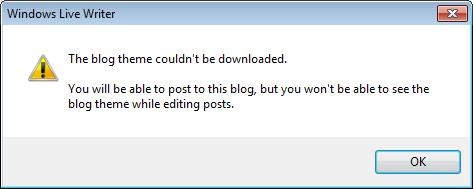
What does this Windows Live Writer error message mean: “"The blog theme couldn’t be downloaded"?

If Windows Live Writer gave this message when trying to update the theme from your WordPress blog, and if you are using a static page, then maybe I can help.

T02

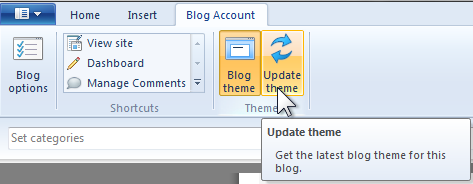
When you click Update theme on the Blog Account tab in imageWriter, it downloads a number of support files from WordPress. It may write a temporary post to your blog in this process (it will ask for permission). When the blog uses a static landing page it may have trouble doing all this and can’t complete the setup.

Here is the work-around procedure

Click Dashboard in the Blog Account tab to open your WordPress blog dashboard.image This launches your browser and logs in to your WordPress dashboard (you may have to log in).

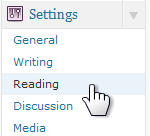
Expand the Settings tab in the pane at the left and click Reading.image


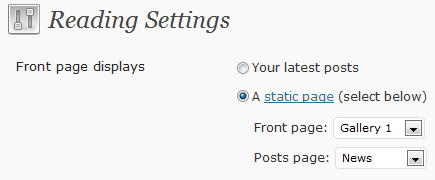
Carefully note (and jot down) the selections for your Front page and Post page settings.

Next click Your latest posts for the setting of what the Front page displays to (temporarily) disable the static page mode. The static page settings should now be grayed out.

Click Save changes – you may have to scroll down.

Back in Writer click Update theme in the Blog Account tab. The update process should now run.

If it asks for permission to do a temporary post click on Yes otherwise it will not install your theme for display in Writer.

The process should finish in a minute or two. The color, background, and fonts of your new theme will show up in the Writer main window.

Back in the browser in your WordPress dashboard in the Reading Settings page, click on A static page to re-enable your static page.

If the settings have reverted to the defaults (in case you closed and reopened your browser) reset the selections for front page and post page (that is why I asked you to jot down the settings).

Click Save changes.

You should now be back in business, your blog will again present your static page as the landing for visitors and you will have full wysiwyg (what you see is what you get) editing capability in Windows Live Writer.

Please leave me a note if you tried this and tell me of any difficulties.


How do I install a custom menu on my WordPress blog?

WordPress blog themes offer many variations in appearance and features. Many themes allow you to install a custom menu in place of the default menu.

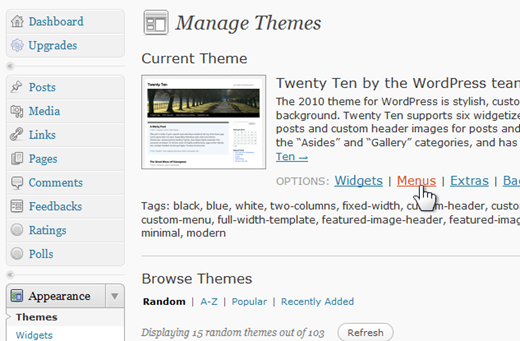
To check if your theme supports custom menus, expand the Appearance tab in the navigation pane on the left of your Dashboard. Click Themes. Your current theme will be shown on the top of the page. The illustration below shows the default theme, “Twenty Ten”.

image

Below the theme description is a line of links titles “OPTIONS:”. If your theme supports custom menus there will be a link there.

Click the Menus link (there is also a link to Menus in the Appearance group).

If you do not yet have a custom menu, there is just one thing to do on the Menus page, that is to create a menu. Enter a name for the menu in the box (“mymenu” will do) and click Create Menu. image

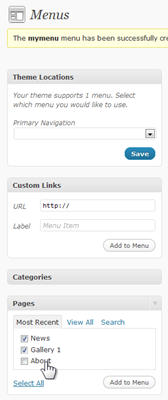
Now other options on this page are available. For this task, these are Theme Locations, Custom Links and Pages, see the illustration here.

Start in the Pages group. Click each page you want shown on the menu so the checkmark shows, then click Add to Menu.

In the Custom Links area you can enter the address of a page or website – just about anything you want to show on the menu. There is a text box for the text that should appear on the menu for this.

The items you have added to the menu will show up on the right side.

image

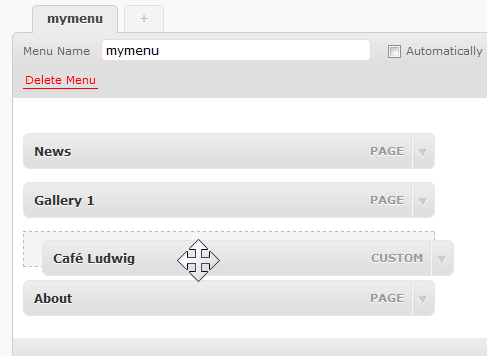
Here you can rearrange the order of the menu items by just dragging an item from one place to another. The illustration above shows such a maneuver. 

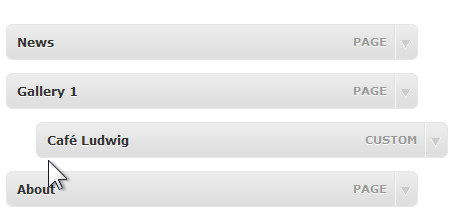
Caution: If you move the menu item a bit to the right it may locate “indented”, like this:

imageimage

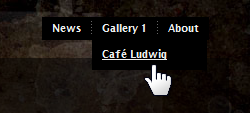
With the result that the menu item becomes a submenu under the item above it. Of course, this may be just the result you want. Submenu items appear when the pointer is moved over the menu item. See the illustration.

To remove or modify a menu item, click the down-arrow on the right of the item for options.

Click Save Menu to save the menu. This does not install it, there is one more step.

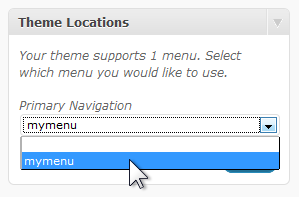
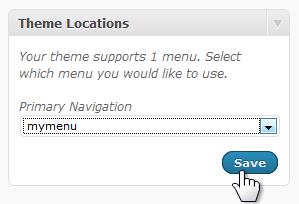
The last step to install the custom menu is under Theme Locations. The selector under Primary Navigation shows the default, blank area and the menu you created.

imageimage

Click in the space or on the down-arrow, then click on your menu. Finally click Save. Now your custom menu is installed.

You can modify the menu on this page. You can also revert to the default menu by selecting the blank listing under Primary Navigation (and saving, of course). This will still keep you custom menu so you can go back to it.