
WordPress offers an array of “Widgets’” hat can be placed in sidebars to show a wide variety of material. The “Links” widget is one of those and shows links to other blogs and sites. This is one widget that is not too easy to use as a number of steps are required to set it up the way you like.
Your blog already has a number of links in a category called “Blogroll” that were set up along with your blog. You can modify this group, but it is easier to add a new “Link Category”. You need to add the links you want, and finally you need to place the Links Widget into the sidebar. Lets take these up in order.
Set up a Link Category
On the WordPress Dashboard, in the navigation pane on the left, find Links. If it is not expanded click it so the tabs “All Links”, “Add New”, and “Link Categories” show. Click Link Categories to display the Link Categories page. 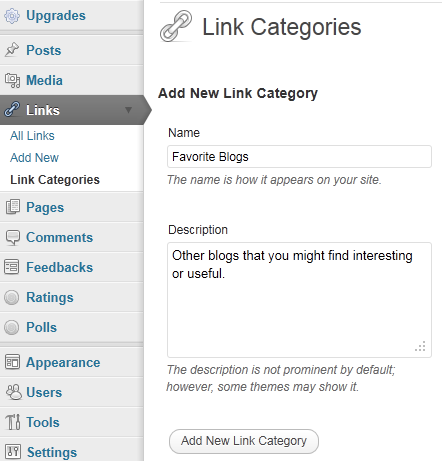
In the Name field enter the title you wish to show above the link list in the sidebar. You can enter a description to explain the list in more detail. Then click the button below the fields, “Add New Link Catergory”.
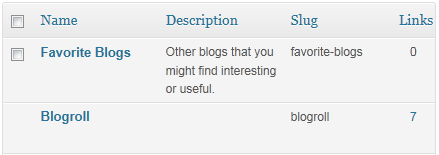
This will add the category to the listing on the right.
Add new links
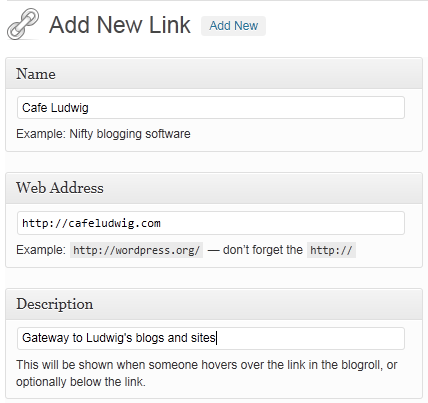 Click the Add New tab to bring up the Add New Link page. Fill in the spaces with the name of the blog or site, the full URL, that includes the “http://” part, and some description of the link.
In the Categories field click the category that you set up earlier.
Be sure to click the Add Link button.
You will see a message “Link added.”
Continue adding the other links that you wish to show in the same way until you have entered them all.
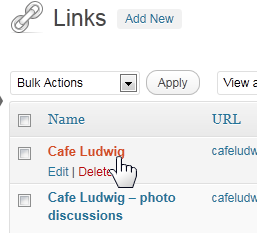 You can go back to make correction and changes at any time. Click the All Links tab, then move the pointer to the link name. The Edit and Delete links will show up as you hover there.
Just click Edit to bring up the Edit Link page which looks just like the Add New Link page. You can make all the needed changes.
Of course you can go back at any time to add additional links or to remove some from your list.
With the list of links completed, the final step is to add the widget to the sidebar.
Add the Links Widget to the sidebar
Under Appearance in the navigation bar find the Widgets tab – you may have to expand the group. Click the Widgets tab.
In the main widget area find the Links bar and drag it to the sidebar. 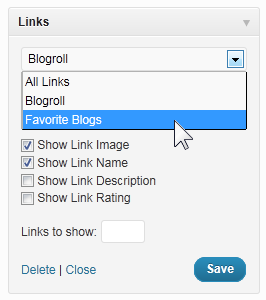 You can position it up or down in the sidebar by just dragging it like any other widget.
Click the down arrowhead to show the options. The default category will be Blogroll, click the down arrow and click your category.
You can check the other options. You can also define how many links to show.
Thne click the Save button and the widget will be shown on your blog.
Note: If you had your blog open in another browser window, you may have to click the refresh link to see the latest changes.
You clicked Show Link Image and there is no image with the listing there? That another good question and calls for its own answer. It is covered in another post:
How do I add images to my WordPress Links Widget?
 |
 |
 |
© 2011 Ludwig Keck
.:.


 Ask Ludwig