How do I create a new SkyDrive album?

You can create a new album on your Windows Live SkyDrive a couple of ways. You can do it in your SkyDrive when you are logged in to your Windows Live account, or you can do it from Windows Live Photo Gallery. Actually there are some other ways, here I will discuss just how to create a new album on SkyDrive.

Log in to your Windows Live account: Start your browser and go to live.com. Your browser might have remembered your credentials and logs you in, otherwise you will see the log in page.image

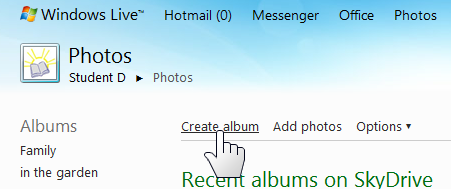
  • Click Photos on the link bar at the top.image
  • Click Create album
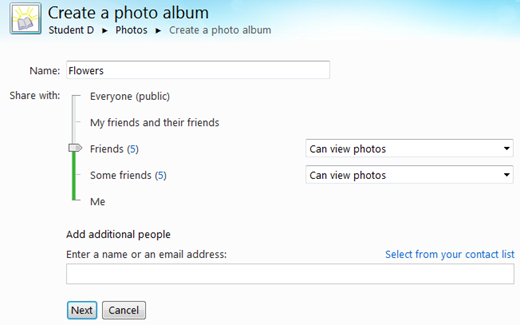
  • Type the name that you wish to assign to the album. Note that “New album” is the default name, it is already selected (highlighted) so you can type right over it.
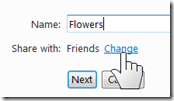
  • Pick who you want to share the album with. The default is Friends, but you can imagechange that by clicking Change.
  • Set the slider to the appropriate position for sharing. You can also share this album with people you specify in the area  below the slider. Sharing of albums and folders is described in more detail another post.
image

  • Click Next. The album will be created. On the next page you have the opportunity to add photos to the album by dragging them from Windows Explorer or from Live Photo Gallery. That process is described in another post.
  • Click Continue to complete the process.


To see how to create a new photo album using Windows Live Photo Gallery see “How do I upload photos from Photo Gallery?”
 

How do I get to SkyDrive?

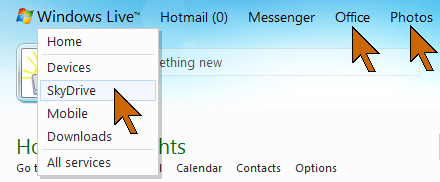
To access your Windows Live SkyDrive log in to live.com with your Windows Live ID. This gets you to your Windows Live Home page. Across the top are links including Office and Photos, these access the documents and albums sections of your SkyDrive.

image

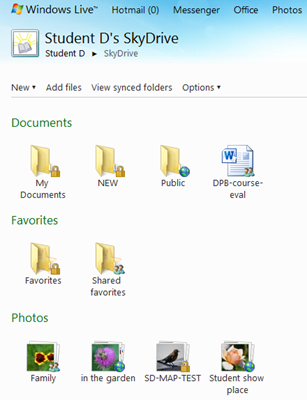
To see all of the contents of your SkyDrive, right-click on Windows Live. On the small drop-down menu click SkyDrive. This will show all the contents of your SkyDrive. Here is a typical view:

image

Note that the contents is organized into sections. Shown are folders, documents (not filed in any folder), and photo albums. Also note the little symbols in the lower right corner of the icons. These indicate how that item is shared. The little padlock indicates a private item – only you have access to that. The people symbol shows that the item is shared with one or more other specific users. The small globe means that the item is public and accessible to anyone in the world.

What is SkyDrive?

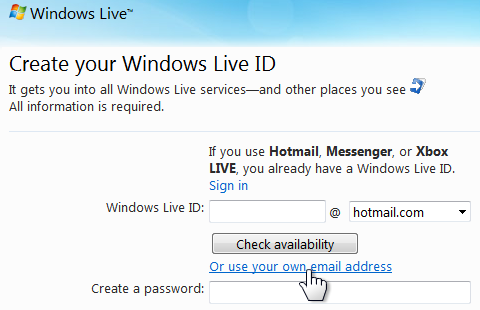
Windows Live SkyDrive is an online file store available free to all users with a Windows Live ID. The service provides currently (Oct 2010) 25 gigabytes of free storage for documents and photos. If you have a Windows Live ID you already have access to this store, just log in to live.com. I you do not have a Windows Live ID, you can get on at that same site (click Sign up). You can sign up to get a Hotmail email account or you can get a Windows Live ID without the Hotmail account and using another email address (see link at pointer in illustration below).

image

For additional information see: Windows Live SkyDrive.