When I add a photo to a WordPress post, where does it go?

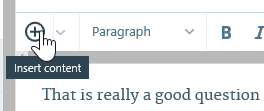
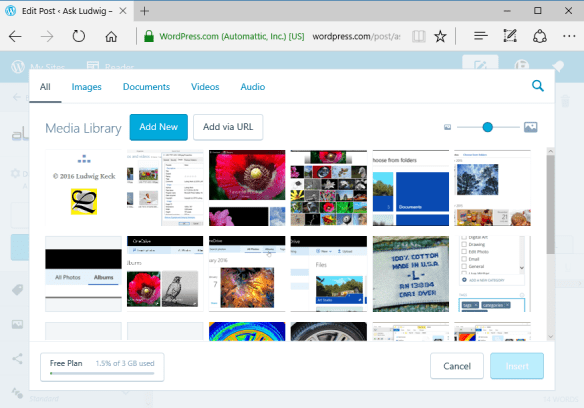
That is really a good question because images do not go “into a post”. askludwig-170114-02You actually know the answer, you just might not be aware of it. When you prepare a post, starting at WordPress.com, and you click the circled-plus icon to “insert contents”. It opens an overlay that shows your “Media Library“. It will look a bit like this:
askludwig-170114-03

You can click on an image and then you’ll get an “Insert” button. This tells you already that your images are stored in your “Media Library“. If you wish to insert a photo that is on your computer you would click Add New. That opens another window, this time one that shows the files on your computer, and you can select the photo to upload to your Media Library.

As soon as you have selected the image and clicked Open, the file window closes and you are back to the Media Library, but now it shows the newly uploaded photo and it is already selected for you. Just click Insert and it is in your post.

There is another hint in the insert-option window. Take a look at the illustration above once more, but look in the lower left corner. There is tells you how much of the storage space you are using.

With your WordPress blog account you also get 3 GB of storage space. That is where your images are stored. In the “basement” of WordPress, I should probably have said in the WordPress server “cloud”.  If you are using a self-hosted blogging account it is just a bit different since you will be storing your images on servers at your hosting service.

.:.

© 2017 Ludwig Keck

How do I show my copyright for photos?

When you press down on the shutter release you have established a copyright in the resulting image. You may then state your copyright. Many people will place an extensive copyright statement on the About page of their website.

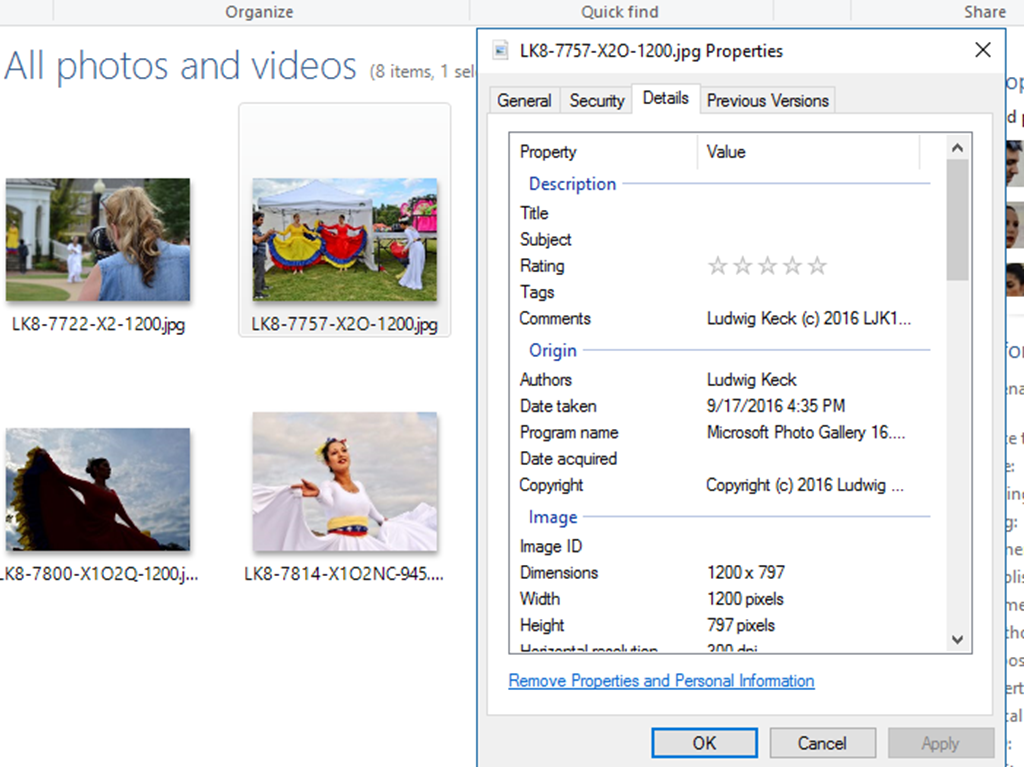
The EXIF data of photos is used generally to also show a copyright notice. You can add it by right-clicking the file and selecting Properties. You will find a place for the notice. I generally use this as my copyright notice:

Copyright © 2016 Ludwig Keck. All rights reserved.

If the copyright symbol is not readily available, the accepted alternate method is to enclose the letter “c” in parentheses, thus: (c). You can see this in the illustration here:

msohtmlclipclip_image001.pngIn my case here the copyright notice was placed into the EXIF, properties, fields by my camera. It does not have the symbol © hence I use the alternate form. Also notice that in my photo files the notice appears in two locations, the Copyright field and the Comments field. Keep in mind that any thief can easily delete or replace this information. Not all cameras allow for this feature. For photos from other cameras I add the notice with a bulk select and opening the Properties dialog and I copy or type the notice in. I also add my name in the Authors field.

At the bottom of every blog post I add “boilerplate” like this:

msohtmlclipclip_image002

Note the short form copyright notice (there are links above and below this notice to my “gateway” sites).

All the notices don’t make a bit of difference to thieves. Images are still stolen all the time. I protect a little against that by only posting low resolution images (generally about 1200px on the big side). At least this will make the images not suitable for printing or where better resolution is required.

You can also register a photo, or a collection of photos, with the U. S. Copyright Office or equivalent agencies in other countries. The process takes some time. In the U.S.A. there is no charge, however a copy of each image must be supplied to the Copyright office. I have done that only with books, not my individual photos. Such registration gives you some additional rights and protections that come into play only in law suits. You have to go after the bad guys in court, nobody else does that for you. It is costly as you can imagine.

I should also point out that just because you have taken the photo you may not be fully entitled to use it any way you like. The little thumbnail photos above show people in recognizable form. That entitles them to protection of their own likenesses. I did not get “model releases” for these photos and therefore I am rather limited with what I can do. I can use them in blogs as those are “news stories”, but I can’t sell those images as “wall art” or for use in advertising or what-have-you.

Please note that I have explained here what I do. I can not tell you what you should do as I am not a lawyer and thus not qualified to give legal advise. Consult with a lawyer to learn what is appropriate in your own case.

.:.

© 2016 Ludwig Keck

What is a OneDrive Album?

Once upon a time, when OneDrive was still called SkyDrive, the words “album” and “folder” meant the same thing. The only difference was that a folder containing photos was called “album”. Nowadays the term “Album” describes something totally different.

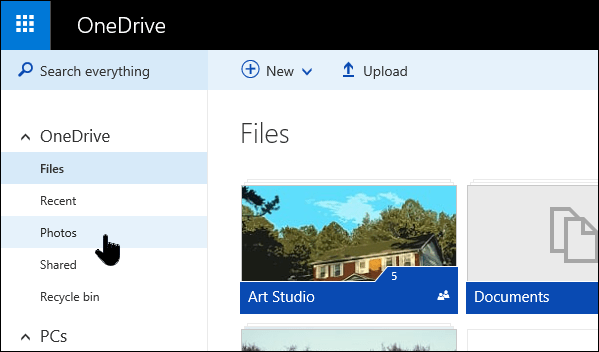
OneDrive still has files and folders, of course, but when you click Photos, over in the left sidebar, you are taken into a “new world”.

OneDrive-Album-01

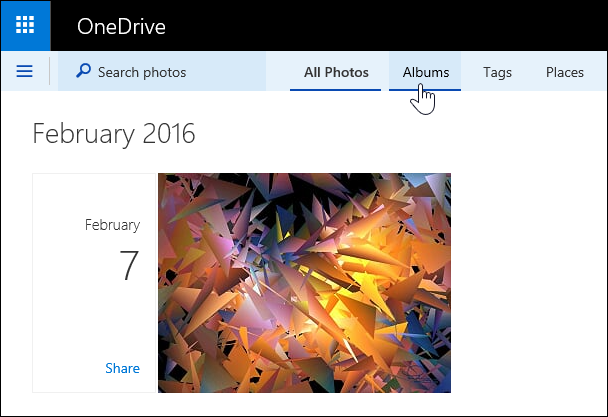
That “new world” lists All Photos, Albums, Tags, and Places in the menu bar.

OneDrive-Album-02

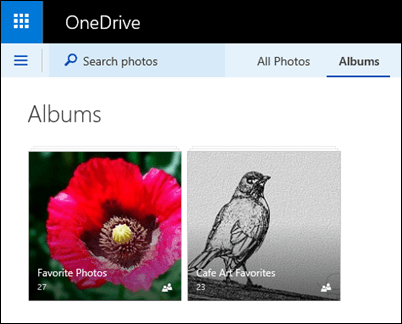
So what are those? For this article we will stick to just Albums.

Let’s step back a bit in time. Older folks may remember the card catalogs in libraries, real libraries with books on shelves. OneDrive-Album-03The card catalogs were organized by title, some by subject. Once you found what you were looking for there was a reference to the actual location of the book – I am simplifying just a little. What I am trying to say is that you got a reference that led you to the book.

Well OneDrive Albums work in a similar way. What you can place into an Album are not your actual photos but references to them. When you add a photo to an Album, the actual photo stays in the folder that it is in, but you can see the photo in the Album.

Making an Album

It may help to understand Albums better by going through the steps of making one. When you are in Albums there is an option on the menu bar, + New album.

OneDrive-Album-04

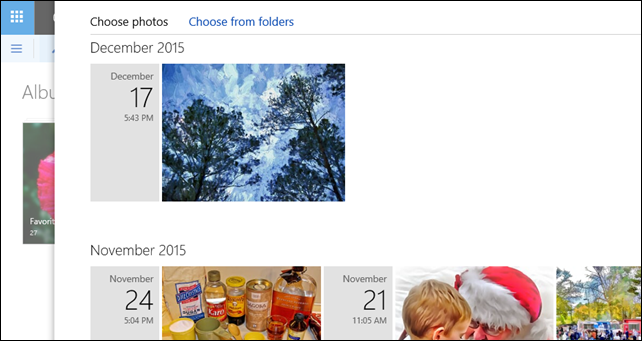
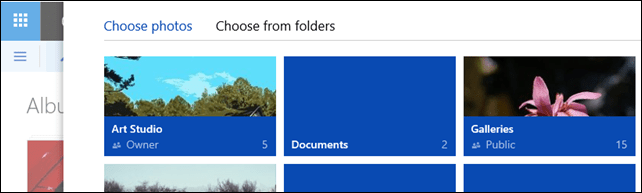
The + New album link brings up options to select the photos to add to the album either from Choose photos with the photos in date order (illustrated here) or Choose from folders, with the folders arranged just the way you see them when you first log into OneDrive (illustrated below next).

OneDrive-Album-05

OneDrive-Album-06

It is possible to select any photos, located anywhere in OneDrive, with no regard to their present sharing settings, and add them to an Album. The photos are not moved, they stay where they are. In the Album the photos are merely “referenced”, but you can see them.

You can arrange the photos in the Album as you like. The Album can be shared, just like a folder or an individual photo. Photos can be included in other Albums. Remember, the actual photo files stay in their actual locations.

Albums are very neat ways of showing and sharing photos in whatever grouping desired, however many, or whatever order. Neat, yes?

OneDrive-Album-07

.:.

© 2016 Ludwig Keck

What are tags and categories in WordPress blogging?

Tags and Categories

Tag

Tag

When you shop for clothes you look at the tags to learn the size, material, and more on the items. Tags work the same way for blog posts, they give information about the topics covered. They help readers find articles of interest.

This post is tagged “tags”, “categories”, “Blogging”, “WordPress”. Tags are thus for the public. On most blogs readers find them at the top or bottom of a post. Like this:

Tags-02

Tags-01When a reader clicks on such a tag, other articles with the same tag are shown. Readers can also set up tags they wish to follow in the WordPress Reader.

“Categories” are a tool for the blogger. They help you organize your posts by, well, by “category”. You can set up a menu item for a category. When the item is clicked a page is generated that shows posts that were marked with that category. This is most useful if you blog about several distinct topics, say “travel”, “photography”, “cooking”, you, or your readers can then see the related posts without having to sort through others. Take a look at the menu bar on this blog. If you click “Posts on Blogging” you get my posts on that subject, but only my posts! Similarly if you click on one of the links shown in “This entry was posted in” at the bottom of my post, you get just my posts on that topic.

To recap, “tags” are topics assigned by many bloggers and the Reader will find posts on that topic from all bloggers. “Categories” are your own and keep the reader in your own site.

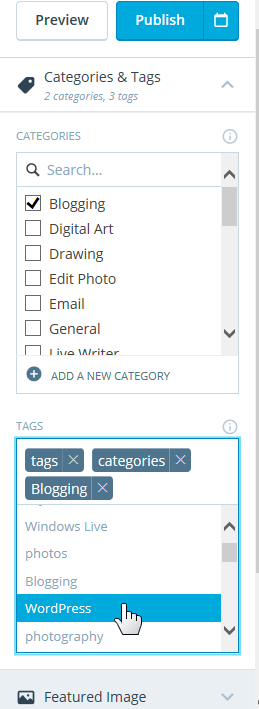
When you use the WordPress.com online editor you can assign categories and tags in the sidebar as shown in the illustration on the left.


.:.

© 2016 Ludwig Keck