When a picture is inserted in a Microsoft Office Word document it is scaled to fit. The size can be set to other values to suit the document. In the Size dialog window the size of the picture is shown in inches and as a percentage of the “Original size” which is also given as the height and width in inches. So, how does Word come up with the “original size”?
The EXIF data of photo files contains a couple of values name “X resolution” and “Y resolution”. In a Windows Properties box they show up as “Horizontal resolution” and “Vertical resolution” and are given in “dpi”. That last item, the unit of measure, “dpi”, stands for “dots per inch”. There is your big clue. Using “dots” was the way pictures were printed on paper in the old days. Well, if you pick up a newspaper you can still see them nowadays.
These resolution values do not describe anything relating to the picture, they are setting instructions for printers. They can be changed by a number of programs. Changing these values does not affect the picture at all. The number of pixels stays the same, the color depth is not affected. So these values can be changed at will. Several programs, in fact, do that. Cameras set these values, most to 300, some to other values. When Windows Live Photo Gallery makes a JPG copy of a photo it sets the values to 72. Some other editors use 96. I have one that uses 472, another 262. It really does not matter.
For the most part these numbers are meaningless. Microsoft Office Word, however, uses these resolution values as they were originally intended: As printing instructions specifying the dimensions of the printed picture on paper. If you have a photo that is 768 pixels wide and the horizontal resolution value is set to 96, then the picture printed size is 8 inches (8 inch multiplied by 96 dots per inch yields 768 dots – the pixels dimension of the picture).
So Word will set the “100%” size to 8.0 inch – if this does not fit in the margin settings, the picture will be scaled down and the Scale value will be a lower number.
Normally that is not a problem as most pictures have either 72 or 96 set as the resolution value. If the 768 pixel wide picture had the resolution set to 256 then Word would calculate the width as 768 / 256 = 3 inches. It would most like be set to that value and look somewhat small. It is perfectly acceptable to increase the size setting. If you want the picture to appear 6 inch wide you can set the scale to 200%. Word keeps the original number of pixels of the picture intact until the document is printed or saved with certain save or export options.
.:.
© 2012 Ludwig Keck



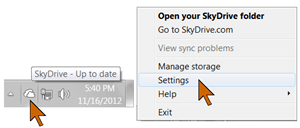 Right-click the SkyDrive icon in the notification area.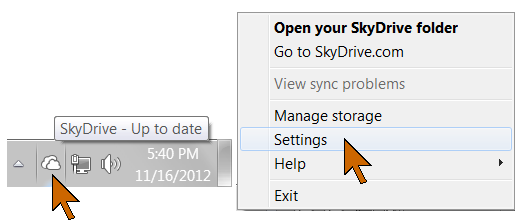
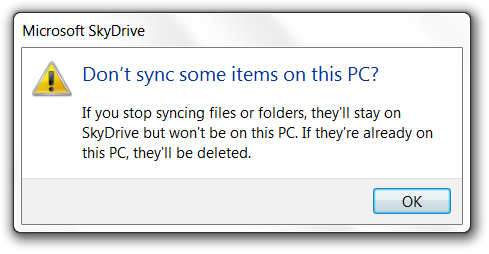 The first time you do this you will see a notice as shown here. It says: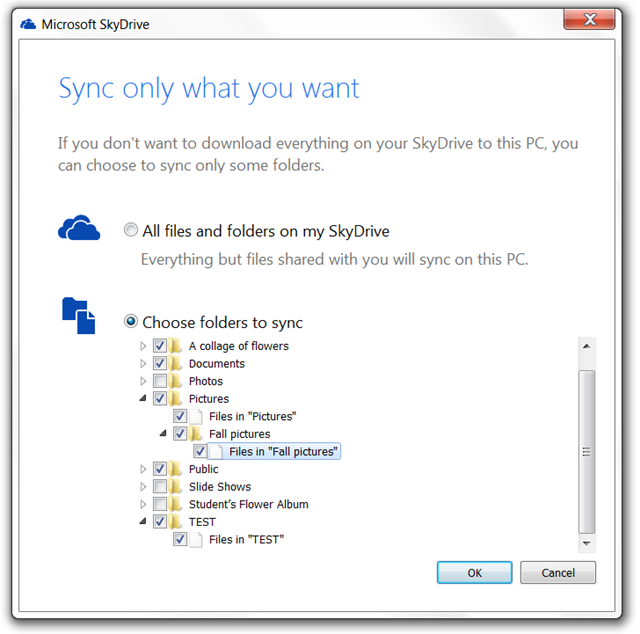


 Ask Ludwig