Can WordPress categories be managed with Windows Live Writer?

WordPress categories can be managed best from the WordPress Dashboard. In Live Writer, categories can be added or removed from existing or new posts and new categories can be added. Here is how:

Open the post in Windows Live Writer – it can be a draft, a recent post, or even an older post. Live Writer always downloads a published post from your site even when you open it from your “My Weblog Posts” folder.
image

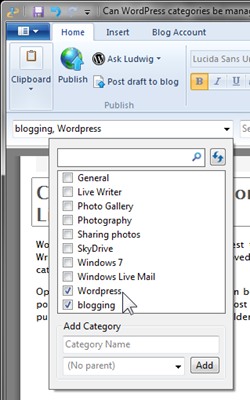
The assigned category or categories show in the bar right above the post text pane.

Click anywhere in that text box to open the category window.

Just set the the check marks for the categories – click the box in front of the listing to set or unset.

If you wish to add a new category, enter the category name in the box below “Add Category”. Then click the Add button. The category will be added to your post and when the post is published become part of your blogs categories.

Note that categories can be arranged in hierarchical form. That is, a category can be a sub-category of another. Just specify the “parent” category in the drop-down menu next to the Add button.

Click Publish to send the post and the changes to your site.

So, categories can be managed in Live Writer with the exception that a category cannot be removed. That you do have to do in your WordPress Dashboard.


The gateway to my blogs and galleries is Café Ludwig

.:.

© 2011 Ludwig Keck

.
Can I remove a category on a WordPress blog post?

The category and tag links on WordPress blog posts provide a quick way for readers to find related articles. More than one category can be shown on a post. If you posted with a category that you later decide is not appropriate, is is easily removed or changed.

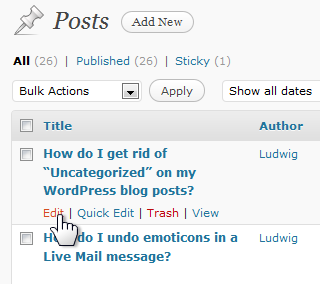
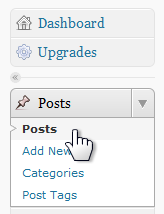
Sign in to your WordPress Dashboard. On the left find the Posts link. Click on it to expand the menu. Click on the next Posts link.image This will bring up a page listing your imageposts. Move the pointer to just below the title of the post you wish to modify. This makes several option links visible. Click the Edit link.

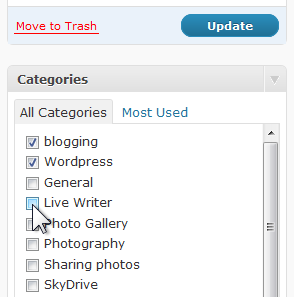
The Edit Post page comes up with that post loaded. Over on the right side, you may have to scroll down a bit, find the Categories listings. image

Note that the currently assigned categories show a check mark in the box in front of the category name.

To add a category just click the box or category name you wish to add.

Similarly, click on an already checked category to uncheck it.

Click the Update button. Now only the checked categories will show for that post.

You can even add a new category right on this page. There is an Add New Category link right below the categories listing.


The gateway to my blogs and galleries is Café Ludwig

.:.

© 2011 Ludwig Keck

How do I get rid of “Uncategorized” on my WordPress blog posts?

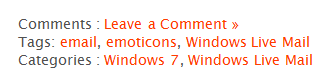
WordPress posts are identified with categories and tags to make it easier for readers to find related information. These labels are shown above or below imageposts and can be shown in sidebar “widgets”. The default category is “Uncategorized”.

A default category, the one used if you do not make a specific assignment, is required, but it need not be named “Uncategorized”. You can change it to another term. I use “General”.

Here is how to change the category name

Open your WordPress Dashboard. On the left click Posts to expand that menu. Click Categories. The categories are shown in a pane on the right.

image

image

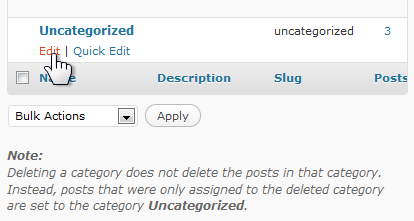
Find the Uncategorized listing in the table. Option links become visible when you move pointer to just below the category name. imageClick Edit.

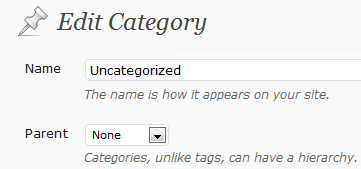
On the Edit Category page you can change the name of the category. Edit out the current name and type in the term you prefer.

Click the Update button.

You are done.

In all places where the term Uncategorized used to appear, the new term will now be displayed.

.

The gateway to my blogs and galleries is Café Ludwig

.:.

© 2011 Ludwig Keck