Can the defaults for WordPad be changed?

In Windows 7 the default word processing program is WordPad-05WordPad which offers basic features including font and paragraph controls. The default settings are fixed and not easily changed by the average user. This article shows a work-around for “pre-setting”  font and paragraph properties to more desirable settings.
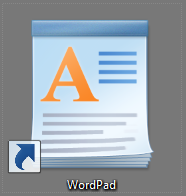
The approach creates a desktop shortcut for WordPad that opens a “template” document, thus loading the desired settings. The template is set to read-only so is is not accidentally over-written when the document is saved.

Prepare a WordPad “template” file
  • WordPad-01Open WordPad in the normal manner.
  • Set the desired features such as font, font size, paragraph spacing, tab positions, without typing any text.
  • Save the document to your normal document folder using a name such as “WordPad-template”.
  • Open Windows Explorer and locate the “My Documents” folder (or the folder you are using for documents).
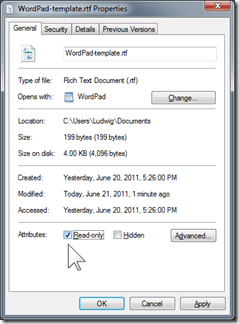
  • Locate the file and right-click on it. Click Properties (at the bottom of the menu).
  • In the properties dialog click Read-only so the box is checked.
  • Click OK.
  • Click in the address bar of Windows Explorer. The folder location will be shown and selected.
  • Click Ctrl+C to copy the folder address for use later.

Now your template file is ready.

Create a shortcut that loads the template

The next step is to create a shortcut on the desktop that starts WordPad and loads the template file. 

  • Click Start, type “wordpad”. WordPad will be listed at the top of the start menu and beWordPad-04 already selected. Right-click on that program listing for WordPad. 
  • Move the pointer down to Send to then to the right and click on  Desktop (create shortcut).
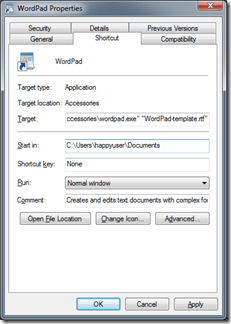
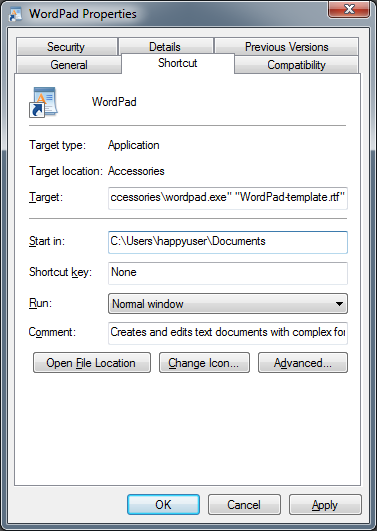
  • Right-click the newly created shortcut icon and click on Properties (at the bottom of the menu). The WordPad Properties dialog opens with the Shortcut tab selected.
  • Find the Target: text box. Click anywhere in the box and press the End key to get to the end of the text that is already in the box.
  • Press the spacebar to enter a space then type in the full name of your template file. You can see that illustrated here. I have enclosed my template file name in quotes, this is only necessary if the file name contains spaces, but it does not hurt.
  • Locate the Start in: text box. Click in the box then press Ctrl+V to paste the saved address of your documents folder.
  • Click OK.

Using WordPad with your defaults

WordPad-02Your shortcut is now ready to use. Every time you double-click this shortcut WordPad opens and loads the template file. Your presets will be applied to any text you enter. You can still use all the controls.

When you click the Save icon or select Save or Save as the “Save as” dialog will open and you can enter the name of your document. WordPad-03Even if you try to overwrite the template file Windows will not let you do so. You will see a warning like this:
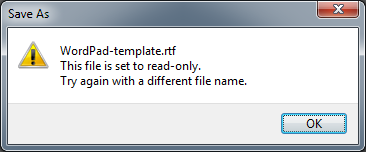
So you can safely and effectively use this approach to preset WordPad to the font and other properties that you prefer.

Happy writing!


© 2011 Ludwig Keck

.:.

How do I add images to my WordPress Links Widget?

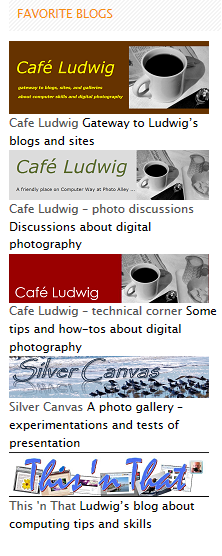
Showing links to other blogs and sites is a common way to help your readers connect with more of what they are interested in. Making those links interesting and easier to use with graphics adds a nice touch. Most blogs have sidebars for displaying information, details and links. In a WordPress blog, the Links Widget is a versatile and useful tool and can display images. This post tells you how to do it.

First you need images. These need to be stored on the Internet so they can be accessed and displayed. Lastly they need to be an acceptable size.

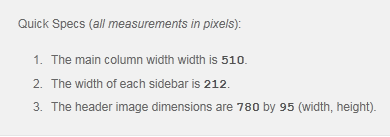
Let’s start with that last item, the size. Sidebars come in various sizes. You want images that fit the sidebar of you blog. Don’t know how wide your sidebar is?image In your WordPress Dashboard, click Themes (under Appearance in the navigation pane on the left). Your current theme is shown on the top. There is a link, “Read more about …”, click it and scroll down to find the “Quick Specs” panel about your theme.

It will list the column width, the sidebar width and the header image size. Note the sidebar width. I suggest you make your images about 10 pixels narrower than the sidebar so that they will fit nicely. For this blog, the sidebar width is 212 pixels, I make my images 200 pixels wide. The height is not so important, but the Links list looks best with strip images so it does not get to be too long.

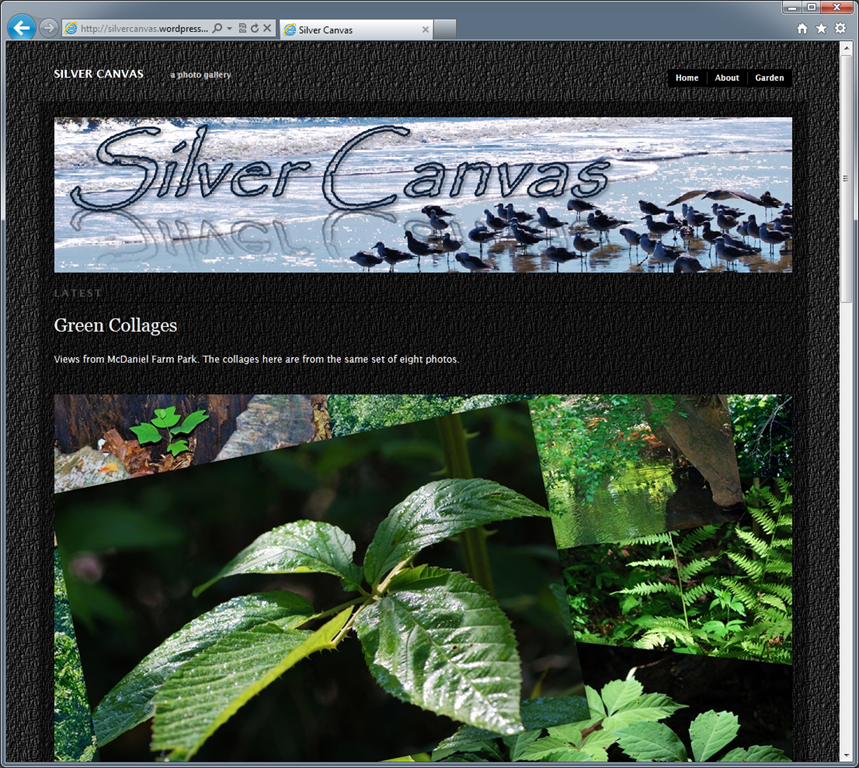
Now what images should you use? If you link to other blogs or sites, the headers of those pages make excellent images. They show a visual of the target page even before your visitor gets there.

Making the logo images

Open your browser to your target page. Do a screen capture. I use the tools built into Windows 7, so Alt-PrintScreen captures the open window. Next open Paint and click Paste. The image of the browser will now be shown in Paint.

image Logo-capture

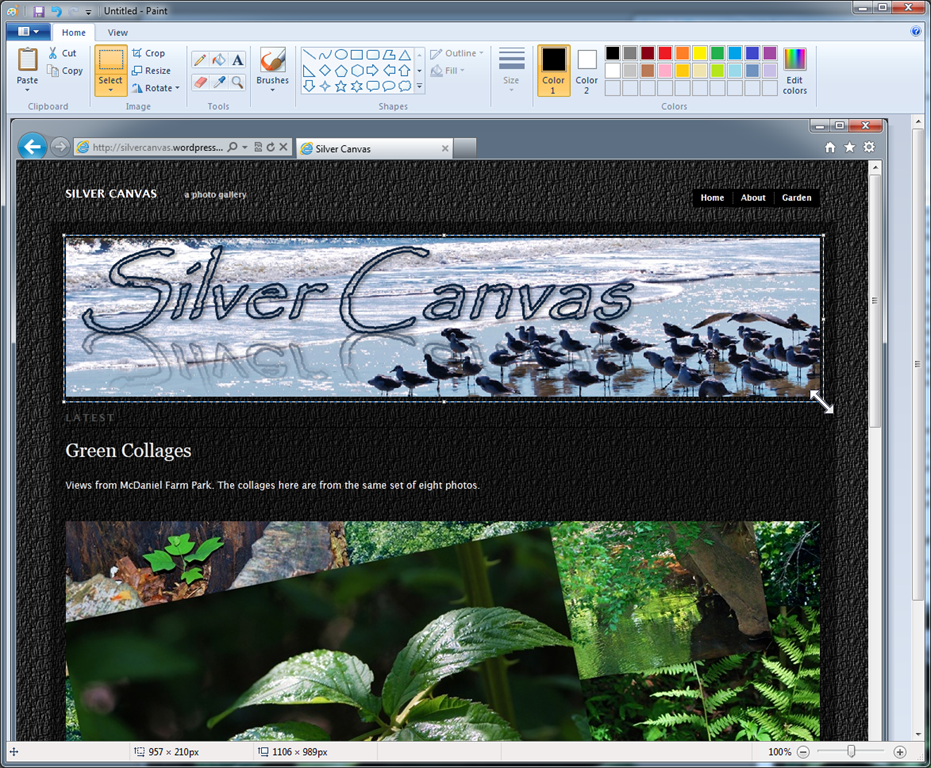
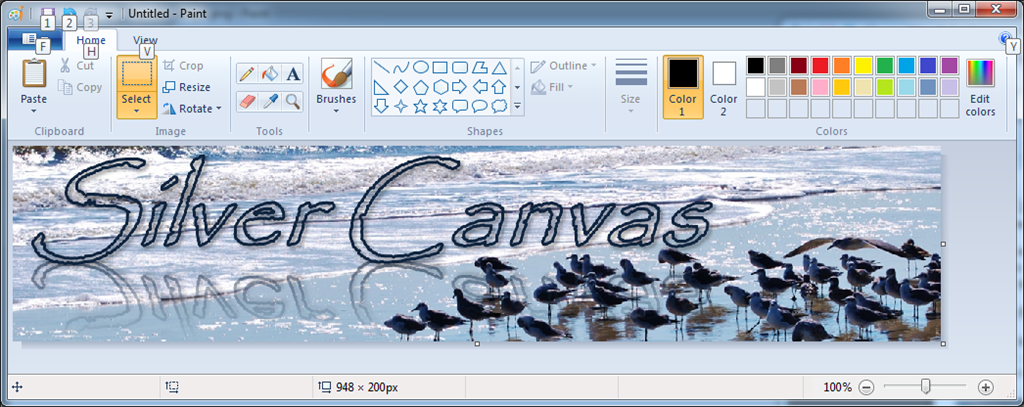
Click Select and drag a frame around the header image or header area of the page. Click Crop. The header image is now the only thing in Paint.

image

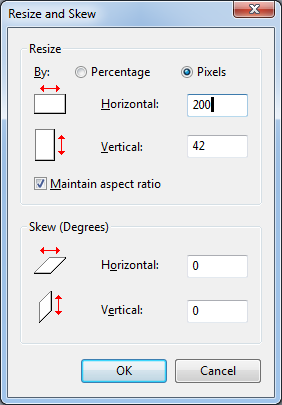
Click Resize. In this dialog click Pixels. Then enter the size for the width of the image. In my case that is 200. Leave the checkmark on Maintain aspect ratio so the image will not get distorted. imageClick OK.


The image will now be shown in the small size that you have selected. Save it into your Pictures folder (or another location) giving it a name that tells you what it is later on.

Do this with your other target pages that you will want to link to on your blog.

Windows 7 Paint saves the images as PNG format – that is fine for this intended use.


Upload the images to your WordPress Media Library

Once you have made your link logo images, upload them to the Media Library. In your WordPress Dashboard expand the Media section image(click on Media) then click Add New. The Upload New Media page opens.

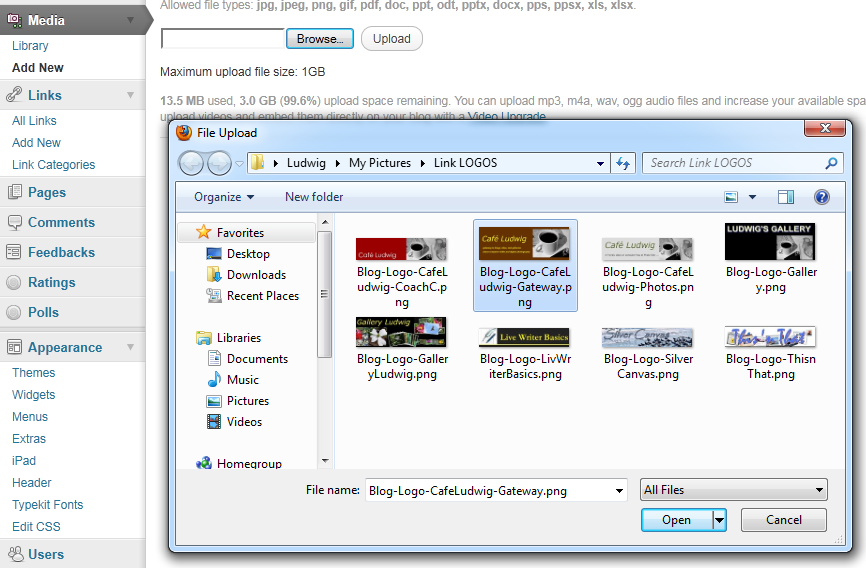
Click Browse. In the File Upload dialog locate the folder with your link logo images. Click on one of them. Click Open. Then click Upload in the Upload New Media page.

Repeat for your other images.

Now the images are in your Media Library.

Add images to Linksimage

Open your Media Library – click MediaLibrary in the navigation bar. All your images are listed. Click on the one you want. The Edit Media page for that image opens. Under File URL you can see the full web address of the image. Select it (hold down the left mouse button and drag over the address). Press Ctrl+C to copy the address.

Now click LinksAll Links, then the one of interest. Scroll down until you see AdvancedImage Address. Click in the address text space then press Ctrl+V to paste the address. Click Update Link. That’s it. Do this for the others.

Be sure to check your Links Widget to make sure that the the Show Link Image box is checked. If it is not, click it so it’s checked and click Save.

Now your Links Widget displays your links with the logo images you prepared. Hurray!

Also see:

How do I show links to other blogs in the sidebar of my WordPress blog?


© 2011 Ludwig Keck

.:.

How do I show links to other blogs in the sidebar of my WordPress blog?

WordPress offers an array of “Widgets’” hat can be placed in sidebars to show a wide variety of material. The “Links” widget is one of those and shows links to other blogs and sites. This is one widget that is not too easy to use as a number of steps are required to set it up the way you like.

Your blog already has a number of links in a category called “Blogroll” that were set up along with your blog. You can modify this group, but it is easier to add a new “Link Category”. You need to add the links you want, and finally you need to place the Links Widget into the sidebar. Lets take these up in order.

Set up a Link Category

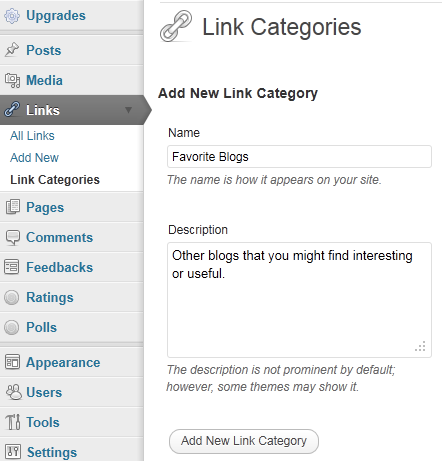
On the WordPress Dashboard, in the navigation pane on the left, find Links. If it is not expanded click it so the tabs “All Links”, “Add New”, and “Link Categories” show. Click Link Categories to display the Link Categories page. image

In the Name field enter the title you wish to show above the link list in the sidebar. You can enter a description to explain the list in more detail. Then click the button below the fields, “Add New Link Catergory”.

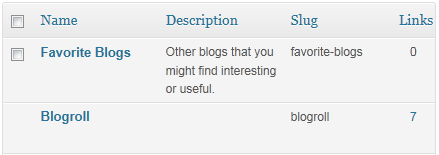
This will add the category to the listing on the right.

image

Add new links

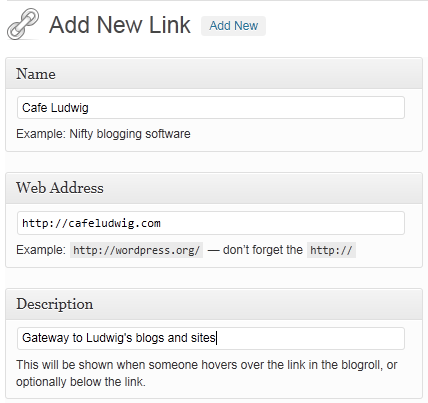
imageClick the Add New tab to bring up the Add New Link page. Fill in the spaces with the name of the blog or site, the full URL, that includes the “http://” part, and some description of the link.

In the Categories field click the category that you set up earlier.

Be sure to click the Add Link button.

You will see a message “Link added.”

Continue adding the other links that you wish to show in the same way until you have entered them all.

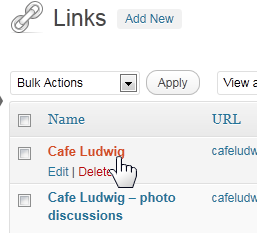
imageYou can go back to make correction and changes at any time. Click the All Links tab, then move the pointer to the link name. The Edit and Delete links will show up as you hover there.

Just click Edit to bring up the Edit Link page which looks just like the Add New Link page. You can make all the needed changes.

Of course you can go back at any time to add additional links or to remove some from your list.

With the list of links completed, the final step is to add the widget to the sidebar.

Add the Links Widget to the sidebar

Under Appearance in the navigation bar find the Widgets tab – you may have to expand the group. Click the Widgets tab.

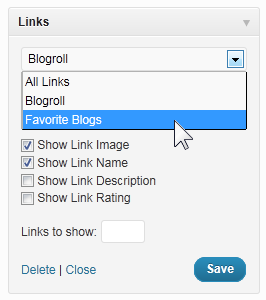
In the main widget area find the Links bar and drag it to the sidebar. imageYou can position it up or down in the sidebar by just dragging it like any other widget.

Click the down arrowhead to show the options. The default category will be Blogroll, click the down arrow and click your category.

You can check the other options. You can also define how many links to show.

Thne click the Save button and the widget will be shown on your blog.

Note: If you had your blog open in another browser window, you may have to click the refresh link to see the latest changes.

You clicked Show Link Image and there is no image with the listing there?  That another good question and calls for its own answer. It is covered in another post:

How do I add images to my WordPress Links Widget?


© 2011 Ludwig Keck

.:.
What is “God Mode”?

“God Mode” is a cute name for an otherwise mundane search listing of the various options in Control Panel. Having all the features displayed in imageWindows Explorer eliminates searching through the menus and offers a real convenience. The different ways of showing the results in Windows Explorer are another benefit of “God Mode”. This tool is actually very simple and does not take up much space.

Here is how to install “God Mode” on your Windows 7 computer:

You need to create a folder in the boot disk of your computer. The common name for this is “Local Disk (C:)”. The new folder has to have a special name. The name can start with any word you like, but the part below, starting with the period, must be as shown.

  • Select the next line shown here and copy it to the clipboard by pressing Ctrl+C.

GodMode.{ED7BA470-8E54-465E-825C-99712043E01C}

  • imageOpen Windows Explorer – click the “Windows Explorer” icon in the Taskbar.
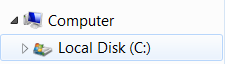
  • In the navigation panel, below Computer, click Local Disk (C:). imageYou may have to expand the Computer listing by clicking the arrowhead symbol in front of it.image
  • Click New folder in the menu bar.
  • imageThe name of the folder is already selected, highlighted, so you can type the desired name of the folder. Don’t type anything, just press Ctrl+V to paste the name you copied from this post. It will look like this:image
  • imagePress Enter to complete the naming process. The folder name will display as “GodMode” and be prefixed with the Control Panel icon.
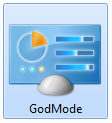
  • To make this feature even more easily accessible, imageplace a shortcut icon on the desktop.
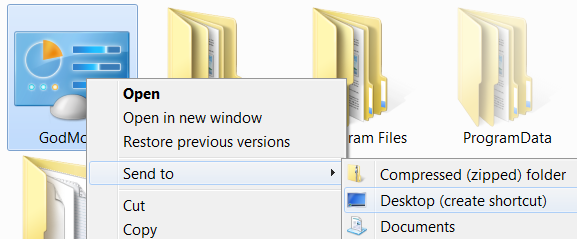
    Right-click the GodMode folder, move the pointer down to Send to, then to the right and click Desktop (create shortcut).
  • Close Windows Explorer.


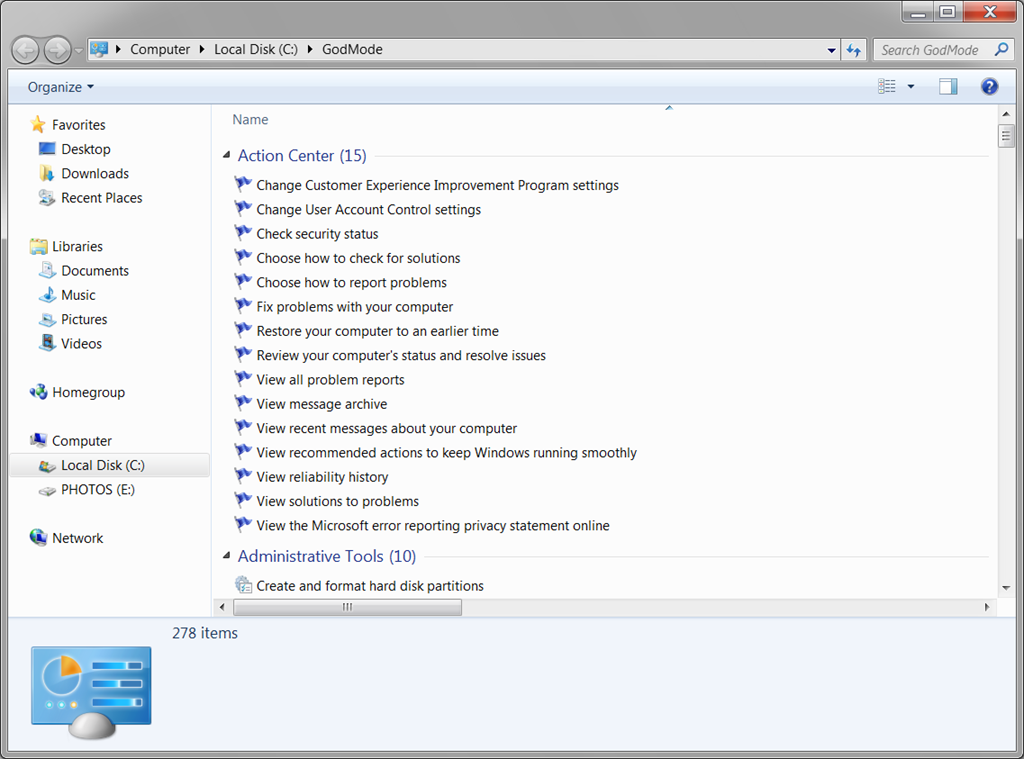
You will now have a Control Panel shortcut icon on your desktop to invoke this feature. Double-click it, Windows Explorer will open and look about like this:

image

Here in one long listing you have all the control functions with good descriptive names. On my computers I get 278 items listed – more than I ever want to use, but, het, this is computing power. All the display features of Windows Explorer are, of course, available to make getting around in this list even easier.


© 2011 Ludwig Keck

.:.